


Components#
Power Manager Components facilitate the user to configure the RAM retained, the peripherals to remain powered on/off, and sets the wake-up sources prior to the M4 entering sleep mode. Following are the Power Manager components (enabled using the UC in Simplicity Studio):
Power Manager
Power Manager Configuration
Wakeup source Configuration
Calendar Wakeup
GPIO Wakeup
Deep Sleep Timer
Wireless Wakeup
UULP peripheral component for the selected wake-up source
Low Power
To know more about installation of components for integration of Power Manager, please visit Power Manager Integration.
Power Manager Component#
Power Manager service is initialized with the installation of this component, user need not initialize the Power Manager service.
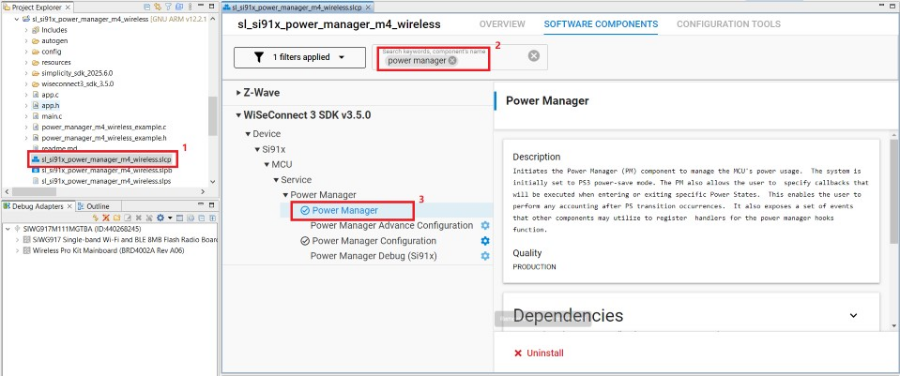
The following components are automatically installed when Power Manager component is installed.
SI91X TICK-LESS MODE Component#
The Tickless idle mode feature will suspend the SiWG917 M4 and keep it in sleep when no tasks are scheduled to run.
Power Manager Configuration Component#
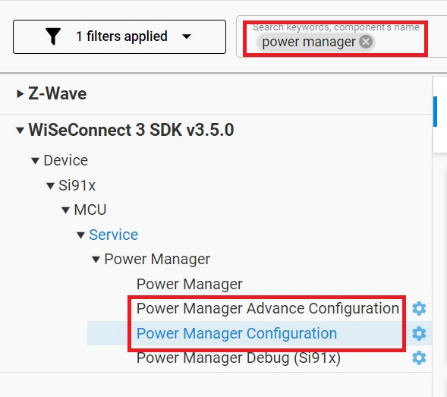
There are two components pertaining to the Power Manager configuration,
Power Manager Advance Configuration
Power Manager Configuration
These components provide control over peripheral enable/disable and RAM retention. Peripheral and RAM retention is configured with the installation of this component, user intervention is not required.
Note: The user can install either 'Power Manager Configuration' or 'Power manager Advance Configuration' component.
Power Manager Configuration#
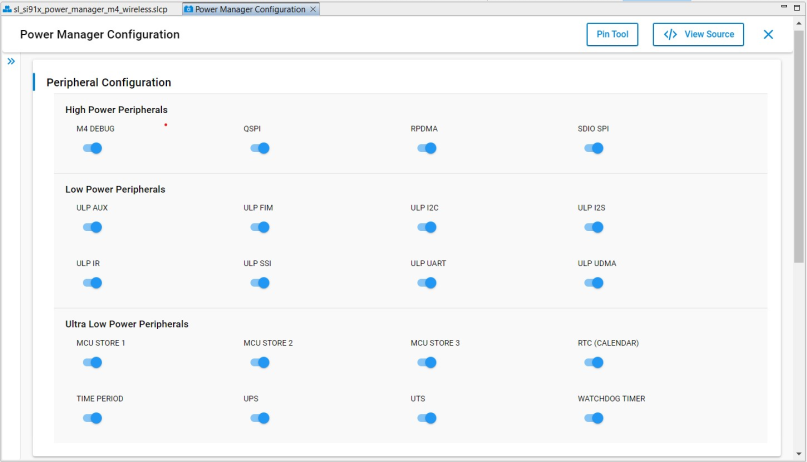
This component is a basic configuration component in which the user can select which peripherals need to be powered on/off according to the domain of the peripheral.
Peripheral Configuration#
High Power Peripherals (available in PS4/PS3 power states)
Low Power Peripherals (available in PS2 power states)
Ultra Low Power Peripherals (available in all power states)
The peripheral availability in different power states and the list of different group of peripherals for which power is controlled through software is given in ‘M4 Power States’ section of AN1430: SiWG917 Low-Power Application Note.
RAM Configuration#
This component also provides configuration for RAM retention. Two options are provided to configure the RAM banks i.e. using size or bank number. The user needs to select any one option.
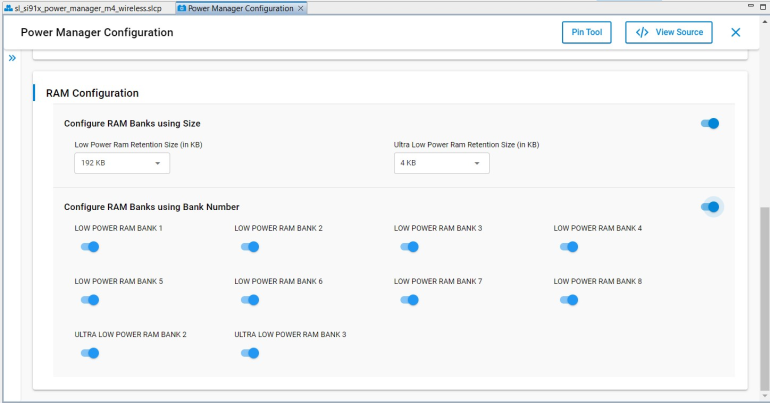
Note: If both RAM banks using size bank numbers are enabled, RAM banks using size will be configured by default.
Power Manager Advance Configuration#
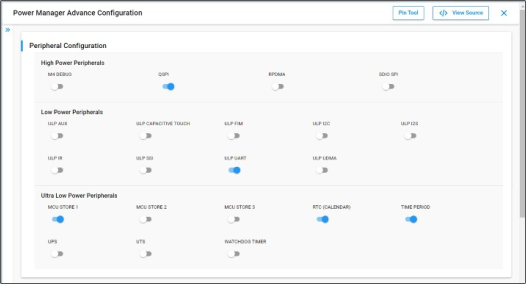
This component is an advance configuration component in which the unwanted peripherals and RAM banks are powered off as shown in the following figure by default. Configurations in this are made to get the optimum power consumption.
Peripheral Configuration
High Power Peripherals (available in PS4/PS3 power states)
Low Power Peripherals (available in PS2 power states)
Ultra Low Power Peripherals (available in all power states)
Note: SiWG917 M4 current may vary as per the selection of peripherals in addition to the default configuration.
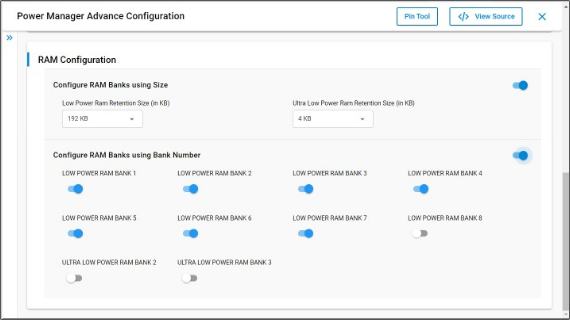
RAM Configuration
The default configuration for RAM retention is already configured to provide the lowest SiWG917 M4 current but if required, the user can configure the RAM banks using size or bank number.
Note: SiWG917 M4 current may vary as per the selection of RAM banks in addition to the default configuration.
Wakeup Source Configuration Component#
This component provides the initialization and configuration for the UULP wake-up sources used in PS4 sleep/PS3 sleep/PS2 sleep.
The UULP wakeup sources that are provided are as follows,
Calendar or Alarm Wakeup
GPIO Wakeup
Deep Sleep Timer Wakeup
Wireless Wakeup
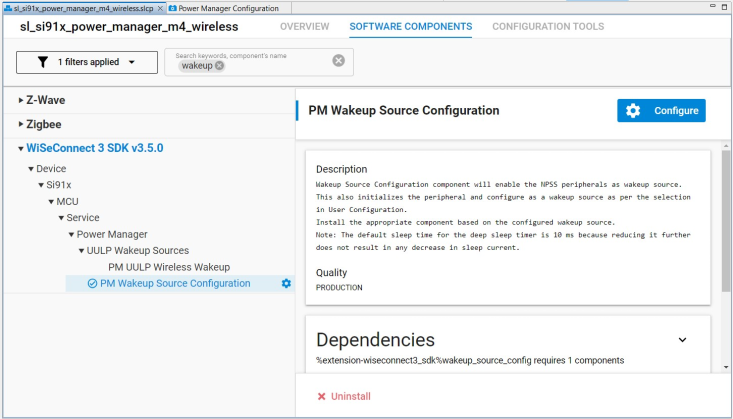
Note: The user must install the respective UULP peripheral components that are selected as a wake-up source. This would get all the dependencies and files related to the peripheral selected.
Calendar or Alarm Wakeup#
Calendar wakeup or Alarm wakeup source can be enabled and configured in terms of seconds and milliseconds. By default, the alarm wake-up source is configured with 5 second alarm trigger. This wakeup source can be enabled using the toggle.
The alarm timer starts running as soon as the wakeup source is initialized prior to M4 sleep and triggers an interrupt upon the timer expiry. The M4 wakes up upon this interrupt.
Note: Milli second timer is recommended to be used, when M4 is in active state. Because the sleep and wake-up transition of M4 takes ~8 ms. The suggested minimum value for this timer is 100 ms.
Alarm time reconfiguration during runtime is not possible with Power Manager. If a user wants to change alarm time in runtime, the user should configure the alarm wake-up source manually with sl_si91x_power_manager_set_wakeup_sources() API without using UC. So, in this case, the initialization of the wake-up source should be done by the user in the application.
Note: The alarm timer is periodic as it is configured every time M4 enters sleep inside the
sl_si91x_power_manager_sleep().
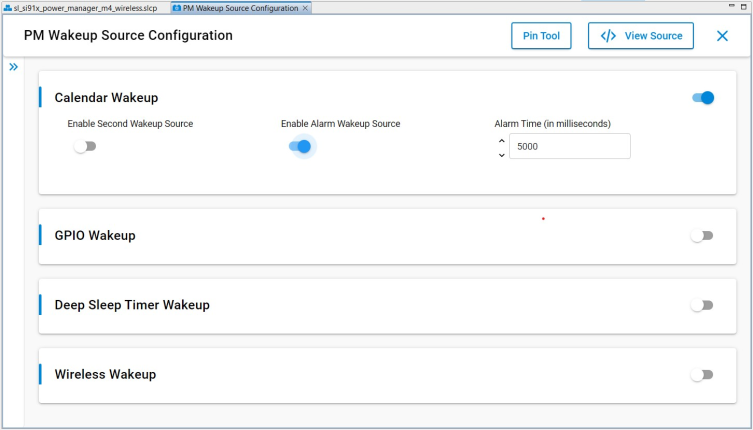
GPIO Wakeup#
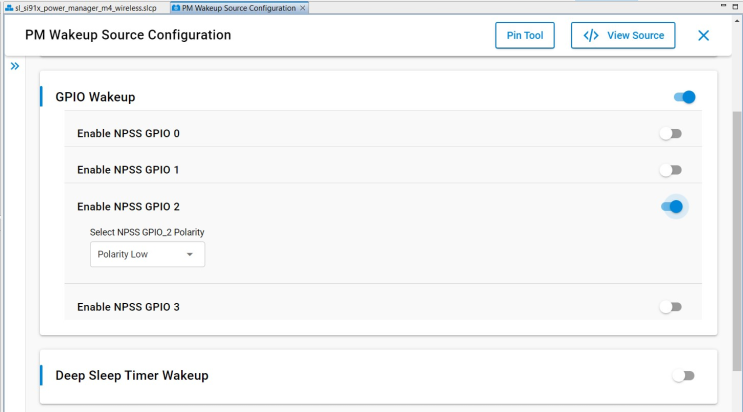
There are 4 UULP GPIO (0 to 3) available as mentioned following figure which can act as a wake-up source. Enabling the GPIO Wake-up allows the user to select the desired GPIO pin as a wake-up source.
The SiWG917 M4 wakes up based on the input from the configured UULP GPIO. Users can configure the polarity of the GPIO wakeup source.
Deep Sleep Timer#
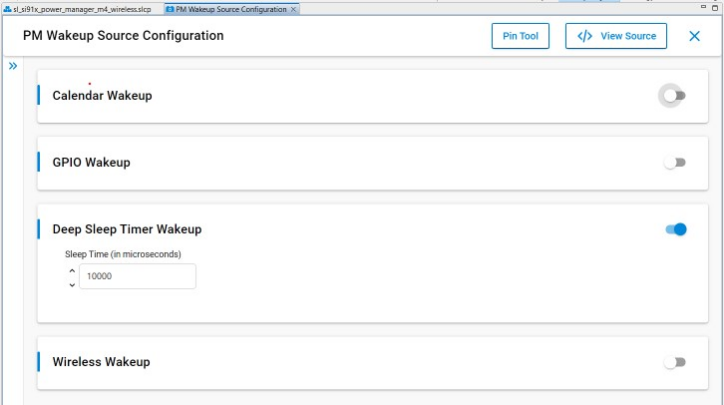
Deep Sleep Timer is used as wakeup source for the SiWG917 M4 in sleep. This timer works only during M4 sleep. The sleep time is configurable in micro-seconds.
Note: Even if the user configured the timer when M4 is in active state, this timer will start when M4 enters sleep mode. The maximum configurable time is 232 micro-seconds (~71 minutes).
Wireless Wakeup#
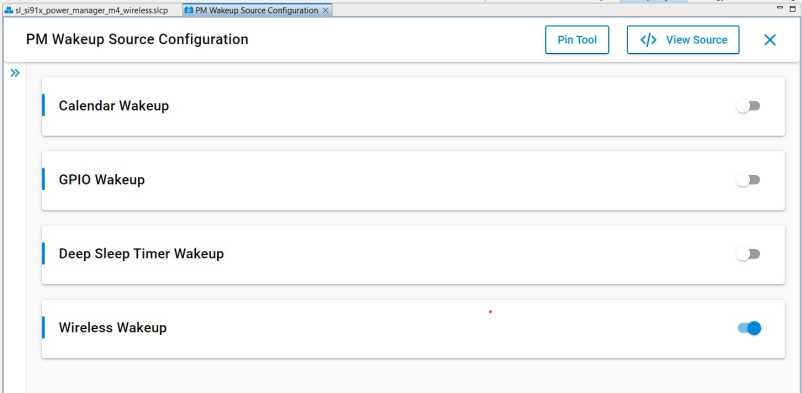
This wake-up source is used when the user wants to wake up M4, when a wireless remote message is received by the NWP. Upon receiving the message, NWP will trigger the M4 to wake up.
Low Power Peripheral Component#
Low Power Peripheral component is for using the ULP peripheral in PS2 state. The installation of this component will move the required driver files to RAM as in PS2 state, the flash will be turned off and M4 can execute from RAM.
Note: Initialization and configuration of the peripheral should be done by the user manually in the application.
For more information, please refer to Power Manager Components integration.