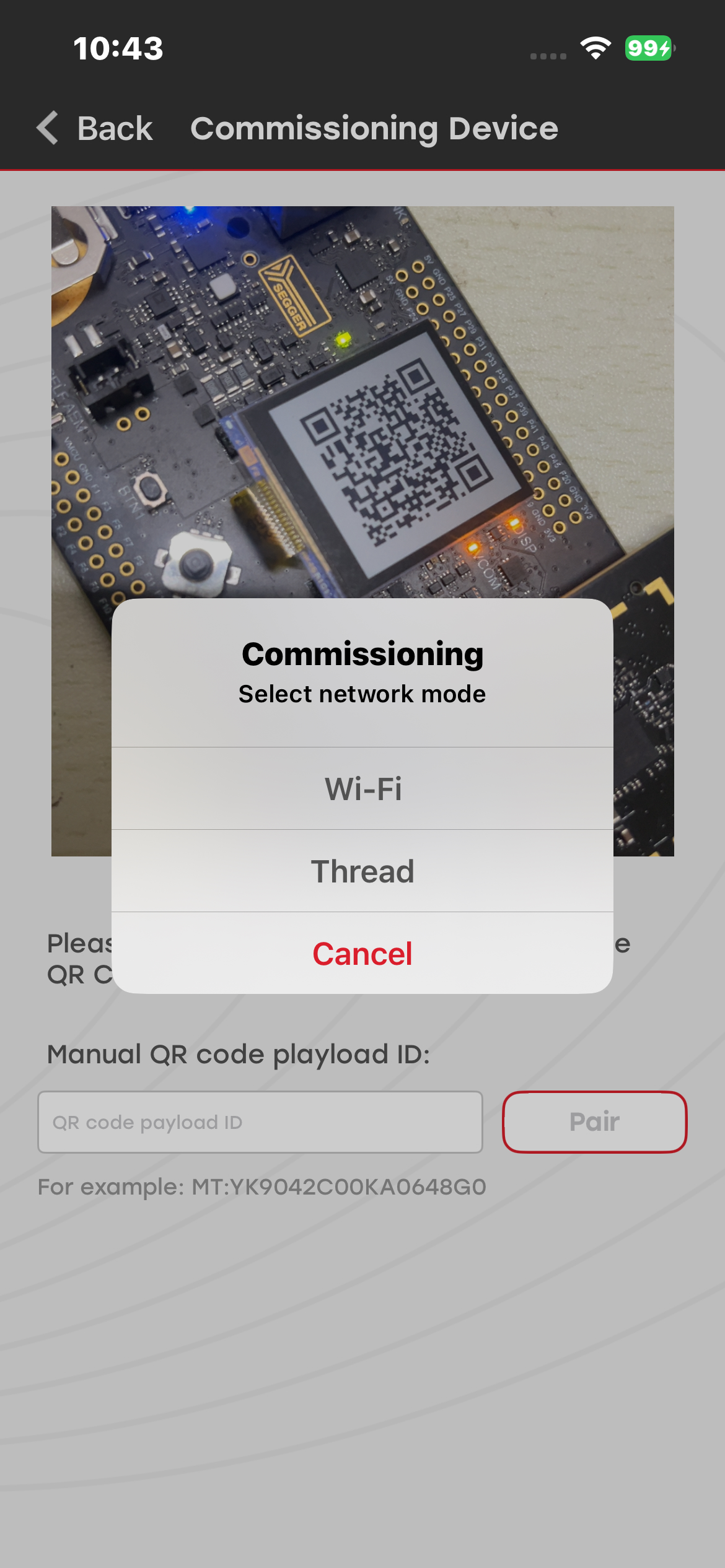
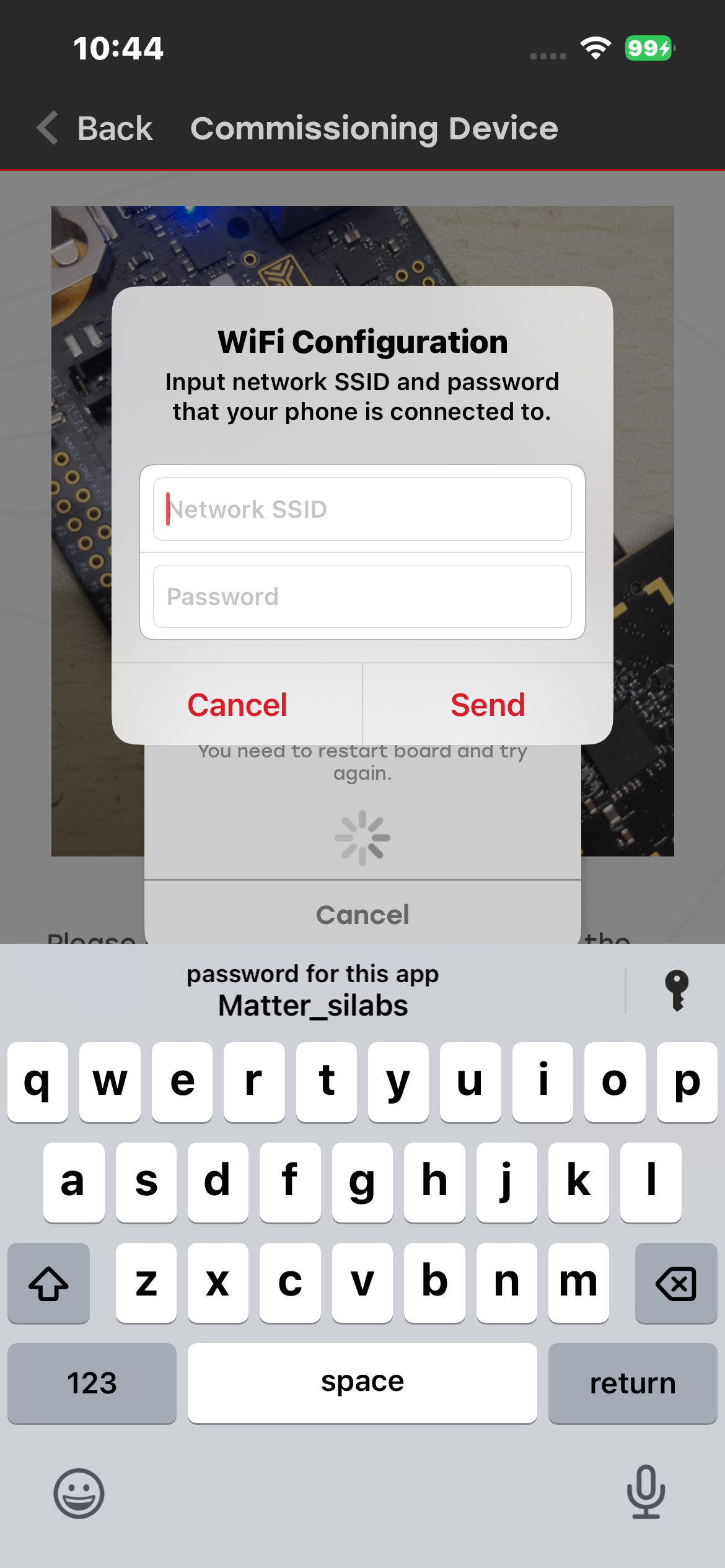
Commissioning#
Overview#
See Matter Commissioning for an overview of the commissioning process.
Complete the steps in Enabling Developer Mode before starting the commissioning process from the mobile app.
Commissioning Over Thread#
For information about running Matter over Thread applications and their prerequisites, see Matter over Thread, depending on the example you are running.
Make sure that the mobile device running Simplicity Connect is connected to the same Wi-Fi network as the Matter Hub.
To commission a Matter device over Thread:
Open a terminal and run the following command to obtain the Thread dataset:
$ mattertool startThread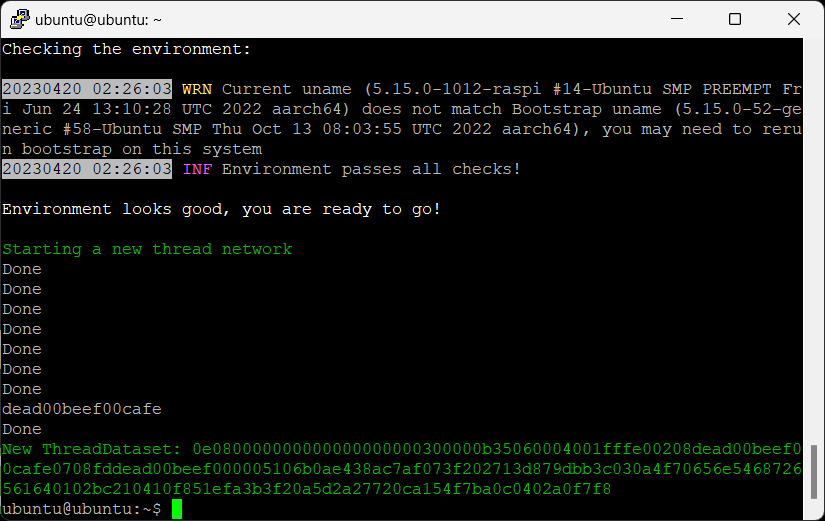
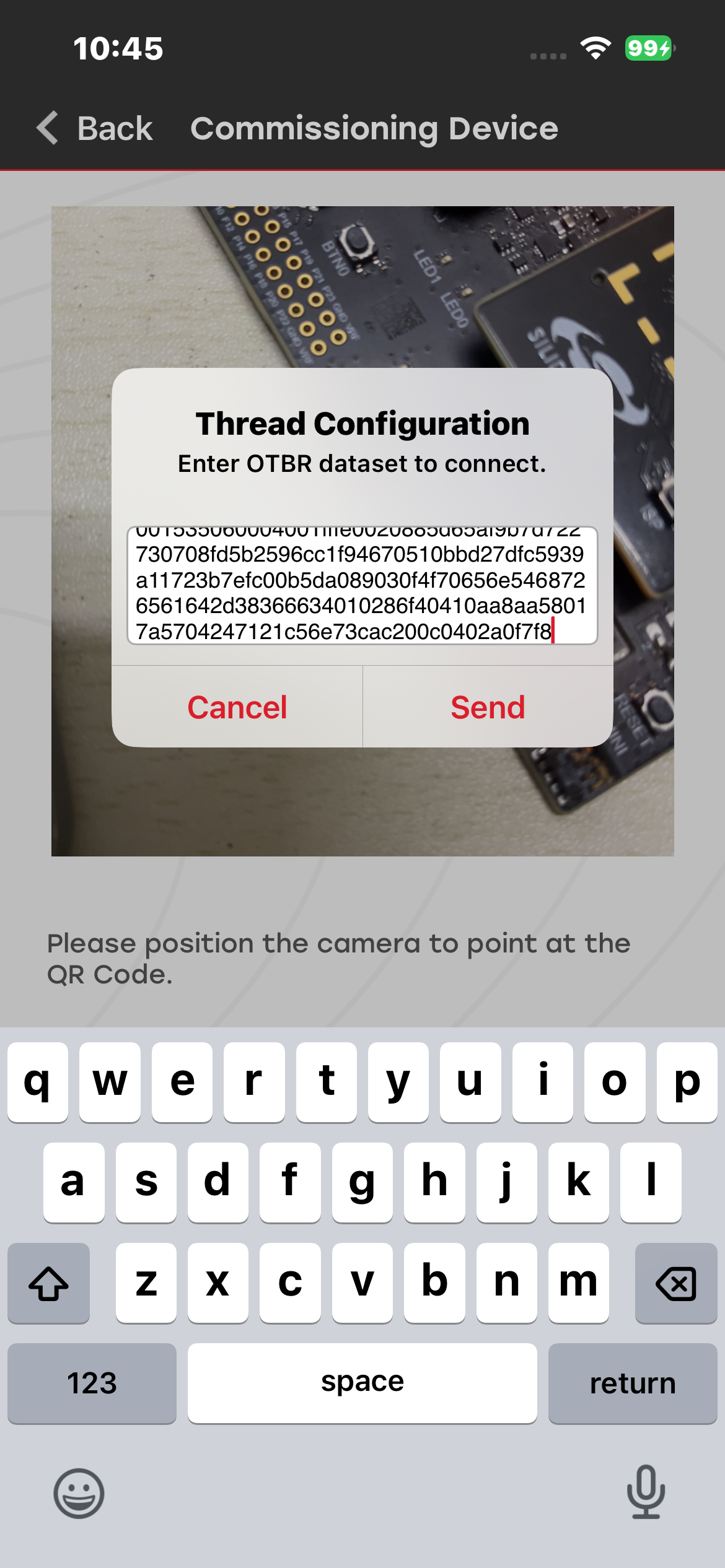
Copy the generated dataset (refer to the image above for the dataset). You will use this dataset when commissioning Matter devices from Android and iOS devices. At this point, the Matter device is already on the network and requires network credentials for Thread.
After flashing the Matter application, locate the QR code for the device.
Open the Matter demo in Simplicity Connect, and then scan the QR code.
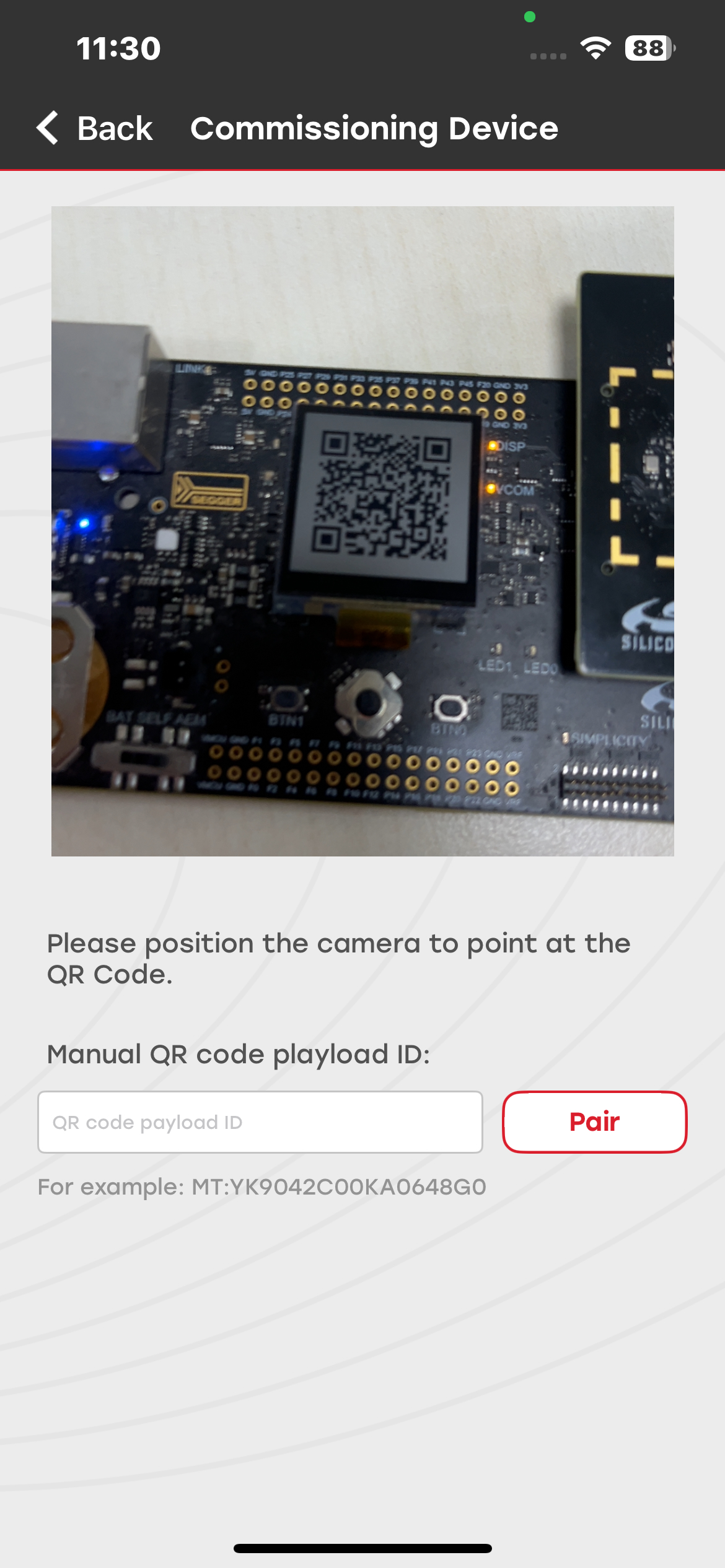
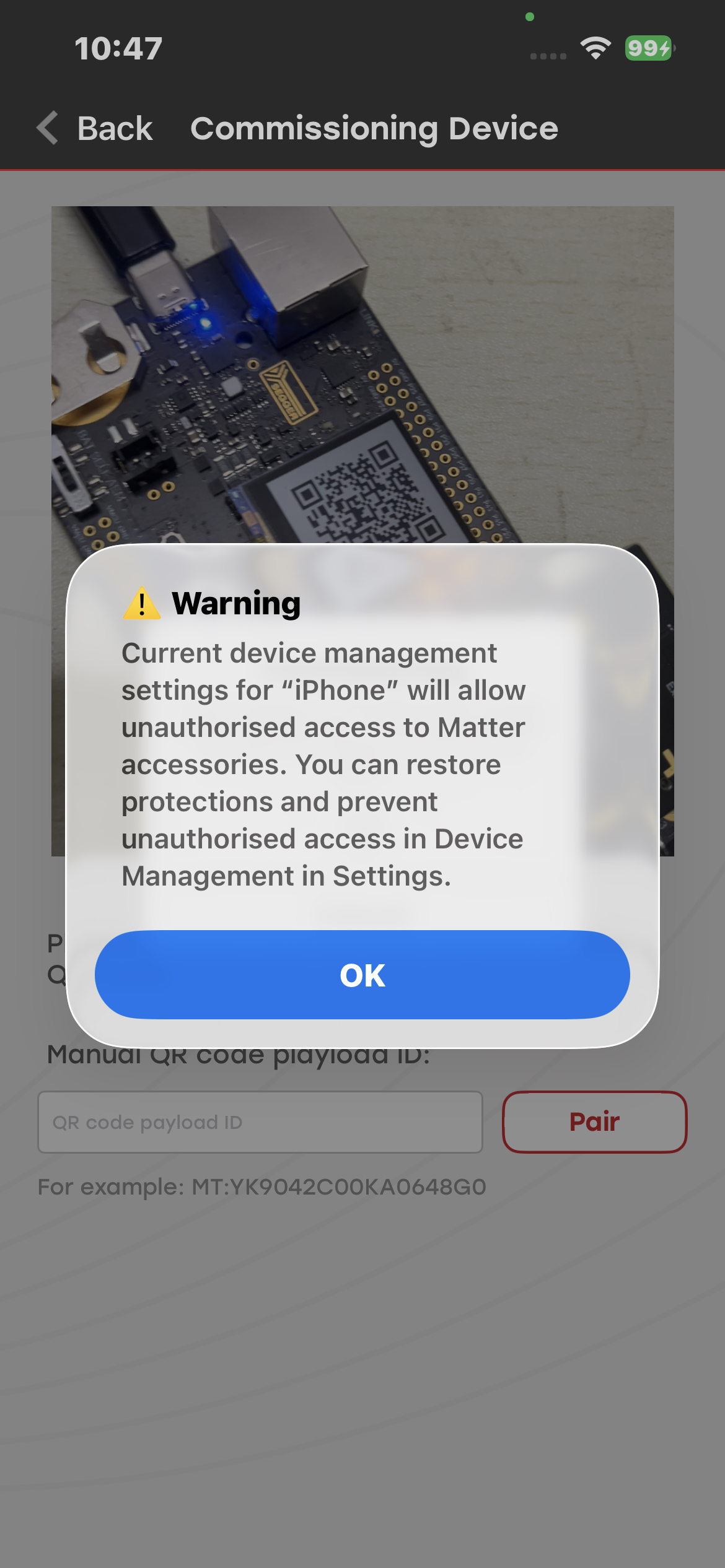
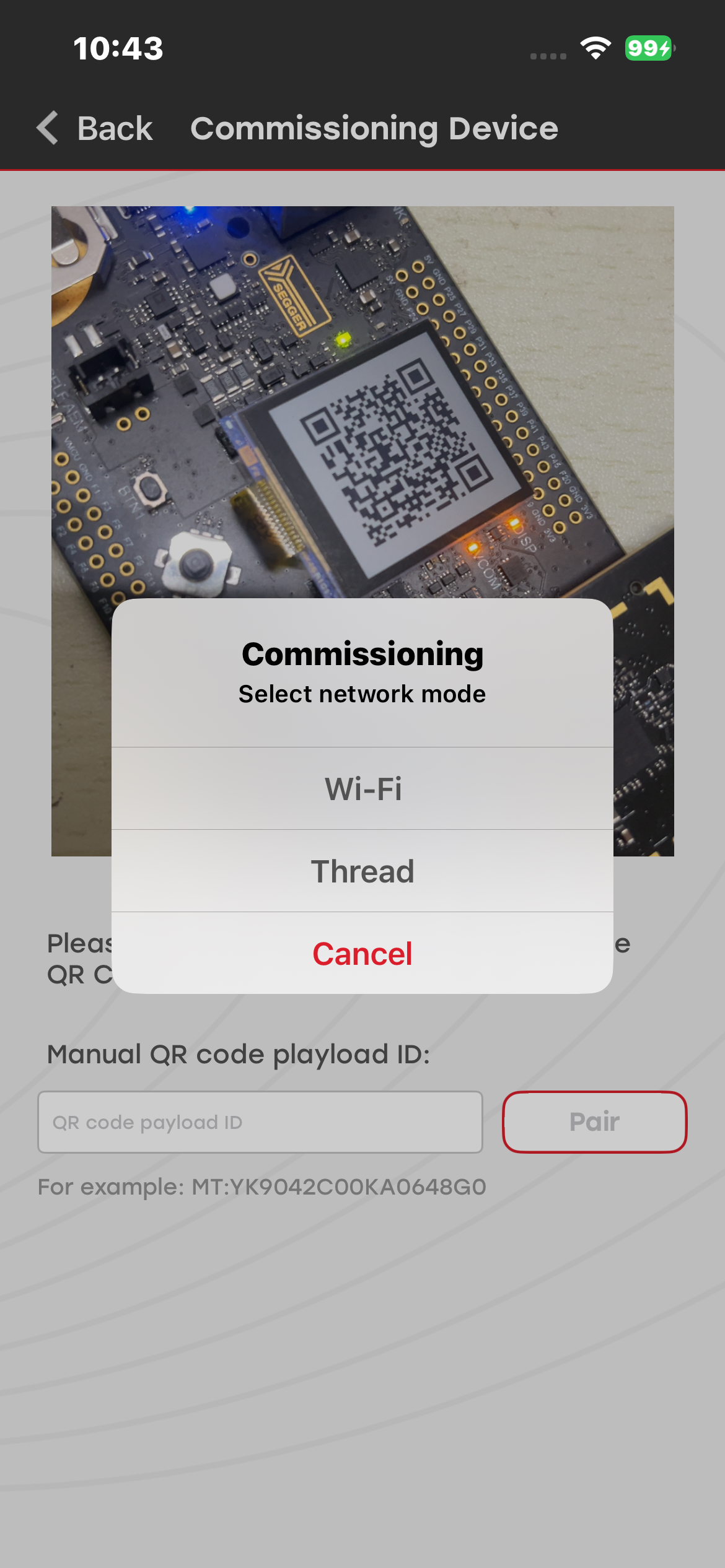
After scanning the QR code, select Thread as the commissioning method.
Enter the generated Thread dataset in the text field, and then select Send.
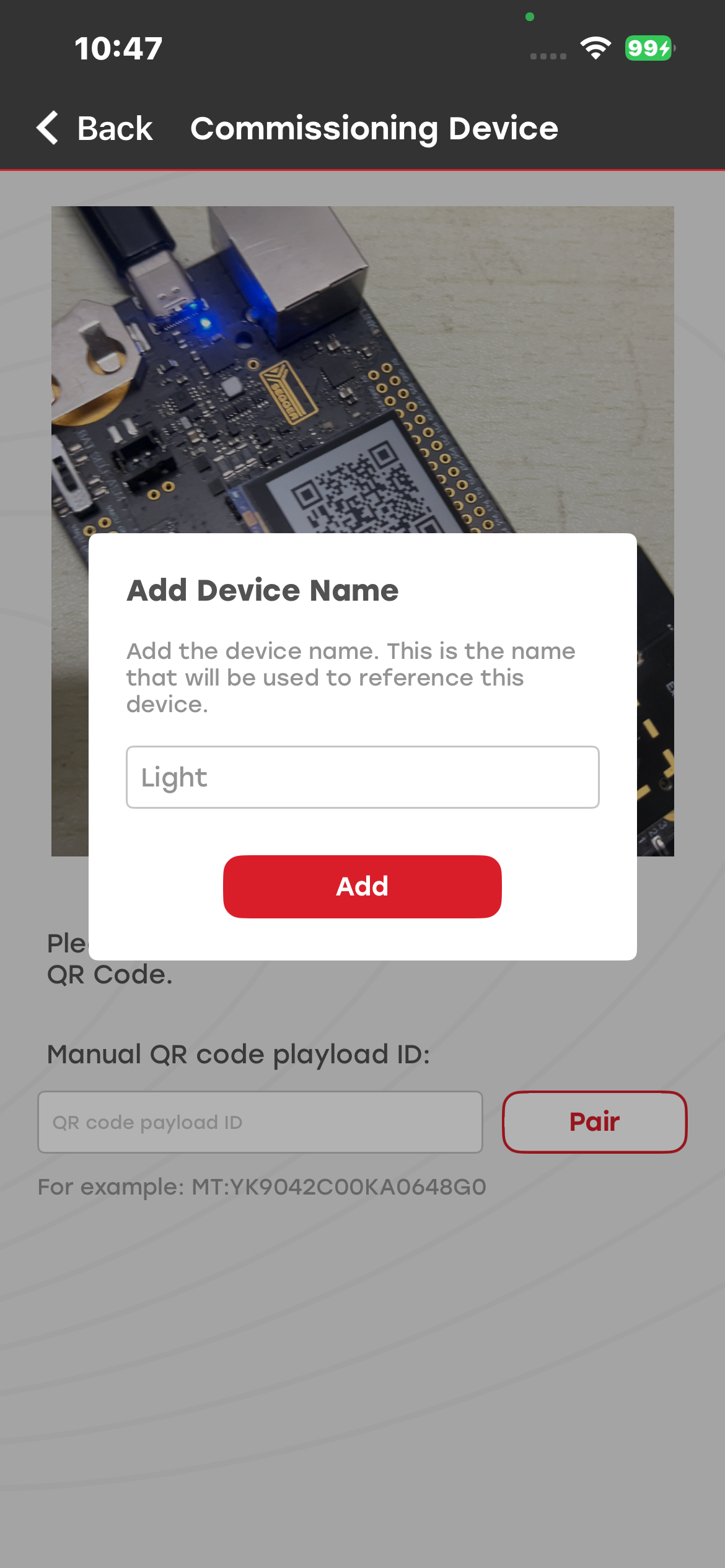
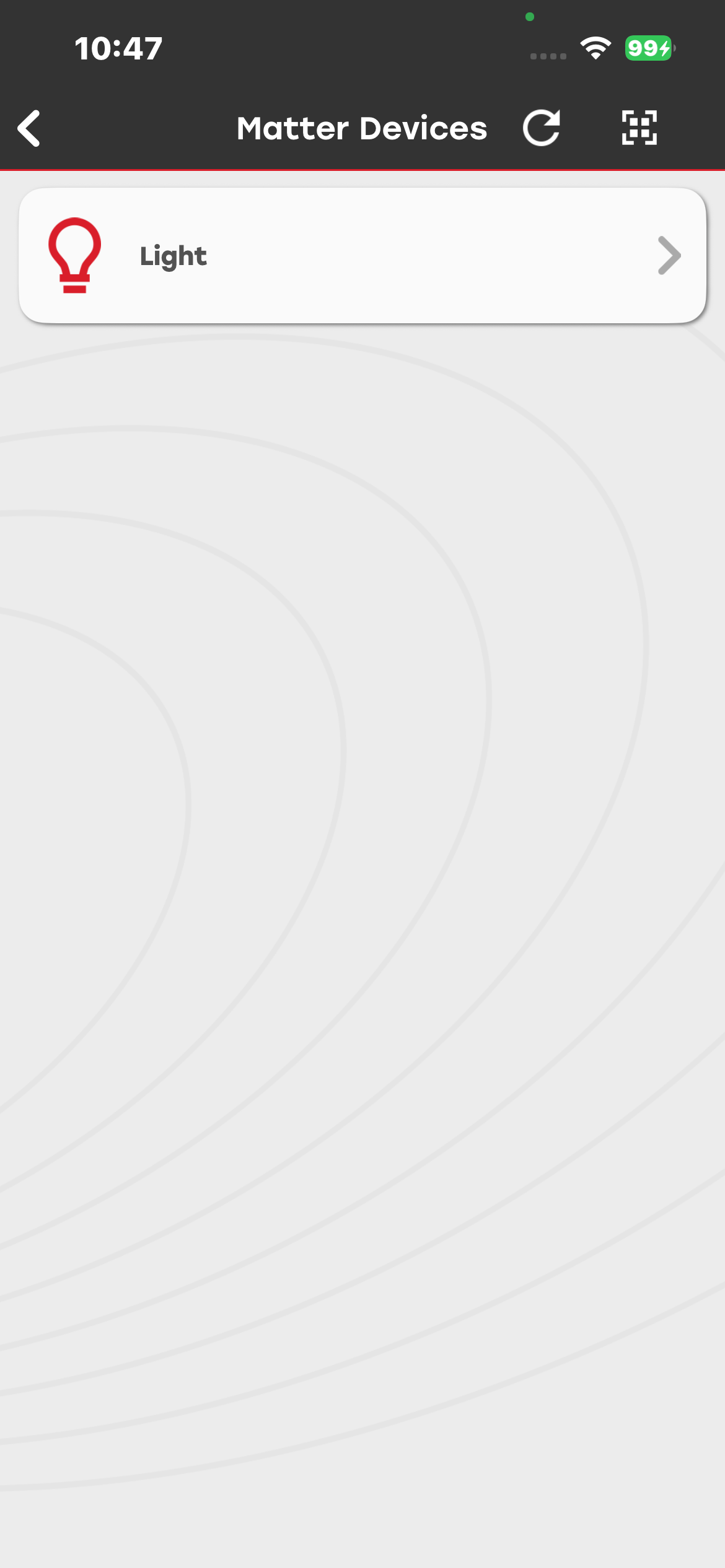
After the Matter device is successfully commissioned, enter a name for the device in the dialog box that appears.
Note: To avoid commissioning issues, make sure that you use the correct combination of boards for your Matter device setup. For example, if you use BRD4187C Rev A01, use baseboard BRD4002A Rev A01 or later.
Commissioning Over Wi-Fi#
For information about running Matter over Wi-Fi applications and their prerequisites, see the Matter over Wi-Fi documentation for the example that you are running.
Make sure that the mobile device running Simplicity Connect is connected to the same Wi-Fi network as the Matter Hub.
To commission a Matter device over Wi-Fi:
Open the Matter demo in Simplicity Connect, and then scan the QR code for the Matter device.
Select Wi-Fi as the commissioning method.
Enter the SSID and password of the Wi-Fi network in the corresponding fields.
Tap Send.