Wi-Fi Scan and Connect Architecture#
This section describes a high-level workflow for scanning Wi-Fi networks and connecting to an access point (AP) using the WiSeConnect SDK. It introduces key concepts, scan types, and the relationship between scanning and connection.
Overview#
The WiSeConnect SDK provides APIs for two main operations:
Scanning: Discover available Wi-Fi networks. Scanning is typically the first step before connecting, or used while connected for roaming (Advanced scan).
Scanning: Discover available Wi-Fi networks. Scanning is typically the first step before connecting, or used while connected for roaming (Advanced scan).
Connecting: Join a selected network using credentials and client configuration. The connection API performs an internal scan before joining.
Your applications can do the following:
Scan to discover networks, then connect to a chosen one.
Connect directly when the SSID and credentials are known (internal scan runs automatically).
Use Advanced scan while connected for roaming.
Key Concepts#
Term | Description |
|---|---|
SSID | Service Set Identifier – the network name. |
BSSID | Basic Service Set Identifier – the MAC address of the access point. |
Channel | Radio frequency channel (2.4 GHz: 1–14). |
RSSI | Received Signal Strength Indicator (dBm). |
Security | Authentication method: OPEN, WPA, WPA2, WPA3, Enterprise. |
Credential ID | Reference to stored credentials (PSK, EAP, etc.) used during connection. |
Scan Types Summary#
Scan Type | Use Case | Max Result | Note |
|---|---|---|---|
Active | General discovery before connection | 11 | Sends probe requests. Default, ~100 ms per channel. |
Passive | Low power or regulatory compliance | 11 | Listens only, ~400 ms per channel. |
Extended | Dense environments; need more than 11 APs | Unlimited. | Results retrieved via sl_wifi_get_stored_scan_results. The maximum number of results is limited by host memory and the buffer provided when retrieving stored results. |
Advanced | Background scan while connected (roaming) | 11 | Requires connection first. Callback with results only if |
Connection and Internal Scanning#
Important: sl_wifi_connect always performs an internal scan before attempting to join. This scan:
Uses standard scan (not Advanced).
Uses only SSID and channel bitmap from the client configuration.
Runs synchronously with an internal wait period (e.g., up to 60 seconds).
Cannot be disabled; the
SL_WIFI_JOIN_WITH_SCANflag is not supported.
Optimize connection time by setting the channel bitmap to limit the internal scan to known channels. You can also configure active channel time using sl_wifi_set_advanced_scan_configuration. For how scan and connection parameters affect behavior, see Scan and Connect Parameter Tuning.
Application Flow#
The following diagram shows a high-level application flow from initialization through optional scanning to connection.

Initialize – Call sl_wifi_init, ensure interface is up with sl_wifi_set_interface_up if needed.
Optional: Scan – Register scan callback, configure scan type and channel bitmap, call sl_wifi_start_scan to discover networks.
Set credentials – Use sl_net_set_credential for PSK or sl_wifi_set_credential for EAP/PMK/WEP before connecting.
Configure connection – Fill
sl_wifi_client_configuration_t(SSID, security, credential_id; optionally channel, BSSID,channel_bitmap.channel_bitmap_2_4).Connect – Call sl_wifi_connect (or sl_net_up / sl_net_up_async). Internal scan runs, then join proceeds.
Handle events – Use sl_wifi_set_join_callback_v2 to receive connection success or failure. In the join callback (v2), use
SL_WIFI_CHECK_IF_EVENT_FAILED(event)and inspectstatus_codeand thedatapayload. When the AP sends deauthentication or disassociation, reason values may follow IEEE 802.11 deauthentication/disassociation reason codes; if the MSB of a reason byte is set, mask with0x7Fto read the standard code (IEEE 802.11 reason-code table; details in the callback framework).
For roaming, connect first, then start Advanced scan with sl_wifi_start_scan using SL_WIFI_SCAN_TYPE_ADV_SCAN and appropriate trigger or periodic configuration.
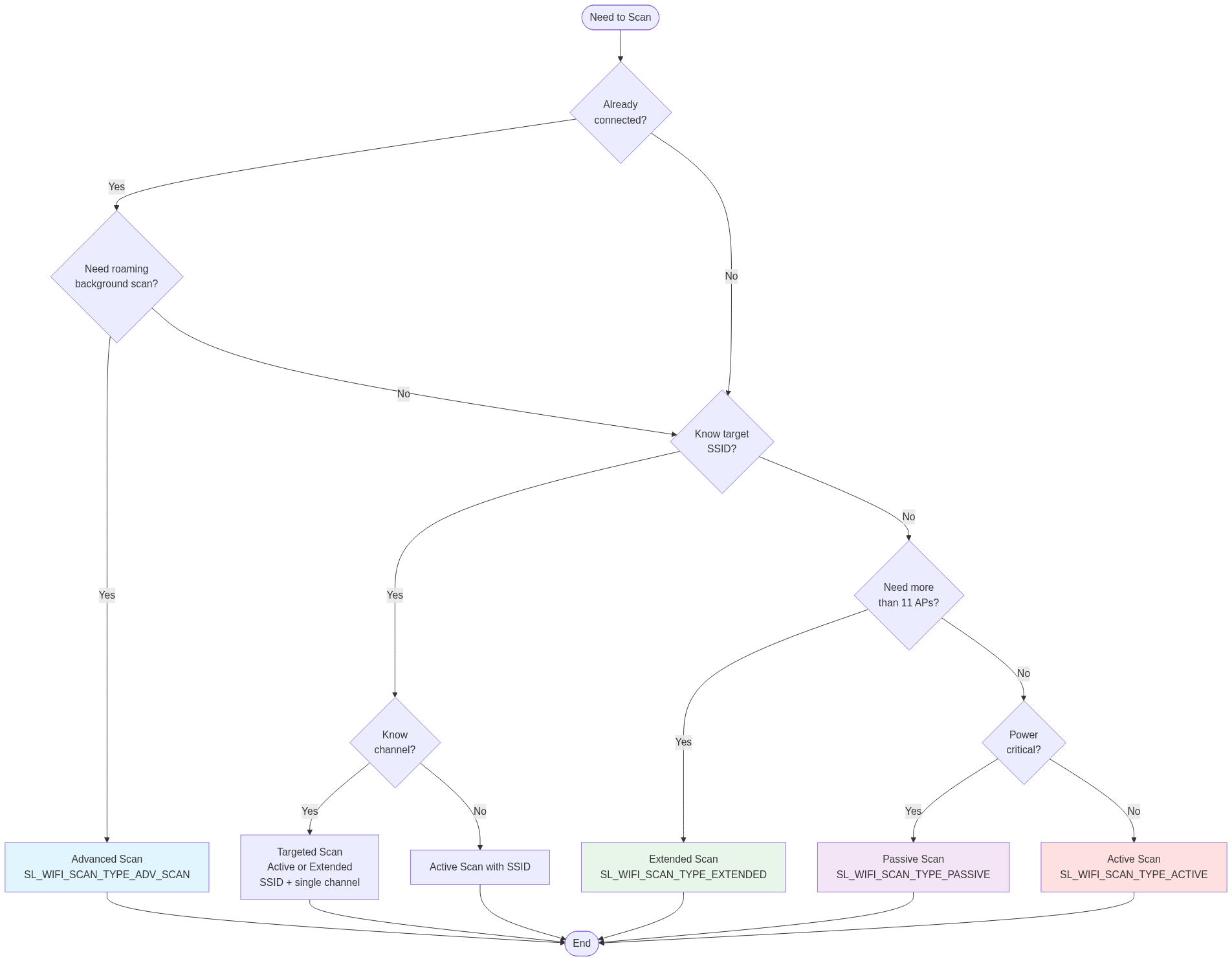
Scan Type Selection#
Use the following flowchart to choose the appropriate scan type for your use case.