


Wi-Fi Scan and Connect Usage Scenarios#
This section describes common scenarios for scanning and connecting to WiFi networks. Each scenario includes an overview, configuration steps, and an implementation example.
Wi-Fi Scanning Overview#
This section describes how to scan for Wi-Fi networks using the WiSeConnect SDK. It covers scan types, configuration, typical API flow, and how to retrieve results.
For detailed information on how scan parameters (channel bitmap, channel times, scan type, advanced scan options) affect scan duration, completeness, and power consumption, see Scan and Connect Parameter Tuning.
Scan Workflow#
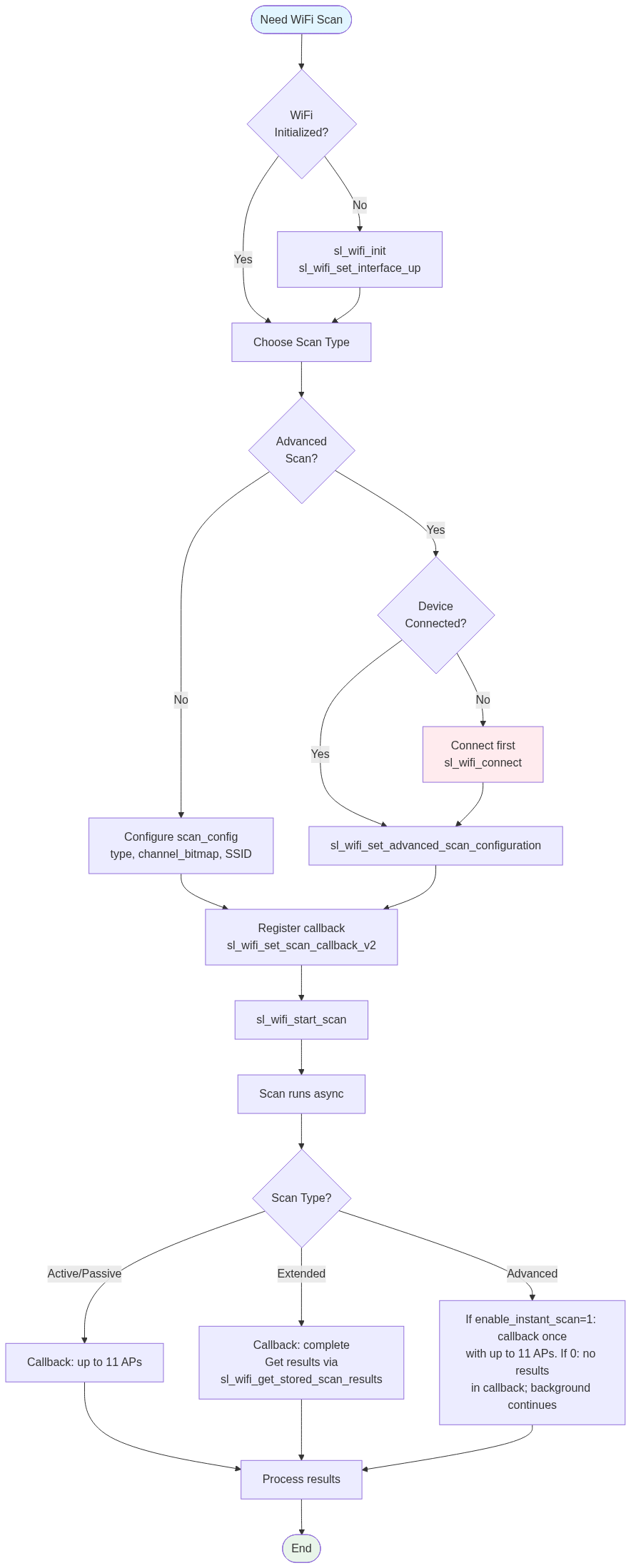
The following flowchart illustrates a high-level view of the Wi-Fi scanning process from initialization through result handling.
Scan Types#
Active Scan (SL_WIFI_SCAN_TYPE_ACTIVE)#
Sends probe requests and listens for responses from access points.
Use case: Fast discovery before connection.
Default channel time: 100 ms (configurable via sl_wifi_set_advanced_scan_configuration or timeout APIs).
Results: Up to 11 APs delivered in the scan callback.
AP mode: Supported after sl_wifi_start_ap; only Active scan is supported in AP mode.
Passive Scan (SL_WIFI_SCAN_TYPE_PASSIVE)#
Listens for beacons and probe responses without transmitting.
Use case: Lower power, regulatory compliance.
Default channel time: 400 ms (configurable via sl_si91x_set_timeout or sl_si91x_configure_timeout).
Results: Up to 11 APs in the callback.
LP mode: In
sl_wifi_scan_configuration_t,lp_modeselects the low-power receive path during Passive scan: 1 = enable (lower power), 0 = disable (default). Set it on thesl_wifi_scan_configuration_tstructure passed to sl_wifi_start_scan when usingSL_WIFI_SCAN_TYPE_PASSIVE.Range is limited, so distant APs may not be detected during scanning.
Only APs transmitting beacons or probe responses at 802.11b rate are scanned.
Extended Scan (SL_WIFI_SCAN_TYPE_EXTENDED)#
Extended active scan; results are stored internally and are not limited to 11.
Use case: Dense environments where more than 11 APs must be discovered.
Results: Retrieve with sl_wifi_get_stored_scan_results after the scan completion callback. Callback does not contain the full list.
Memory: Host-specific: Number of APs you can retrieve is limited by host memory and the buffer you pass to sl_wifi_get_stored_scan_results (~42 bytes per AP).
Advanced Scan (SL_WIFI_SCAN_TYPE_ADV_SCAN)#
Background scan while the device is connected to an AP.
Use case: Roaming, monitoring link quality.
Prerequisite: Device must be connected before starting Advanced scan.
Configuration: Use sl_wifi_set_advanced_scan_configuration for trigger_level, trigger_level_change, active_channel_time, passive_channel_time, enable_instant_scan, enable_multi_probe. Use
periodic_scan_intervalinsl_wifi_scan_configuration_tfor periodic scan interval.Start behavior: Background scan starts immediately only when
enable_instant_scanis 1 or whentrigger_levelis met (RSSI drops below threshold). Ifenable_instant_scanis 0 and trigger is not yet met, the scan waits until one of these conditions is satisfied.Callback with results: Only when
enable_instant_scanis 1, callback is invoked once with up to 11 APs, background scanning then continues. Ifenable_instant_scanis 0, scan results are not populated, the scan continues in the background but no callback delivers results.Stop: Use sl_wifi_stop_scan when no longer needed.
Targeted (Quick) Scan#
For faster discovery when the SSID and a single channel are known:
Set
optional_ssidin sl_wifi_start_scan to the target SSID.Set
channel_bitmap_2g4to a single channel (e.g.,(1 << 5)for channel 6).
Quick scan is enabled in the NWP only when both conditions are met. If you use all channels (channel_bitmap_2g4 = 0) or multiple channels, quick scan is not used.
Workflow#
Basic Scan Flow#
The following diagram shows the basic flow for starting a scan and receiving results via callback.
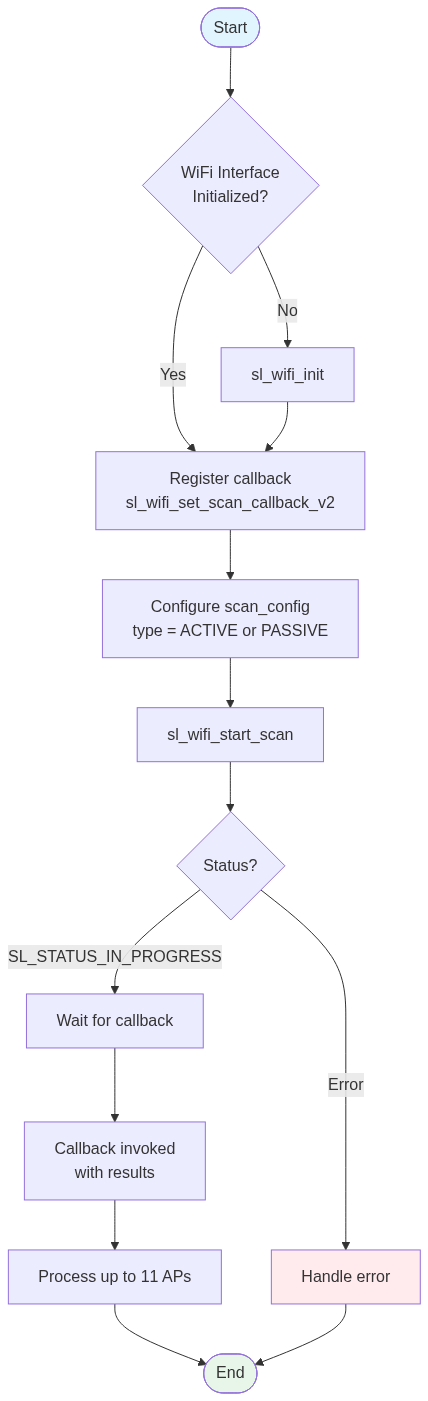
Register callback (recommended):
sl_wifi_set_scan_callback_v2(scan_callback_handler, NULL);Configure scan:
sl_wifi_scan_configuration_t scan_config = default_wifi_scan_configuration; scan_config.type = SL_WIFI_SCAN_TYPE_ACTIVE; // or PASSIVE, EXTENDED, ADV_SCAN scan_config.channel_bitmap_2g4 = 0; // 0 = all channelsStart scan:
sl_status_t status = sl_wifi_start_scan(SL_WIFI_CLIENT_2_4GHZ_INTERFACE, NULL, &scan_config);Returns
SL_STATUS_IN_PROGRESSwhen the scan has started successfully (asynchronous).Handle results in the callback. For Extended scan, after the callback indicates completion, call sl_wifi_get_stored_scan_results to retrieve the full list.
Extended Scan Flow#
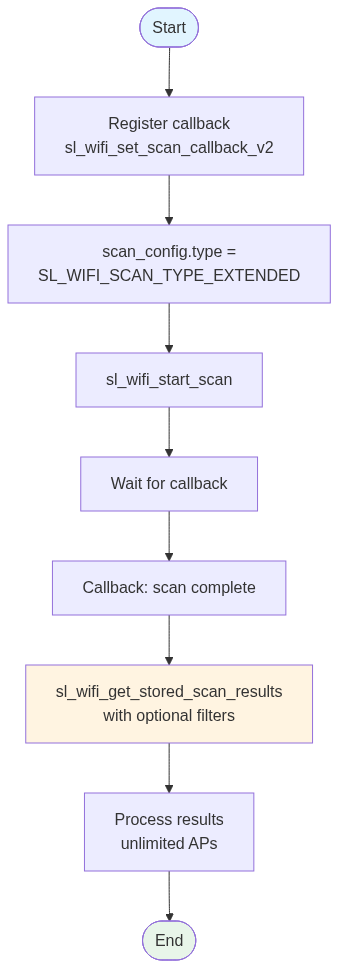
For Extended scan, results are not returned in the callback; you must call sl_wifi_get_stored_scan_results after the callback indicates completion.
Advanced Scan Flow#
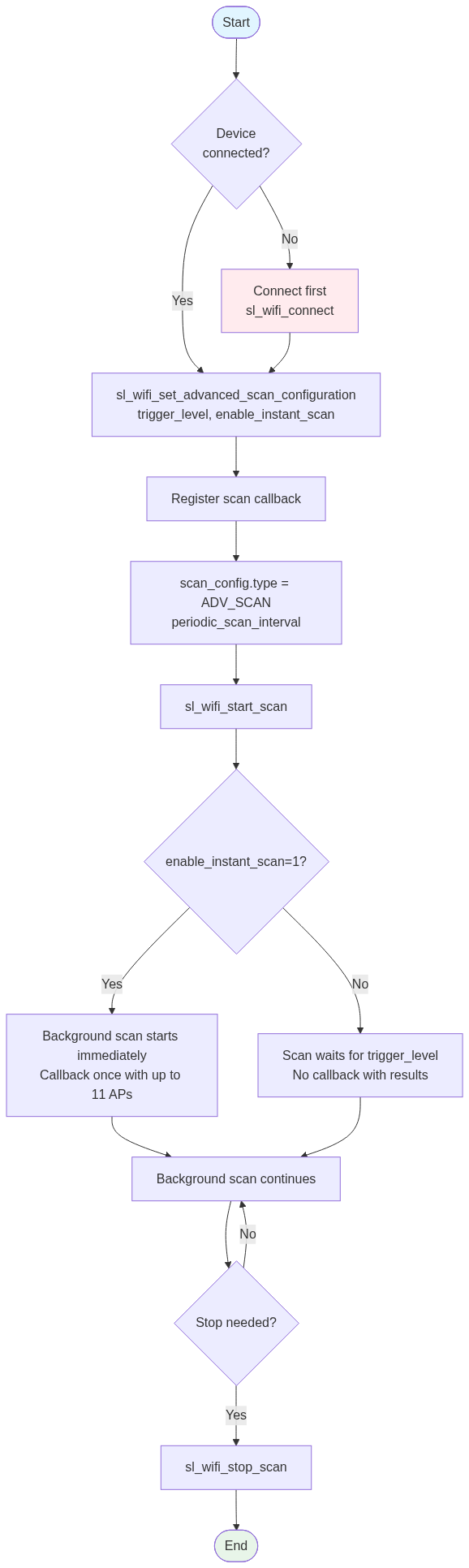
Advanced scan requires the device to be connected first. The background scan starts immediately only when enable_instant_scan is 1, or when RSSI drops below trigger_level. If enable_instant_scan is 0 and the trigger is not yet met, the scan does not start until the trigger is satisfied. Callback with results: only when enable_instant_scan is 1 (callback invoked once with up to 11 APs). If enable_instant_scan is 0, scan results are not populated—the scan continues in the background but no callback delivers results.
Scan Callback#
Use the callback to receive scan completion and results (for non-Extended scans, up to 11 results). For Extended scan, the callback signals completion; then call sl_wifi_get_stored_scan_results with an array and optional filters (channel, RSSI, security, etc.).
Note: Use sl_wifi_set_scan_callback_v2. The legacy sl_wifi_set_scan_callback is deprecated. sl_wifi_wait_for_scan_results is not supported; use the callback-based flow.
Wi-Fi Connection#
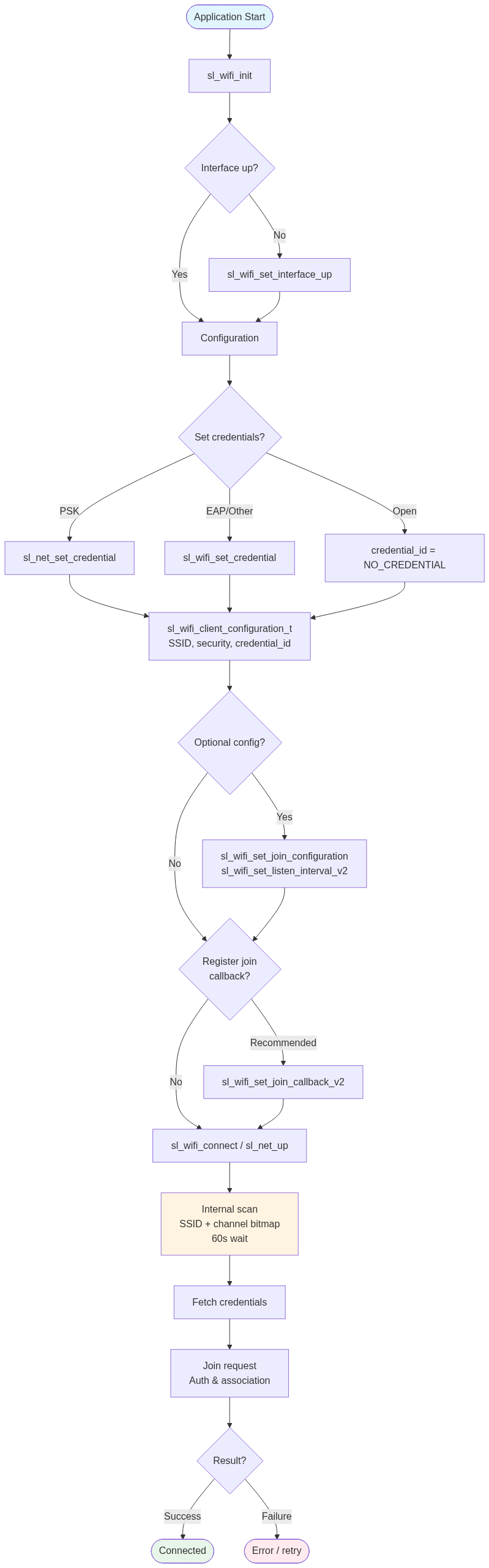
This section describes how to connect to a Wi-Fi network using the WiSeConnect SDK. It covers client configuration, credentials, the connection process, and the internal scan performed by the connect API.
Connect Workflow#
Set credentials.
Fill
sl_wifi_client_configuration_tin sl_wifi_types.h: SSID, security, credential_id; optionally channel, BSSID (with join feature),channel_bitmap.channel_bitmap_2_4.Optionally register join callback:
sl_wifi_set_join_callback_v2(join_callback_handler, NULL)— see sl_wifi_set_join_callback_v2.Call
sl_wifi_connect(interface, &access_point, timeout_ms)— see sl_wifi_connect.Check return status and/or handle events in the join callback.
Timeout: Should account for internal scan time (e.g., up to 60 seconds) plus authentication. Typical: 30000 ms; worst case: 120000 ms.
The following flowchart illustrates the complete connection workflow from initialization through connection result.
Setting up Credentials#
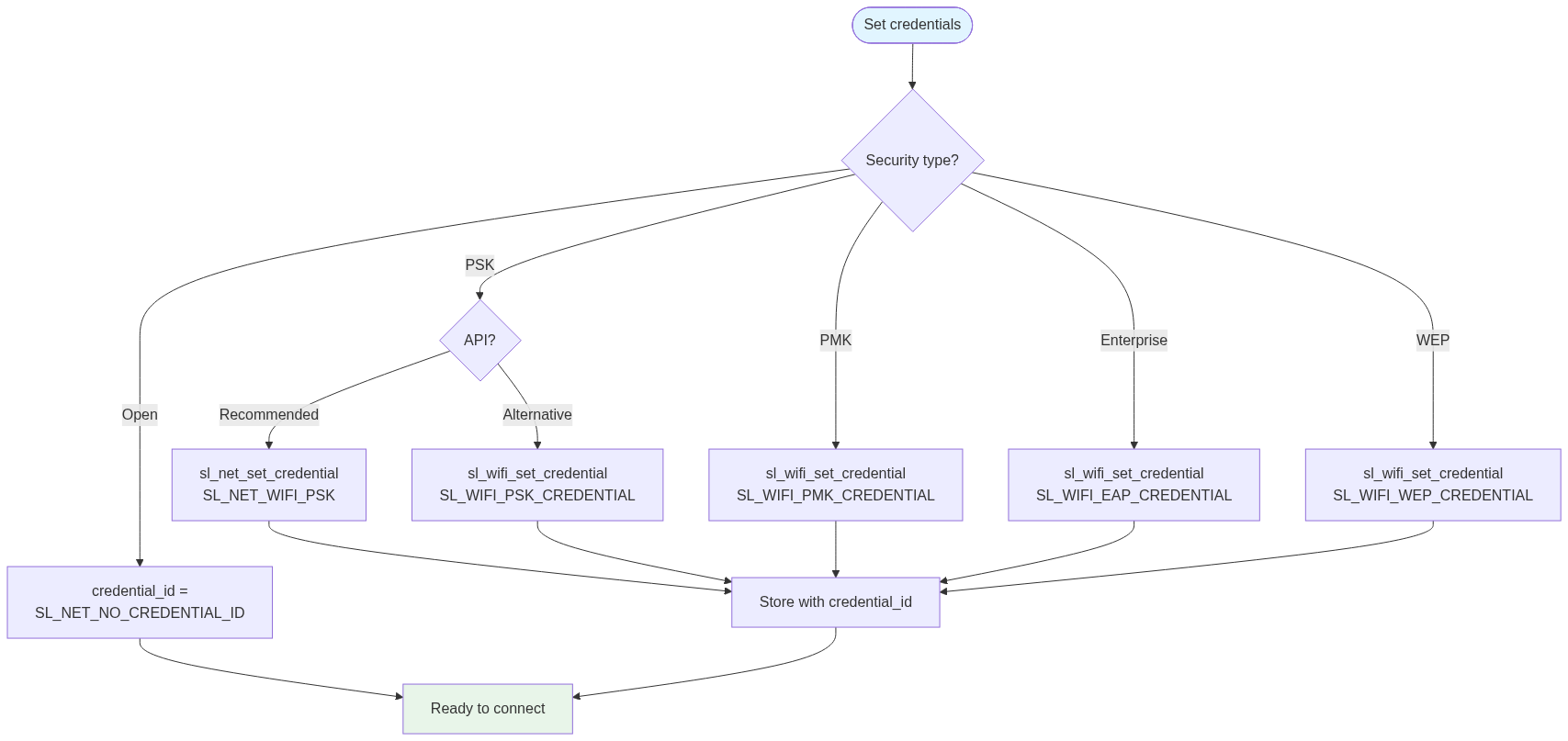
Credentials must be set before connecting. The SDK fetches credentials by credential ID and security type. The following diagram shows how to choose and set credentials by security type.
PSK and PMK#
PSK (recommended: sl_net_set_credential)
sl_net_set_credential(SL_NET_DEFAULT_WIFI_CLIENT_CREDENTIAL_ID,
SL_NET_WIFI_PSK,
"MyPassword123",
strlen("MyPassword123"));Alternatively, use sl_wifi_set_credential with SL_WIFI_PSK_CREDENTIAL and sl_wifi_psk_credential_t.
PMK – Use sl_wifi_set_credential with SL_WIFI_PMK_CREDENTIAL and sl_wifi_pmk_credential_t. Not available via sl_net_set_credential.
Enterprise (EAP)#
Use sl_wifi_set_credential with SL_WIFI_EAP_CREDENTIAL and sl_wifi_eap_credential_t (username, password, certificate_id, eap_flags). Set encryption in client configuration to match the inner method (e.g., PEAP MSCHAPv2).
Open Network#
access_point.credential_id = SL_NET_NO_CREDENTIAL_ID;
access_point.security = SL_WIFI_OPEN;WEP#
Use sl_wifi_set_credential with SL_WIFI_WEP_CREDENTIAL and sl_wifi_wep_credential_t. Not available via sl_net_set_credential.
Internal Scanning in Connection#
The following flowchart shows the connection process including the mandatory internal scan step.
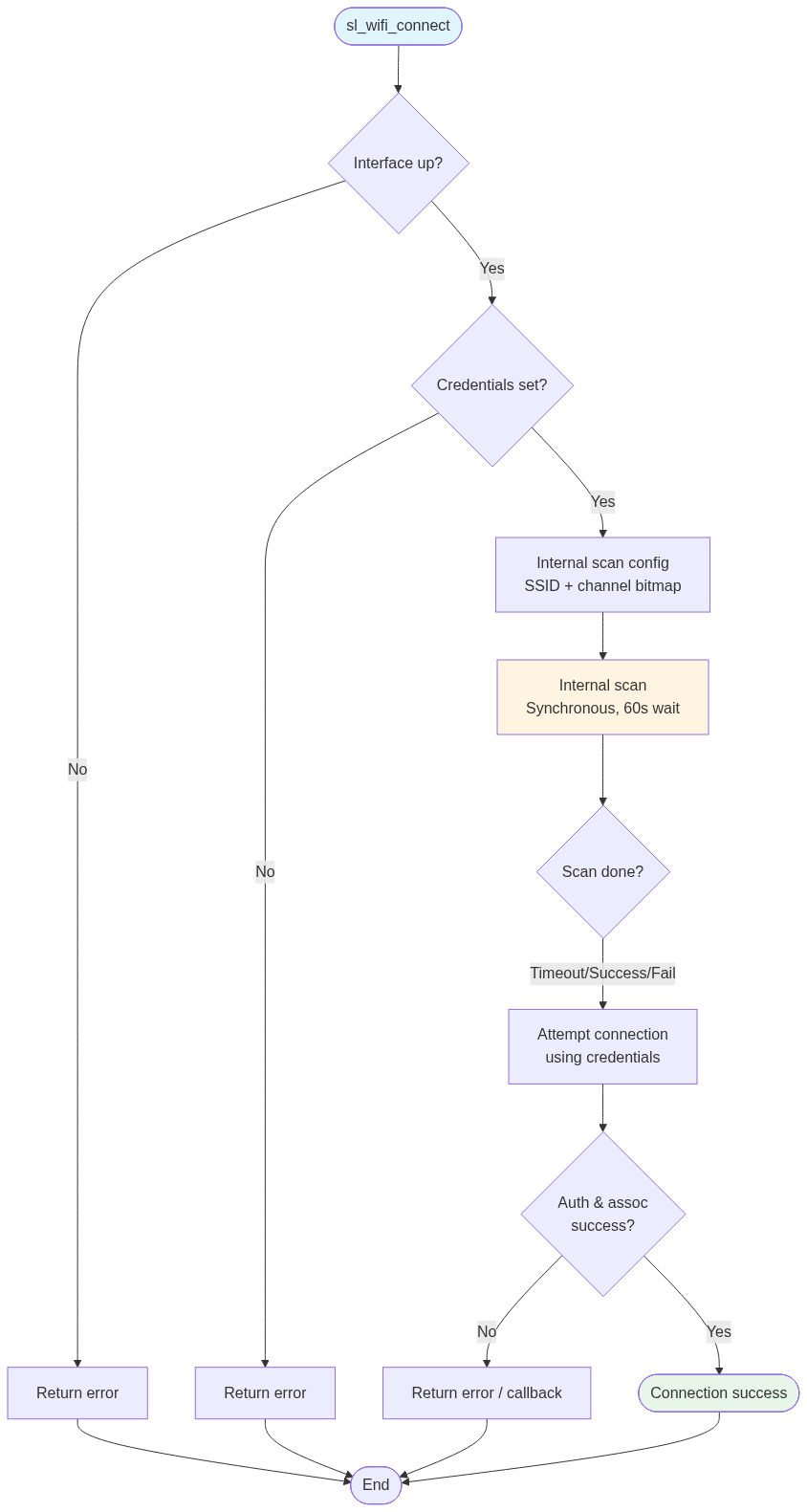
Important: sl_wifi_connect always performs an internal scan before joining:
Type: Standard scan (not Advanced).
Parameters: Only SSID and channel bitmap from the client configuration are used.
Behavior: Synchronous with an internal wait (e.g., up to 60 seconds).
Not configurable: Cannot be disabled. The
SL_WIFI_JOIN_WITH_SCANflag is not supported.
To speed up connection, set channel_bitmap.channel_bitmap_2_4 to known channels (or a single channel). Optionally configure active_channel_time via sl_wifi_set_advanced_scan_configuration before calling connect; it is applied only if not set to the default value.
Use Case 1: Basic Active Scan#
Discover available networks before connecting. Use Active scan for fast discovery.
Overview#
Register a scan callback, configure Active scan with default or custom channel bitmap, start the scan, and process results in the callback (up to 11 APs).
Steps#
Register scan callback with sl_wifi_set_scan_callback_v2.
Set
sl_wifi_scan_configuration_t.type = SL_WIFI_SCAN_TYPE_ACTIVEand optionally setchannel_bitmap_2g4.Call
sl_wifi_start_scan(interface, NULL, &scan_config)— see sl_wifi_start_scan.In the callback, check status and process the result array when scan completes.
Example#
void scan_callback(sl_wifi_scan_result_t *result, uint8_t result_count,
sl_wifi_scan_status_t status, void *user_context) {
if (status != SL_WIFI_SCAN_COMPLETED) return;
for (uint8_t i = 0; i < result_count; i++) {
// Use result[i].ssid, result[i].rssi, result[i].channel, etc.
}
}
void do_active_scan(void) {
sl_wifi_set_scan_callback_v2(scan_callback, NULL);
sl_wifi_scan_configuration_t scan_config = default_wifi_scan_configuration;
scan_config.type = SL_WIFI_SCAN_TYPE_ACTIVE;
sl_wifi_start_scan(SL_WIFI_CLIENT_2_4GHZ_INTERFACE, NULL, &scan_config);
}Use Case 2: Extended Scan and Retrieve Stored Results#
Discover more than 11 APs in dense environments.
Overview#
Use Extended scan; the callback signals completion. Then call sl_wifi_get_stored_scan_results with an array and optional filters to retrieve all stored results.
Steps#
Register scan callback.
Set
scan_config.type = SL_WIFI_SCAN_TYPE_EXTENDED.Start scan with sl_wifi_start_scan.
When callback indicates completion, call sl_wifi_get_stored_scan_results with
sl_wifi_extended_scan_result_parameters_t(array, length, result_count, optional filters).
Example#
sl_wifi_extended_scan_result_t results[64];
uint16_t result_count = 0;
sl_wifi_extended_scan_result_parameters_t params = {
.scan_results = results,
.array_length = 64,
.result_count = &result_count,
.channel_filter = NULL,
.rssi_filter = NULL,
};
sl_wifi_get_stored_scan_results(SL_WIFI_CLIENT_2_4GHZ_INTERFACE, ¶ms);
// Use results[0..result_count-1]Use Case 3: Basic Connection with PSK#
Connect to a WPA2 network using a pre-shared key.
Overview#
Set PSK credential with sl_net_set_credential, fill client configuration with SSID, security, and credential ID, then call sl_wifi_connect. Internal scan runs automatically.
Steps#
Ensure Wi-Fi initialization and interface are up.
Set credential:
sl_net_set_credential(cred_id, SL_NET_WIFI_PSK, psk, len).Fill
sl_wifi_client_configuration_t: ssid, security = SL_WIFI_WPA2, credential_id, encryption = SL_WIFI_DEFAULT_ENCRYPTION.Optionally register join callback.
Call
sl_wifi_connect(interface, &access_point, timeout_ms)— see sl_wifi_connect.
Example#
sl_wifi_set_join_callback_v2(join_callback_handler, NULL);
sl_wifi_client_configuration_t ap = {0};
ap.ssid.length = strlen("MyNetwork");
memcpy(ap.ssid.value, "MyNetwork", ap.ssid.length);
ap.security = SL_WIFI_WPA2;
ap.encryption = SL_WIFI_DEFAULT_ENCRYPTION;
ap.credential_id = SL_NET_DEFAULT_WIFI_CLIENT_CREDENTIAL_ID;
sl_net_set_credential(SL_NET_DEFAULT_WIFI_CLIENT_CREDENTIAL_ID,
SL_NET_WIFI_PSK, "MyPassword123", strlen("MyPassword123"));
sl_wifi_connect(SL_WIFI_CLIENT_2_4GHZ_INTERFACE, &ap, 30000);Use Case 4: Fast Connection with Known Channel#
Reduce connection time by limiting the internal scan to a known channel.
Overview#
Set channel_bitmap (and optionally channel) so the internal scan used by sl_wifi_connect only scans the desired channel(s). Use a single channel for fastest result when the channel is known.
Steps#
Set credentials and fill SSID, security, credential_id.
Set
access_point.channel_bitmap.channel_bitmap_2_4 = (1 << (channel - 1))for one channel (e.g.,(1 << 5)for channel 6).Optionally set
access_point.channel.channeland band/bandwidth.Call sl_wifi_connect with an appropriate timeout (e.g., 15000 ms).
Example#
ap.channel_bitmap.channel_bitmap_2_4 = (1 << 5); // channel 6 only
ap.channel.channel = 6;
ap.channel.band = SL_WIFI_BAND_2_4GHZ;
ap.channel.bandwidth = SL_WIFI_BANDWIDTH_20MHz;
sl_wifi_connect(SL_WIFI_CLIENT_2_4GHZ_INTERFACE, &ap, 15000);Use Case 5: Advanced Scan for Roaming#
Run background scan while connected to support roaming.
Overview#
Connect to an AP. Configure Advanced scan (trigger level, optional instant scan), register scan callback, and start Advanced scan with SL_WIFI_SCAN_TYPE_ADV_SCAN. Use sl_wifi_stop_scan when roaming is no longer needed.
Steps#
Connect using sl_wifi_connect and wait for connection.
Configure advanced scan: sl_wifi_set_advanced_scan_configuration with trigger_level, trigger_level_change, and enable_instant_scan = 1 if you want one immediate result set.
Register scan callback; set scan_config.type = SL_WIFI_SCAN_TYPE_ADV_SCAN and periodic_scan_interval if desired.
Call
sl_wifi_start_scan(interface, NULL, &scan_config)— see sl_wifi_start_scan.Process results in callback, stop using sl_wifi_stop_scan when complete.
Example#
// After connection is established:
sl_wifi_advanced_scan_configuration_t adv = {0};
adv.trigger_level = -70;
adv.trigger_level_change = 10;
adv.enable_instant_scan = 1;
sl_wifi_set_advanced_scan_configuration(&adv);
sl_wifi_set_scan_callback_v2(roaming_scan_callback, NULL);
sl_wifi_scan_configuration_t scan_config = default_wifi_scan_configuration;
scan_config.type = SL_WIFI_SCAN_TYPE_ADV_SCAN;
scan_config.periodic_scan_interval = 30000;
sl_wifi_start_scan(SL_WIFI_CLIENT_2_4GHZ_INTERFACE, NULL, &scan_config);Use Case 6: Connect by BSSID#
Connect to a specific AP using its MAC address.
Overview#
Set the BSSID in client configuration and set the join feature bitmap to include SL_WIFI_JOIN_FEAT_BSSID_BASED via sl_wifi_set_join_configuration before calling sl_wifi_connect.
Steps#
Set credentials and fill SSID, security, credential_id.
Copy AP MAC into
access_point.bssid.bytes.Set join_config.join_feature_bitmap = SL_WIFI_JOIN_FEAT_BSSID_BASED (and other flags if needed); call
sl_wifi_set_join_configuration(&join_config)— see sl_wifi_set_join_configuration.Call sl_wifi_connect.
Example#
uint8_t bssid[6] = {0x00, 0x11, 0x22, 0x33, 0x44, 0x55};
memcpy(ap.bssid.bytes, bssid, 6);
sl_wifi_join_configuration_t join_config = {0};
join_config.join_feature_bitmap = SL_WIFI_JOIN_FEAT_BSSID_BASED;
sl_wifi_set_join_configuration(&join_config);
sl_wifi_connect(SL_WIFI_CLIENT_2_4GHZ_INTERFACE, &ap, timeout_ms);