


Manufacturing Demonstration Setup#
Silicon Labs has developed a manufacturing application for the EFR32MG21 and EFR32MG24 host MCUs. Users input manufacturing commands through the Simplicity Commander CLI, which then translates these commands into a format that the manufacturing application can understand. The manufacturing application processes these commands and subsequently converts them into a format that the SiWx917 NCP can interpret and execute.
Hardware#
BRD4002A - Si-MB4002A Wireless Pro Kit Mainboard (hereafter referred to as WPK board)
One of the following Host radio boards (hereafter referred to as EFR32 radio boards)
One of the following SiWx917 NCP Radio Boards (hereafter referred to as SiWx917 radio board)
BRD8045A - EXP Adapter Board for SiWx917 Co-Processors (hereafter referred to as adapter board)
Windows/Linux/MacOS computer with a USB port
USB Type-C cable compatible with the computer's USB port (for example, Type-C to Type-A if the computer has a Type-A USB port)
Spectrum Analyzer (Required for RF Calibration only)
Software#
Manufacturing application binary
Simplicity Studio IDE (Optional)
Simplicity Commander CLI (hereafter referred to as Commander CLI)
The Commander CLI can be obtained in one of the following two ways:
Simplicity Commander from Simplicity Studio: Included with the Simplicity Studio IDE installation.
Standalone Simplicity Commander: Available for download and installation from the Silicon Labs website.
Note: We recommend using the latest version of Commander CLI.
Device Connections and Interfaces#
Plug the EFR32 radio board into the radio board connectors of the WPK board as shown below.
Plug the SiWx917 radio board into the radio board connectors of the adapter board as shown below.
Connect the adapter board to the EXP header on the EFR32 WPK board.
Make sure the UART switch on the adapter board is in the USB position.
Make sure the PWR MODE switch on the adapter board is in the BUF position.
Connect the EFR32 WPK board to your computer using a USB Type-C cable.
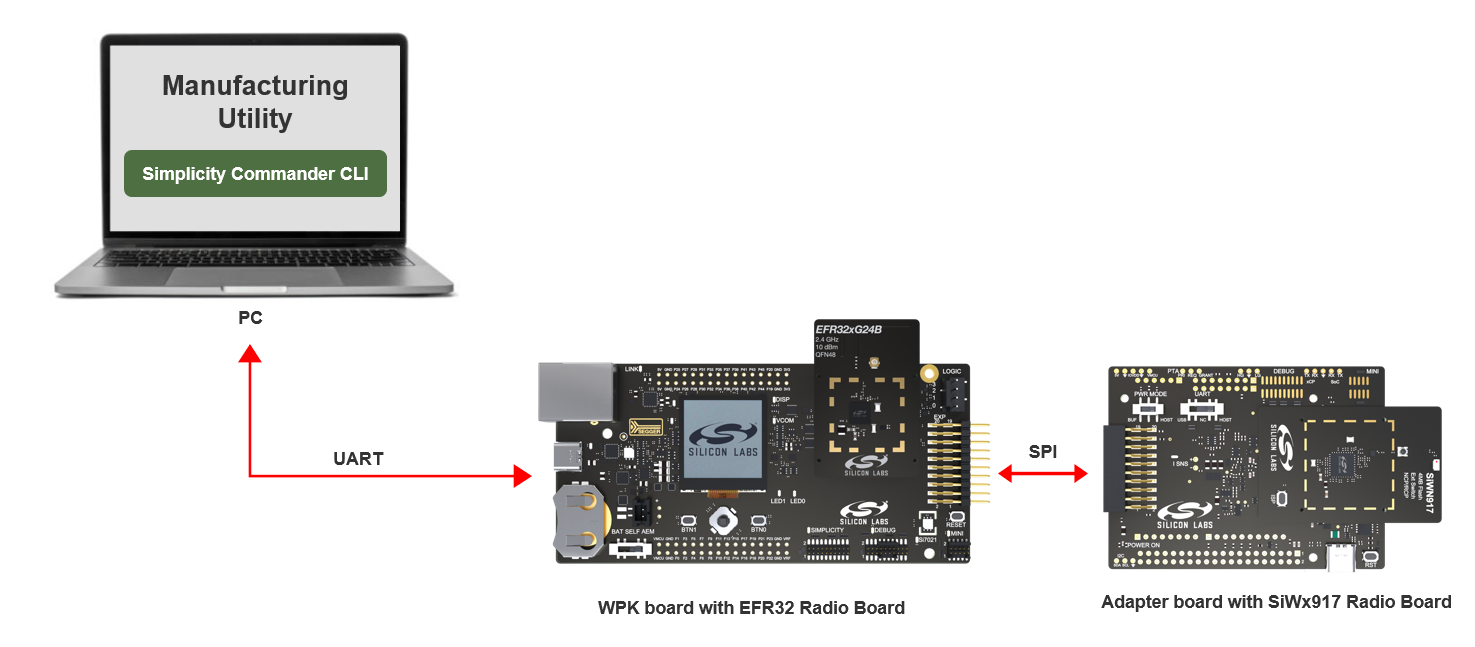
The EFR32MG24/EFR32MG21 host MCU is connected to the SiWx917 NCP via SPI and to the Commander CLI via UART. The subsequent step involves flashing the manufacturing application onto the EFR32 device using the Commander CLI.
Flash Manufacturing Application#
Open the Commander GUI
If you are using Simplicity Commander from the Simplicity Studio IDE installation, you can either
Navigate to the following path within the Simplicity Studio installation directory and double click on
commander.exe:C:\..\..\SimplicityStudio\v5\developer\adapter_packs\commanderor,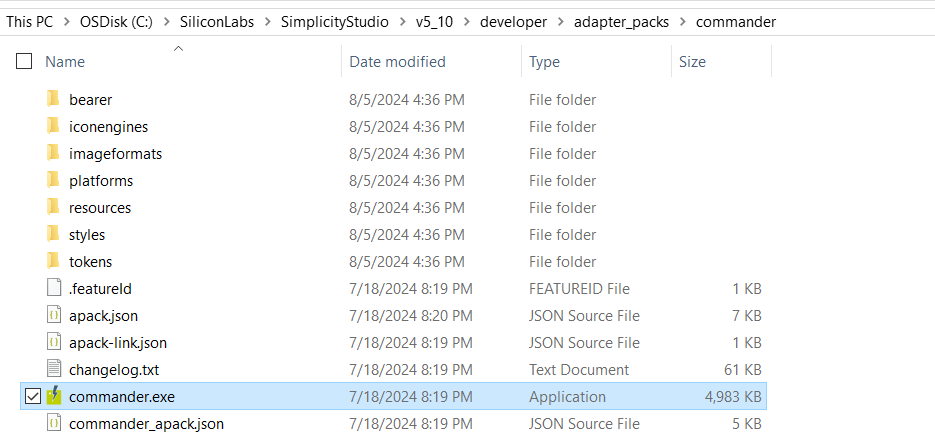
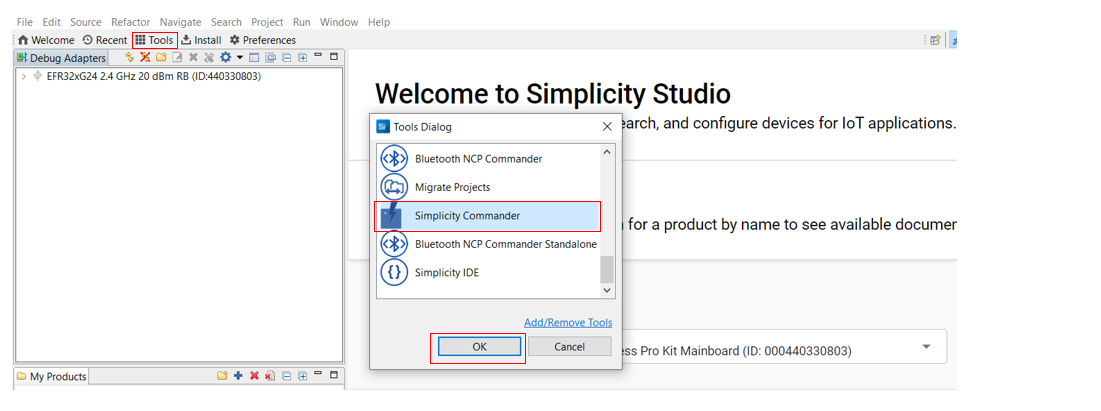
Go to Simplicity Studio IDE home page, click Tools and select Simplicity Commander from the Tools Dialog.
If you are using Standalone Simplicity Commander, navigate to the following path within the Simplicity Commander installation directory and double click on
commander.exe:C:\..\..\SimplicityCommander-Windows\Commander_win32_x64_1v16p14b1705\Simplicity Commander.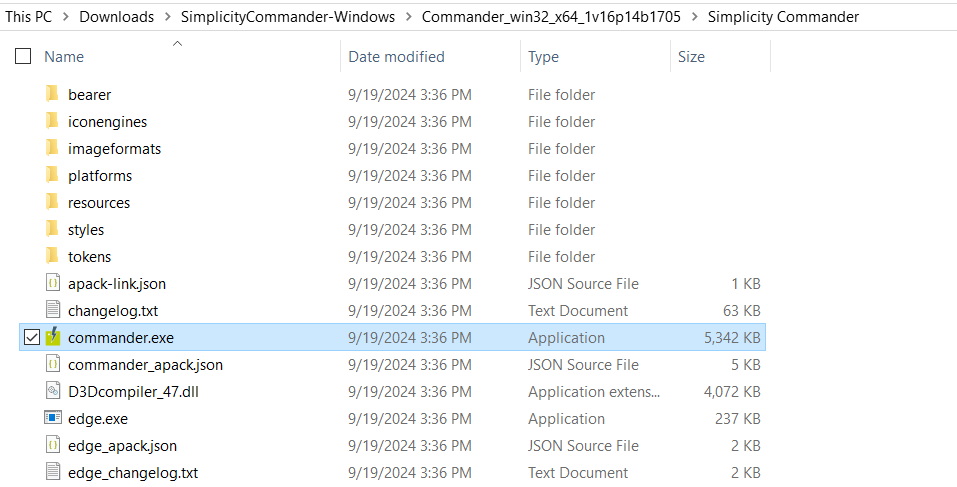
The Commander GUI window is displayed.
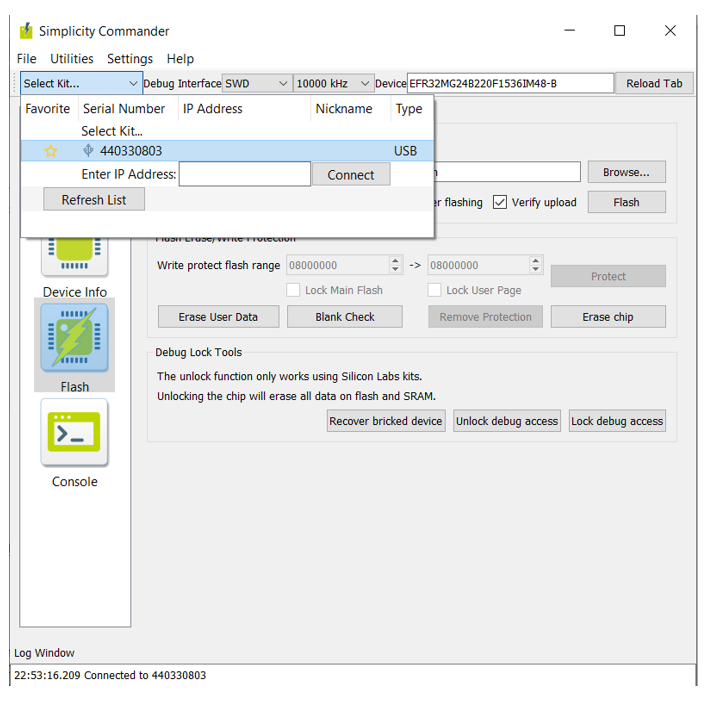
Go to Select Kit… and select the Serial number of the connected device.
Go to Flash, click Browse…, and browse to the downloaded manufacturing application binary file (
.bin): EFR32xG24 application or EFR32xG21 application depending on the EFR32 Radio board being used.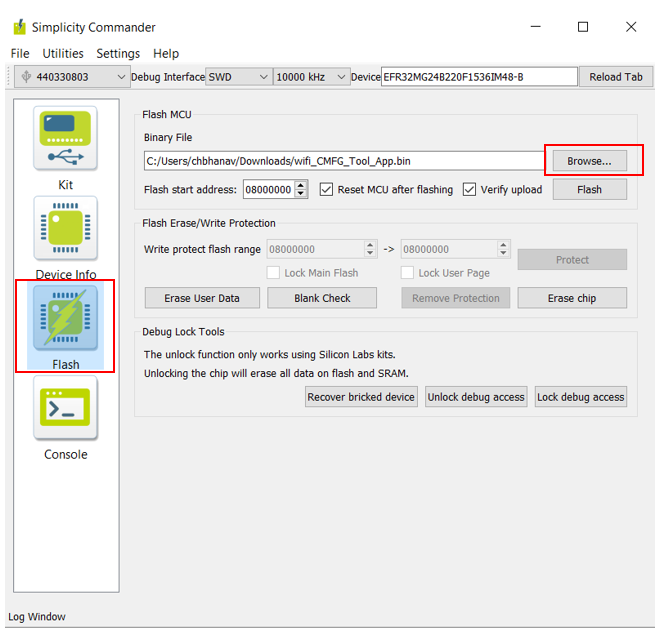
Click Flash.
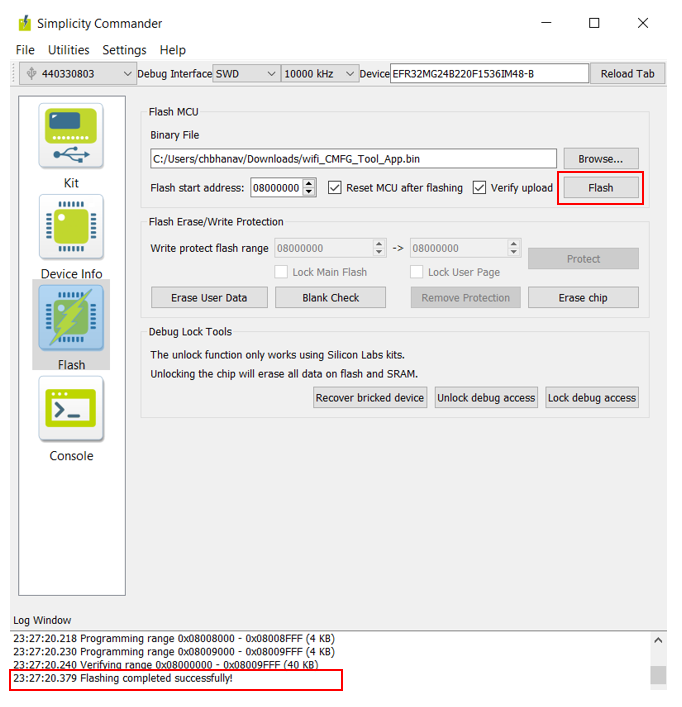
Launching the Commander CLI#
If you are using Simplicity Commander from the Simplicity Studio IDE installation, navigate to the following path within the Simplicity Studio installation directory and enter
cmdto open the Commander CLI:C:\..\..\SimplicityStudio\v5\developer\adapter_packs\commander.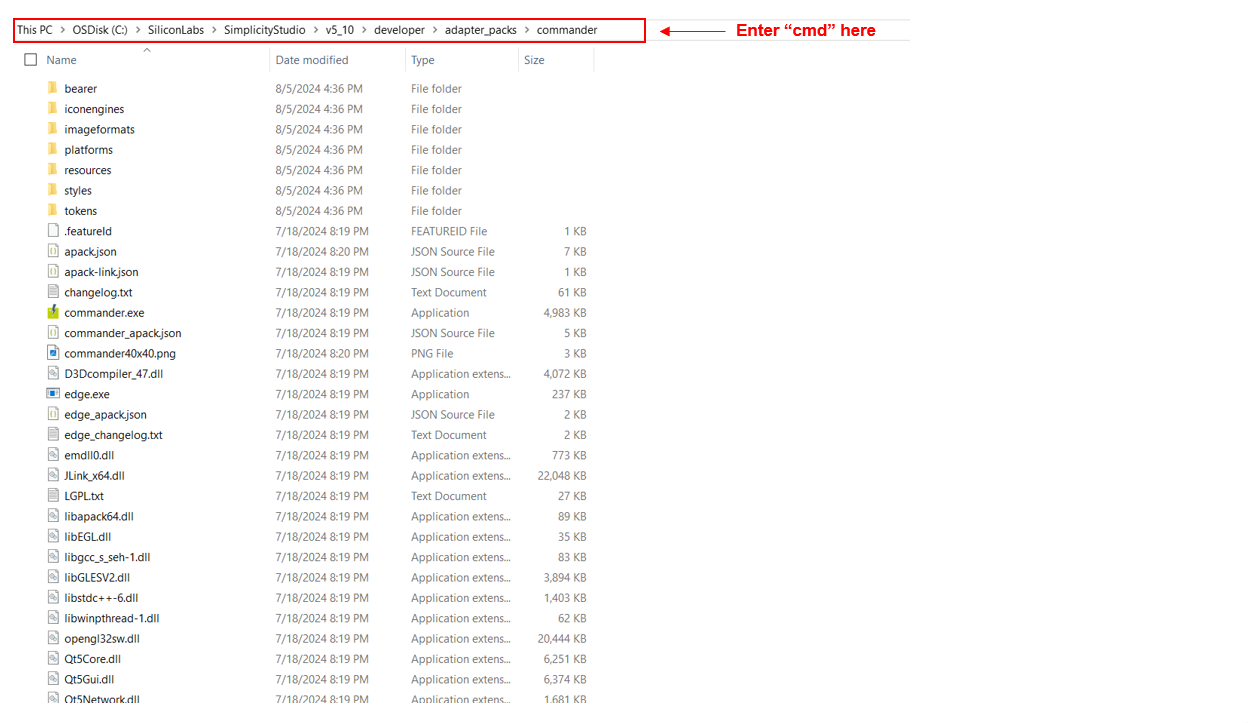
If you are using Standalone Simplicity Commander, navigate to the following path within the Simplicity Commander installation directory and enter
cmdto open the Commander CLI:C:\..\..\SimplicityCommander-Windows\Commander_win32_x64_1v16p14b1705\Simplicity Commander.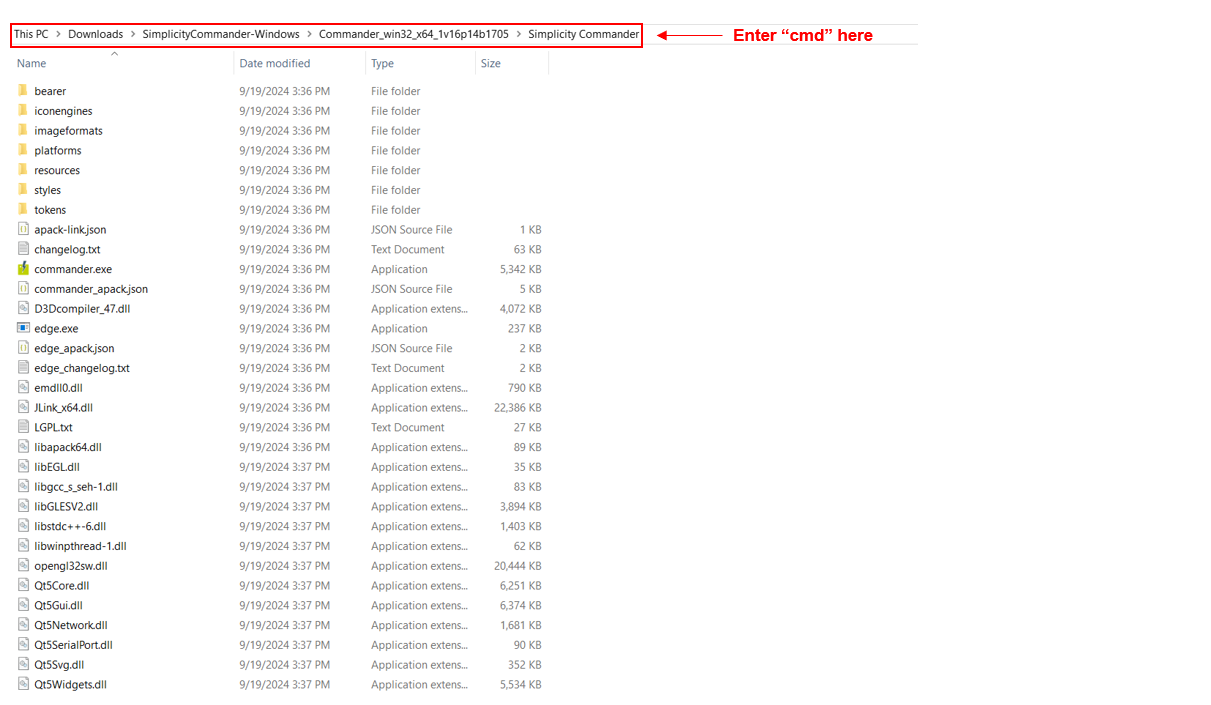
For getting the SiWx917 NCP details, enter the following command:
commander manufacturing info -d <full opn> --serialinterface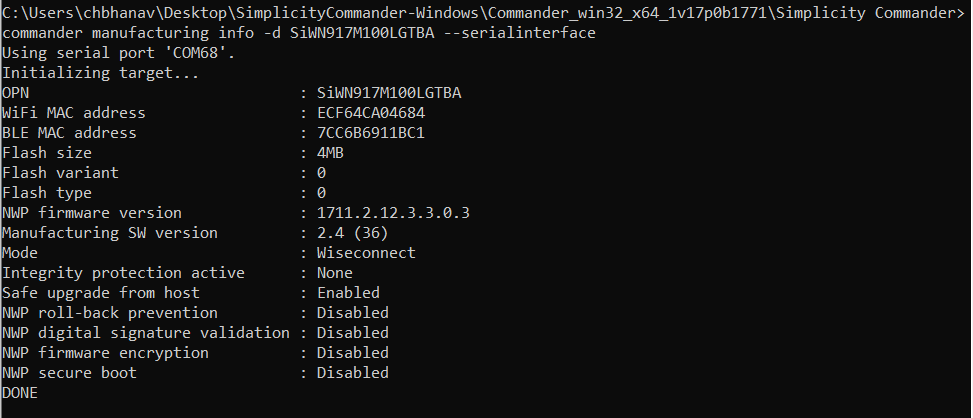
Manufacturing Utility Commands, Options, and Arguments#
The tables below provide a list of Manufacturing Utility commands, options, and arguments along with their descriptions, which are essential for the manufacturing of the SiWx917 NCPs.
| Command | Description |
|---|---|
manufacturing |
Perform manufacturing operations |
provision |
Provision NWP (TA) MBR |
tambr |
Perform operation on NWP MBR |
efuse |
Perform operation on eFuse |
efusecopy |
Perform operation on eFusecopy |
write |
Compare the provided data with the existing data on the device and write the new changes into the respective region, whether it be flash, eFuse, or eFusecopy. |
read |
Read the contents in the respective region, whether it be flash, eFuse, or eFusecopy. |
serial load |
Load/flash the firmware |
default |
Use the default TA (NWP) MBR for your device, based on the provided device part number using the –device/-d option. |
| Option | Description |
|---|---|
-d |
Device |
--mbr |
NWP MBR |
--out |
Output into a file |
--data |
Data |
--serialinterface |
For configuring an NCP device, the Simplicity Commander communicates via a proprietary serial protocol to an interface device (host), which in turn communicates with the NCP device via Serial Peripheral Interface (SPI) or Secure Digital Input Output (SDIO) commands. In this case, Simplicity Commander requires that you provide the --serialinterface option. |
--skipinit |
In case you are running multiple SiWx917 manufacturing commands in sequence and without resetting the target device in between, you may also provide the --skipinit option to skip initializing the target device's SPI/SDIO interface. |
--skipload |
For writing/erasing manufacturing data, or running the key provisioning processes (including its initialization), Simplicity Commander depends on a custom NWP firmware being loaded to the device. Loading this firmware can be skipped by providing the --skipload flag. This option must only be provided if you are completely certain that the NWP firmware is already loaded and running on your device, and the use of the --skipload flag is therefore generally discouraged. |
--serialport |
Serial Port of host MCU |
--showprogress |
Display a progress bar for the ongoing file transfer. |
--keys |
Provision device keys |
--noprompt |
Skip the confirmation prompt |
--dryrun |
Output the data to the terminal instead of writing it to the device |
--taapp |
Provide the TA (NWP) RPS firmware images |
Argument | Description |
|---|---|
| Ordering Part Number (OPN) of SiWx917 NCP device |
| The name of the file into which the contents will be read |
| Optional parameter |
| Required parameter |
Note: For more information, refer to the Simplicity Commander Reference guide.