Wi-Fi OTA Update Demo#
The Wi-Fi OTA firmware update demo demonstrates how to update the SiWx91x user application firmware over a Wi-Fi connection by downloading the firmware image from a mobile device.
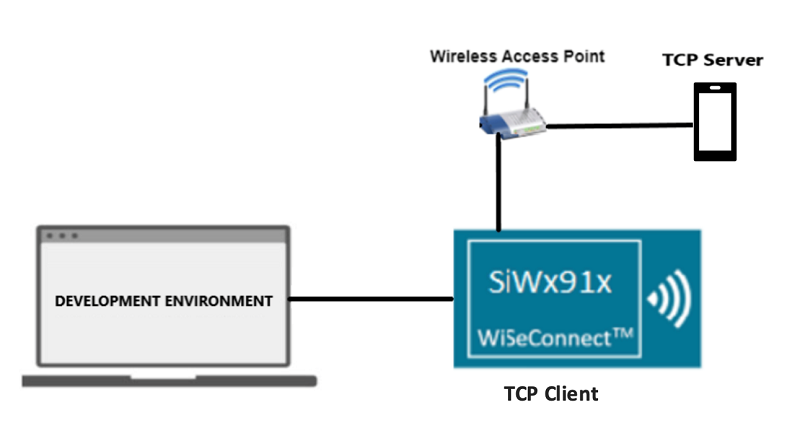
The SiWx91x board connects as a TCP client to the TCP update server on the mobile device.
The TCP server in the Simplicity Connect mobile app initiates a firmware update and sends the firmware image file to the SiWx91x client.
The SiWx91x client's OTA application, the wifi_m4_firmware_update sample app, programs the user application firmware into the SiWx91x flash memory and reboots the device.
To set up the demo, connect the SiWx91x board and the mobile device running the Simplicity Connect app to the same wireless access point, as shown in the following diagram.
Wi-Fi OTA Firmware Update Setup#
Make sure the mobile phone is connected to the local Wi-Fi network.
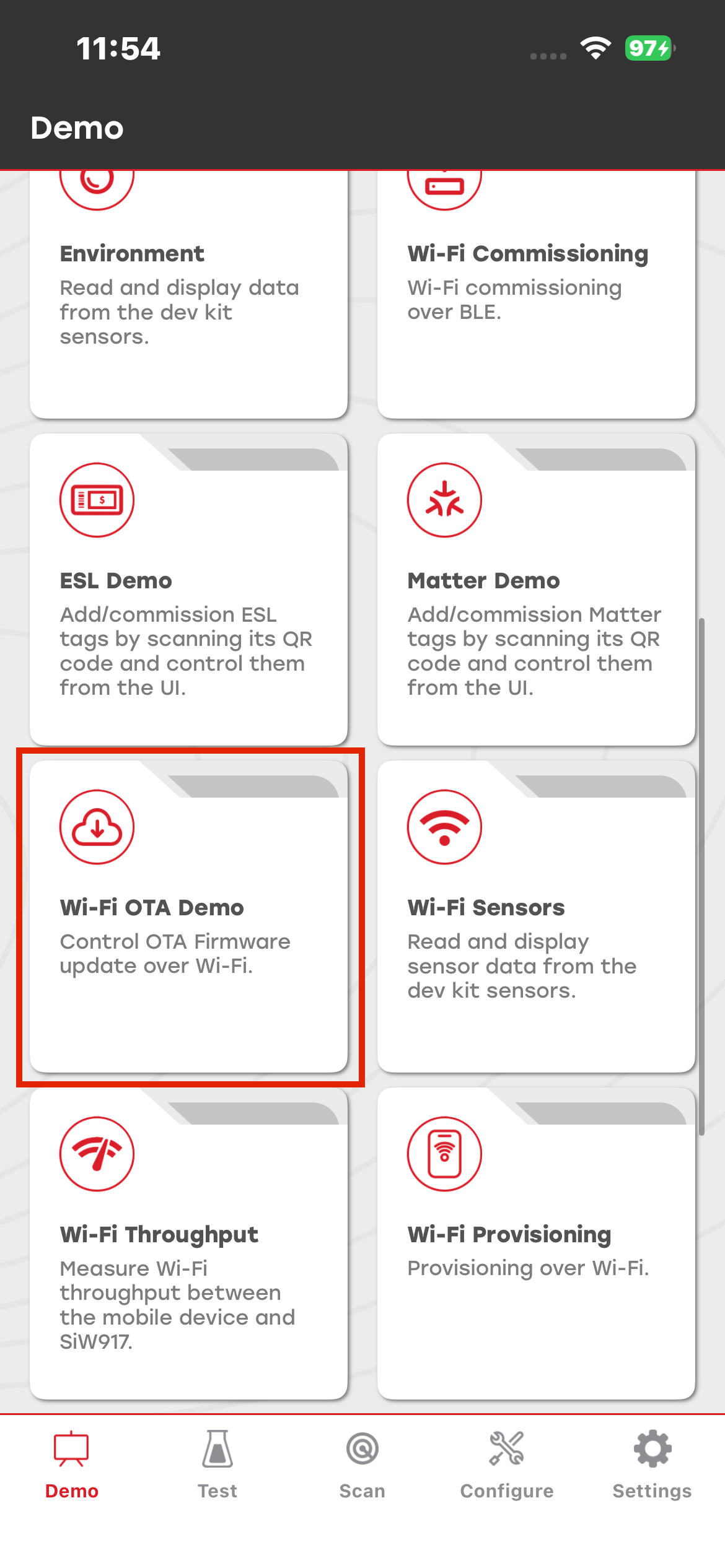
Open the Simplicity Connect app on the mobile phone, tap the Demo button in the navigation bar, find the Wi-Fi OTA Update demo tile, and tap to start it.
When the demo starts, the Configure Wi-Fi OTA Server window opens. The window displays the IP address of the mobile device in a noneditable field and a port number that you can edit.
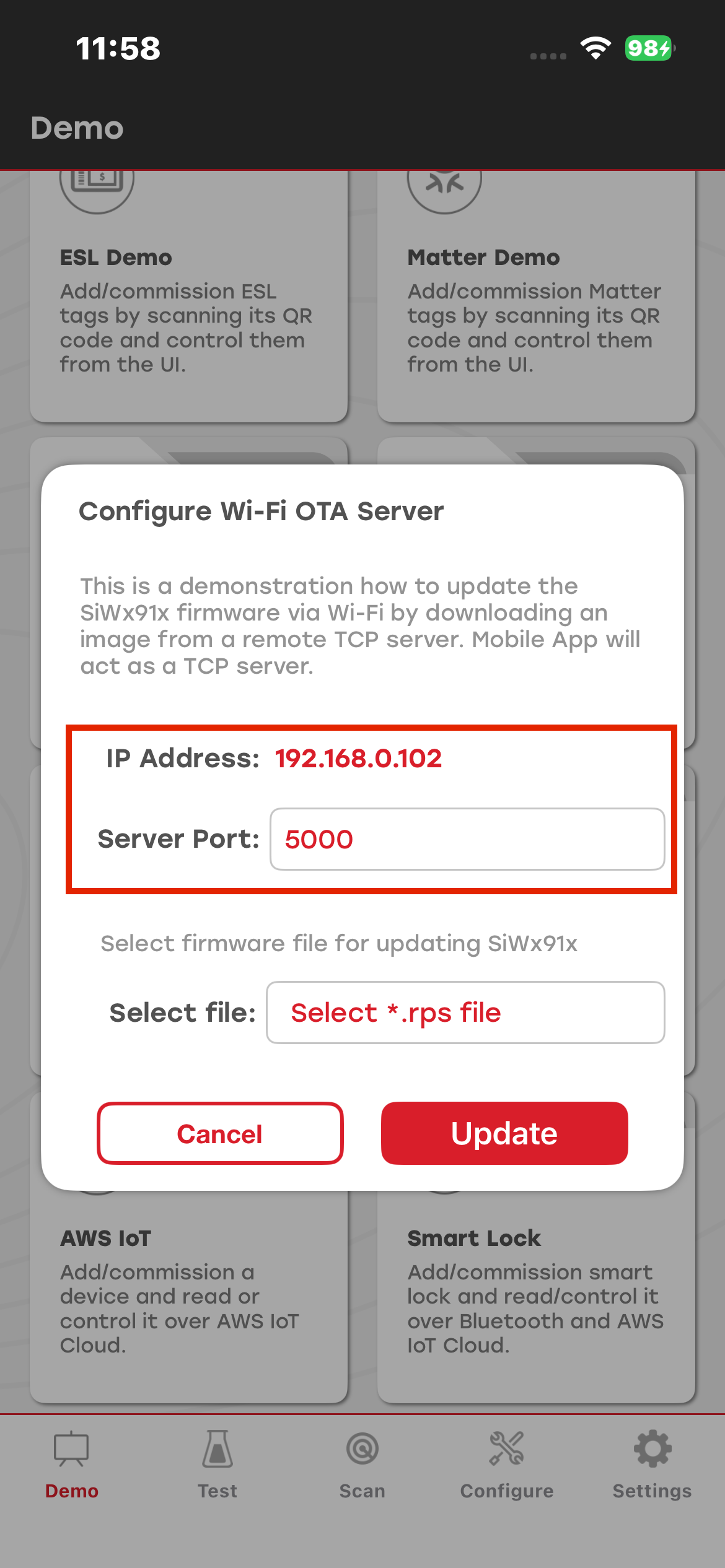
On the SiWx91x device, program the Wi-Fi OTA application. In Simplicity Studio, create a project from the Wi-Fi - M4 Firmware Update via TCP (SoC) sample app, and configure it according to the instructions in the application Readme. Configure the firmware with the correct server IP address, port number, and SSID and password for the local Wi-Fi network. Then, build the project, flash it to the SiWx91x device, and run the application to establish communication with the TCP server through the local Wi-Fi network.
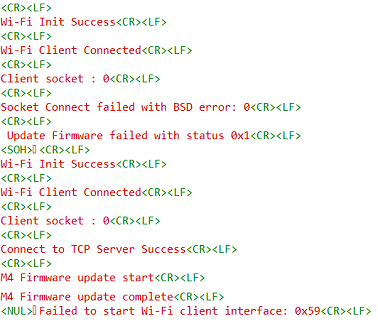
After you configure the server and client, you can view their status in the mobile app and the SiWx91x UART log. Select the appropriate firmware file (.rps) to upload to the device. You can download the corresponding .rps file for your Silicon Labs development board from the Silicon Labs GitHub site. After selecting the firmware file, select Upload to upload the firmware to the SiWx91x device.
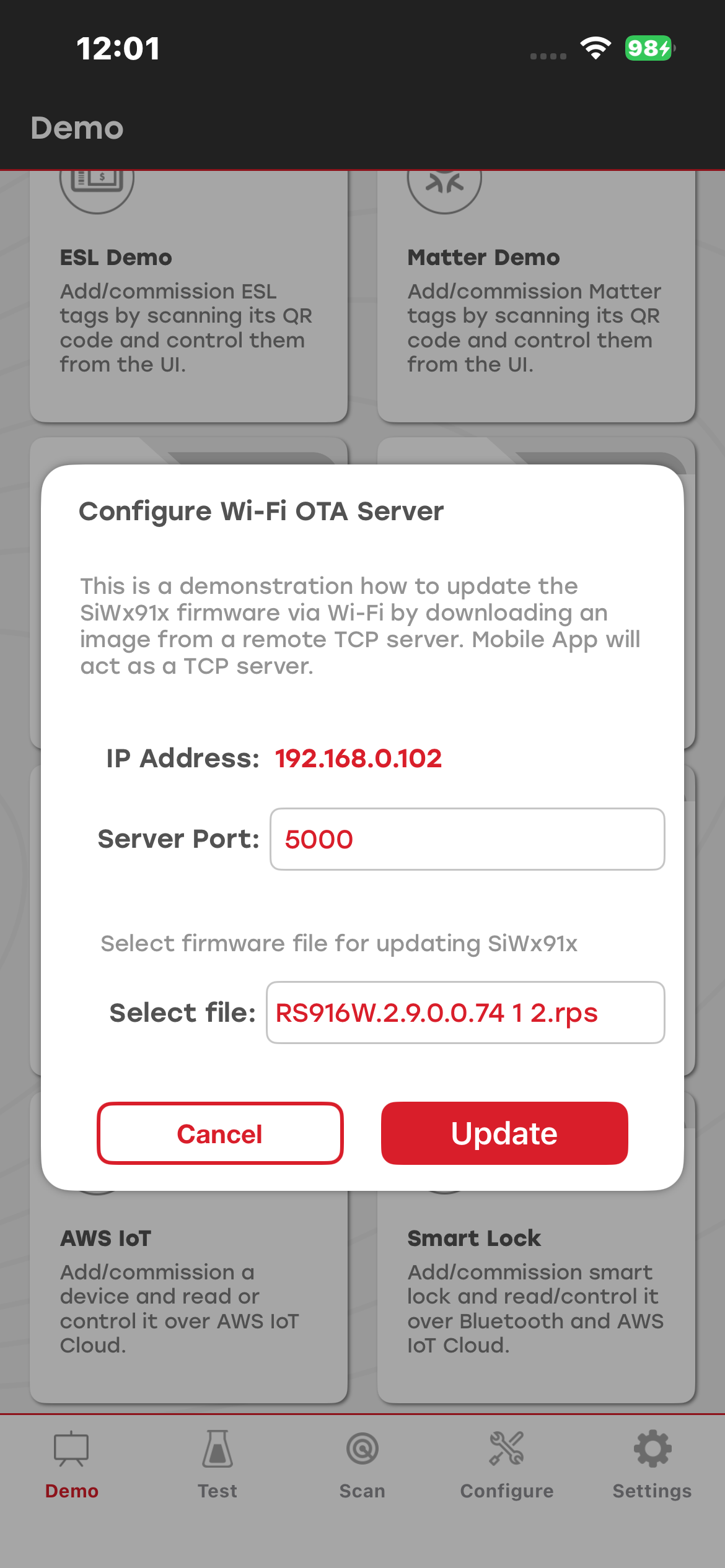
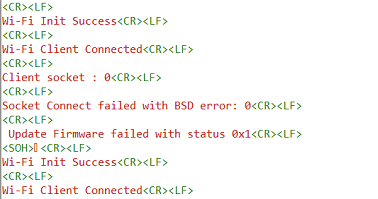
After tapping Update, a new dialog screen displays the progress of the firmware update. If the client hasn't connected to the TCP server, the Update Firmware window will show the message, waiting for client to connect. If the client is having trouble connecting to the mobile phone, try tapping the reset button on the SiWx91x board.
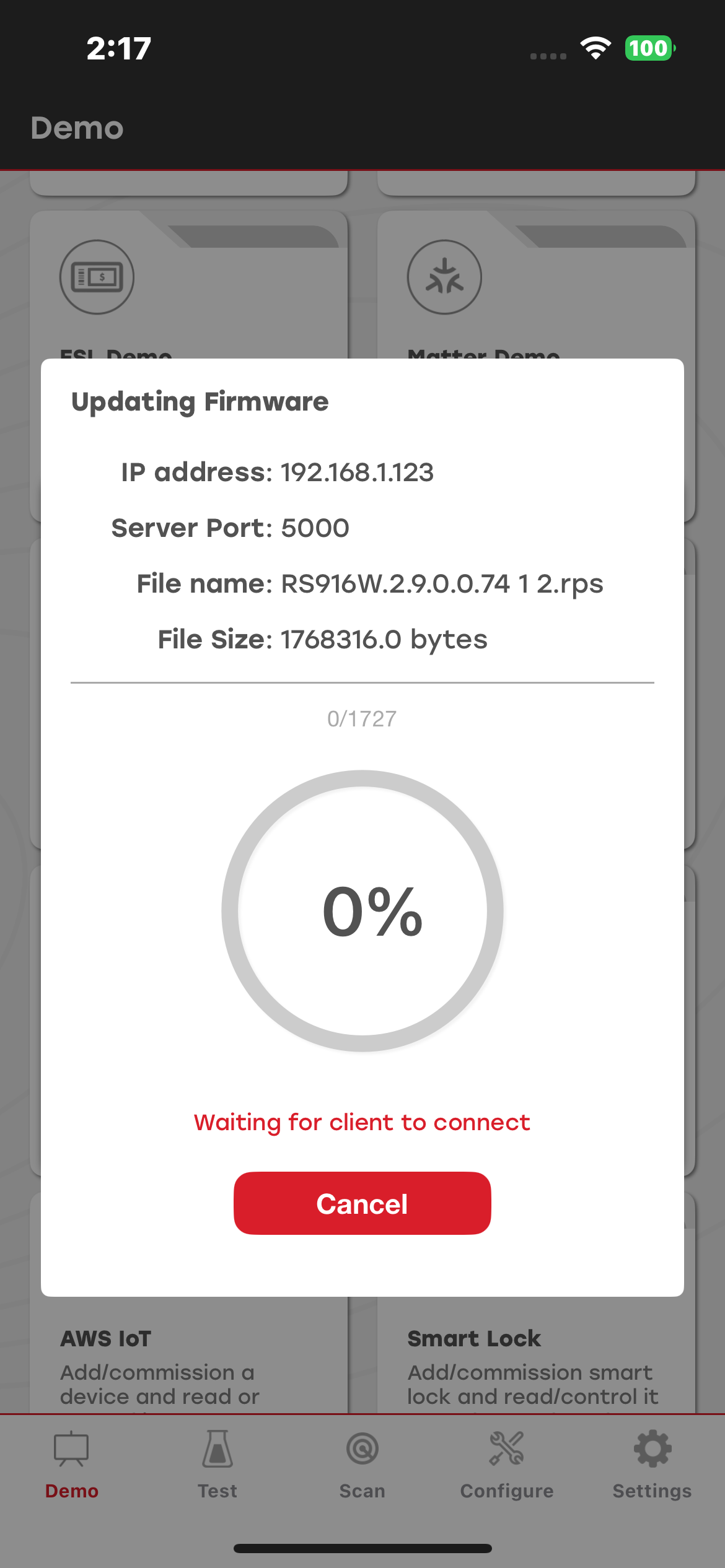
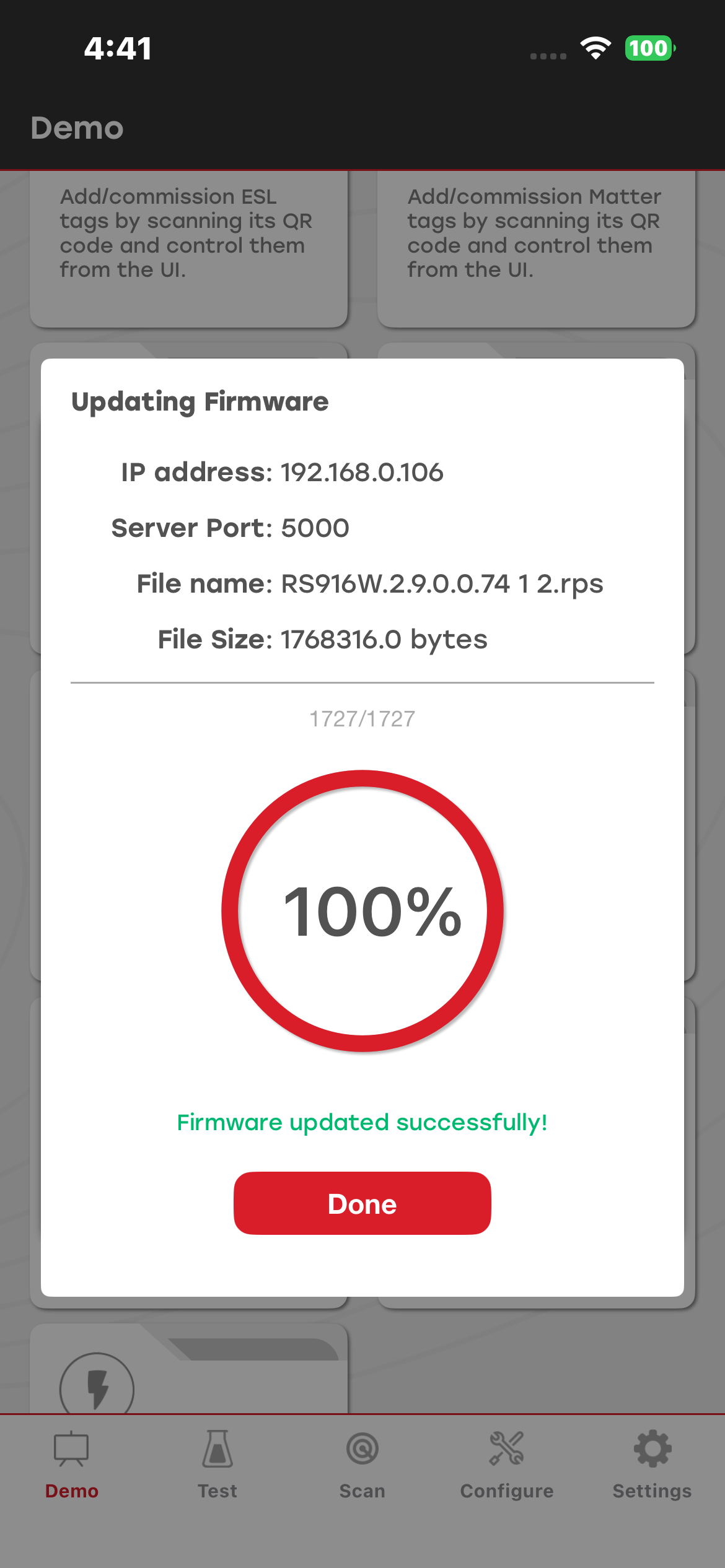
When the TCP client on the SiWx91x connects to the TCP server on the mobile phone, the firmware file transfer begins automatically. The progress dialog shows the progress of the firmware update as a percentage, along with a status message, Firmware update in progress. It also displays the number of packets sent to the client. If needed, you can cancel the firmware update at any time during the process by tapping Cancel.
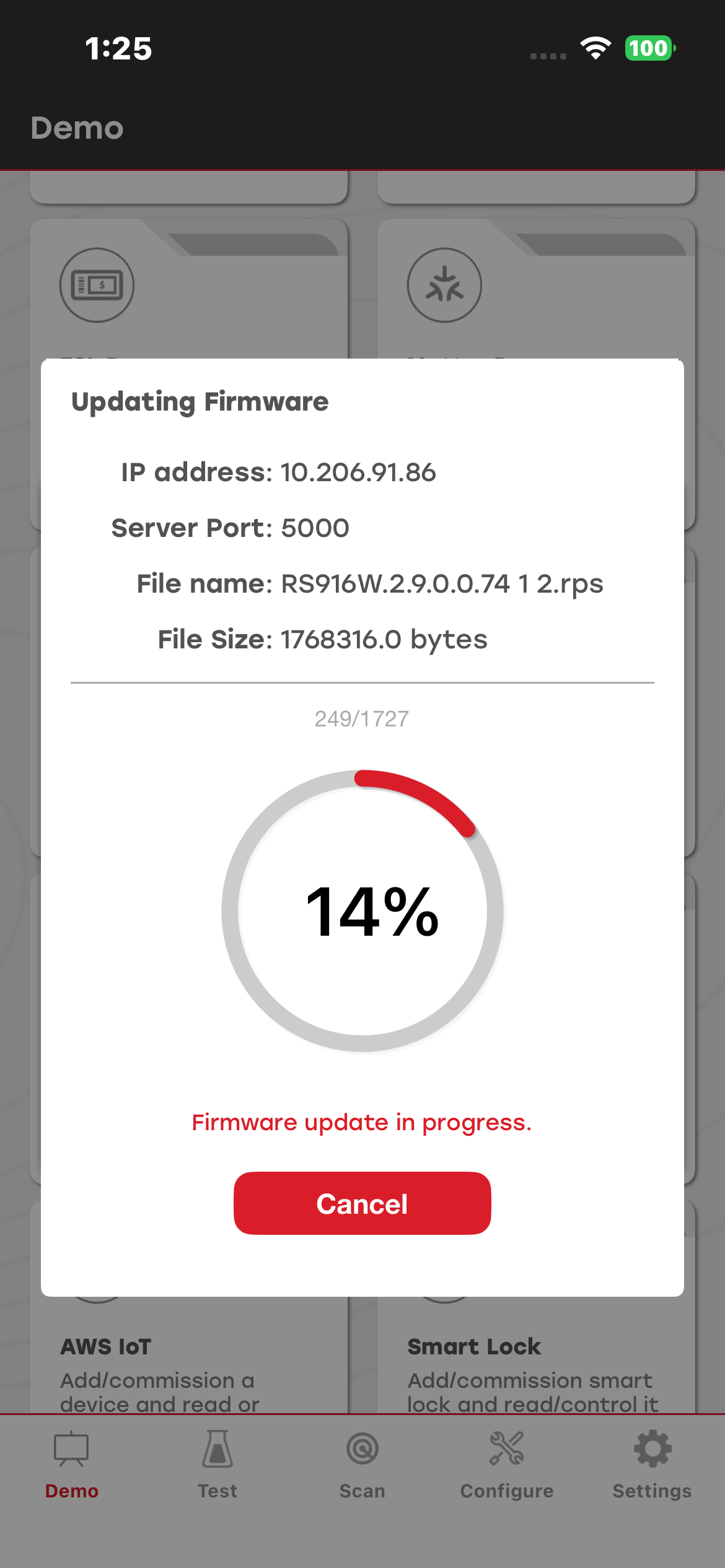
After the firmware file is uploaded successfully, the status message Firmware updated successfully appears in both the UART log and the mobile app. If the client and server disconnect during the firmware upload process, they have 30 seconds to reconnect automatically. If they do not reconnect within 30 seconds, a timeout error dialog box appears and prompts you to cancel the firmware update.