Wi-Fi Provisioning for SiWx917#
The Wi-Fi Provisioning demo demonstrates how to provision a device over Wi-Fi.
Wi-Fi Provisioning Setup#
Flash the Wi-Fi - Provisioning via Access Point (SoC) firmware to the BRD2605A board using Simplicity Studio.
Simplicity Connect Mobile App Setup#
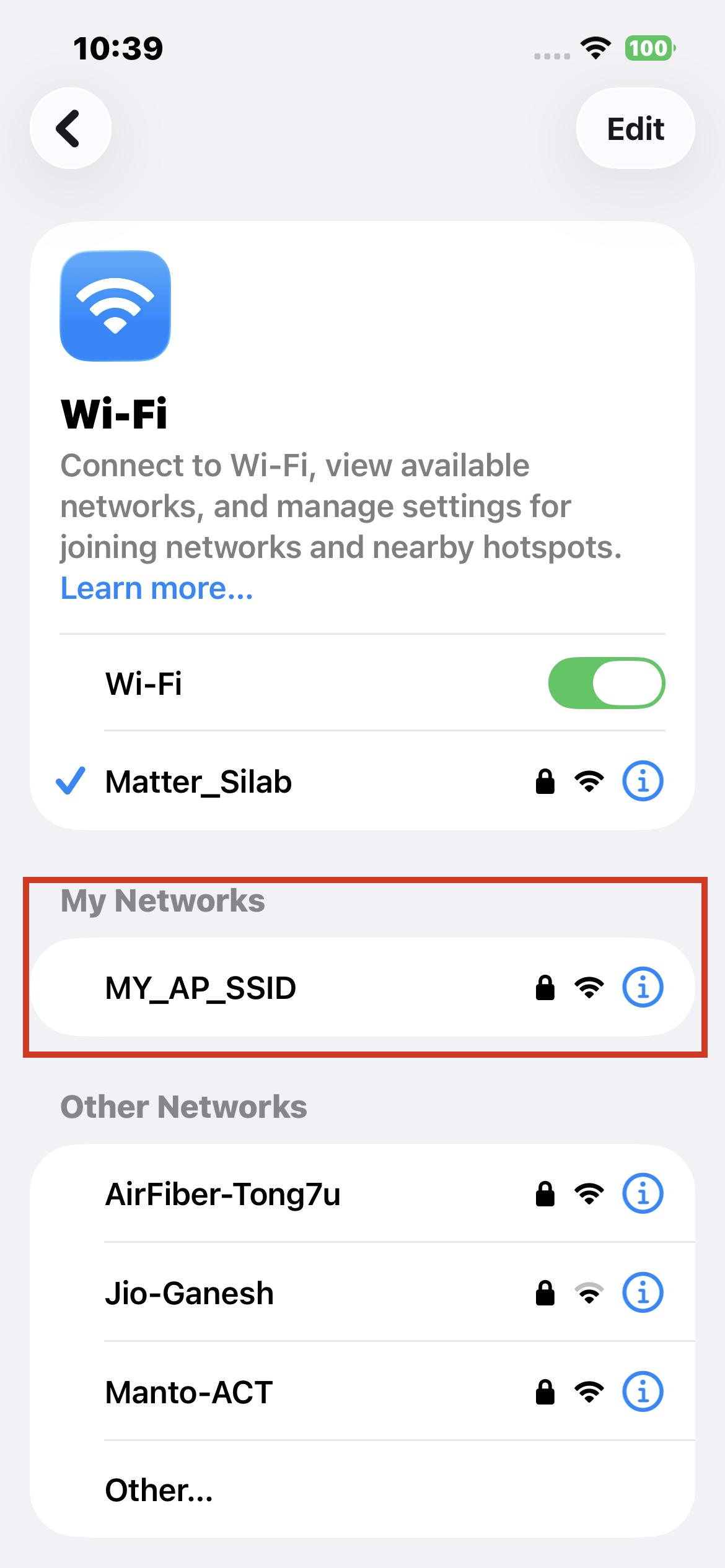
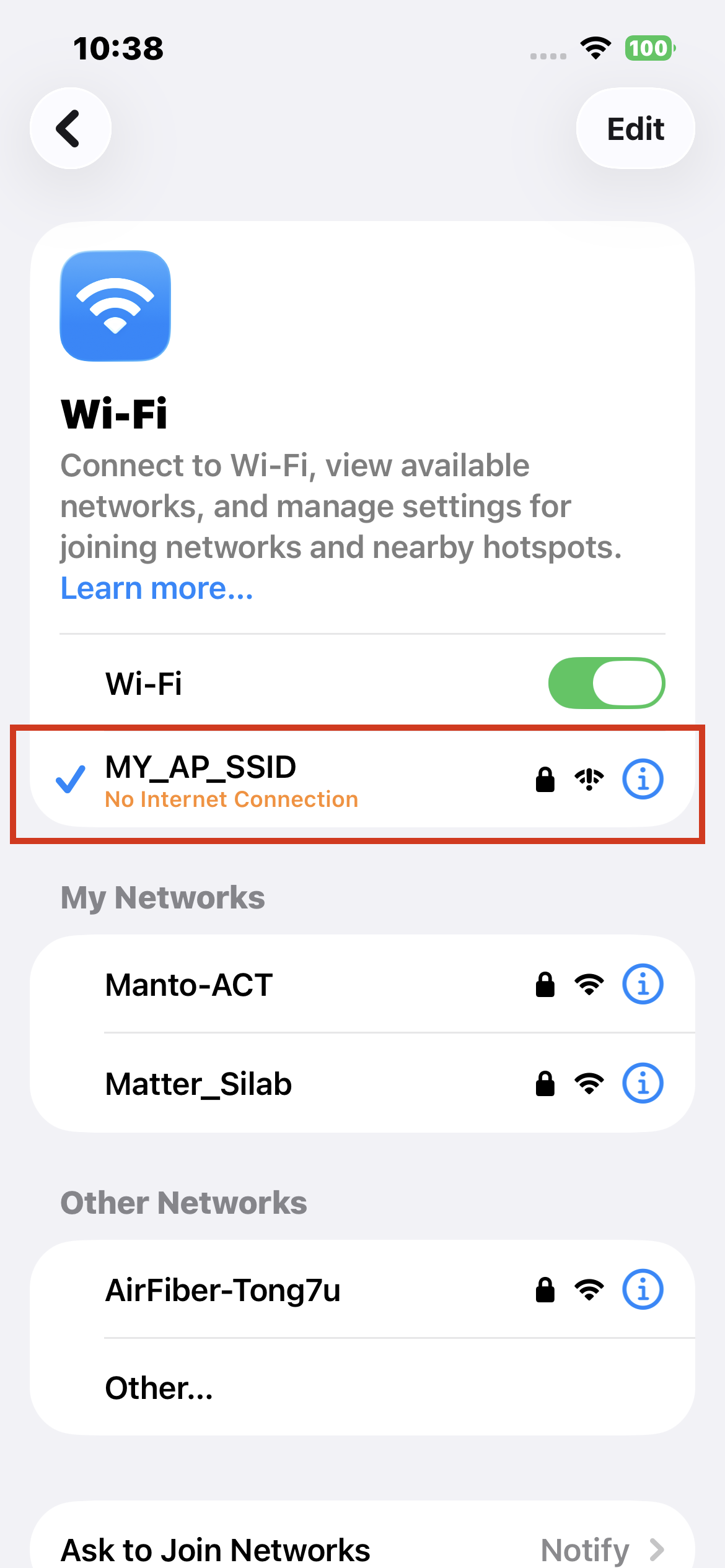
To connect to the Dev Kit SSID, follow these steps:
Open Settings on your mobile device.
Go to the Wi-Fi settings
Select the option to connect to an Access Point (AP).
Choose the appropriate AP from the list.
For example, the firmware uses MY_AP_SSID as the default SSID and MY_AP_PASSPHRASE as the default password. Enter these credentials to connect.
Note: On an iPhone, enable local network access by going to Settings > Privacy & Security > Local Network and turning on access for the Si Connect app.
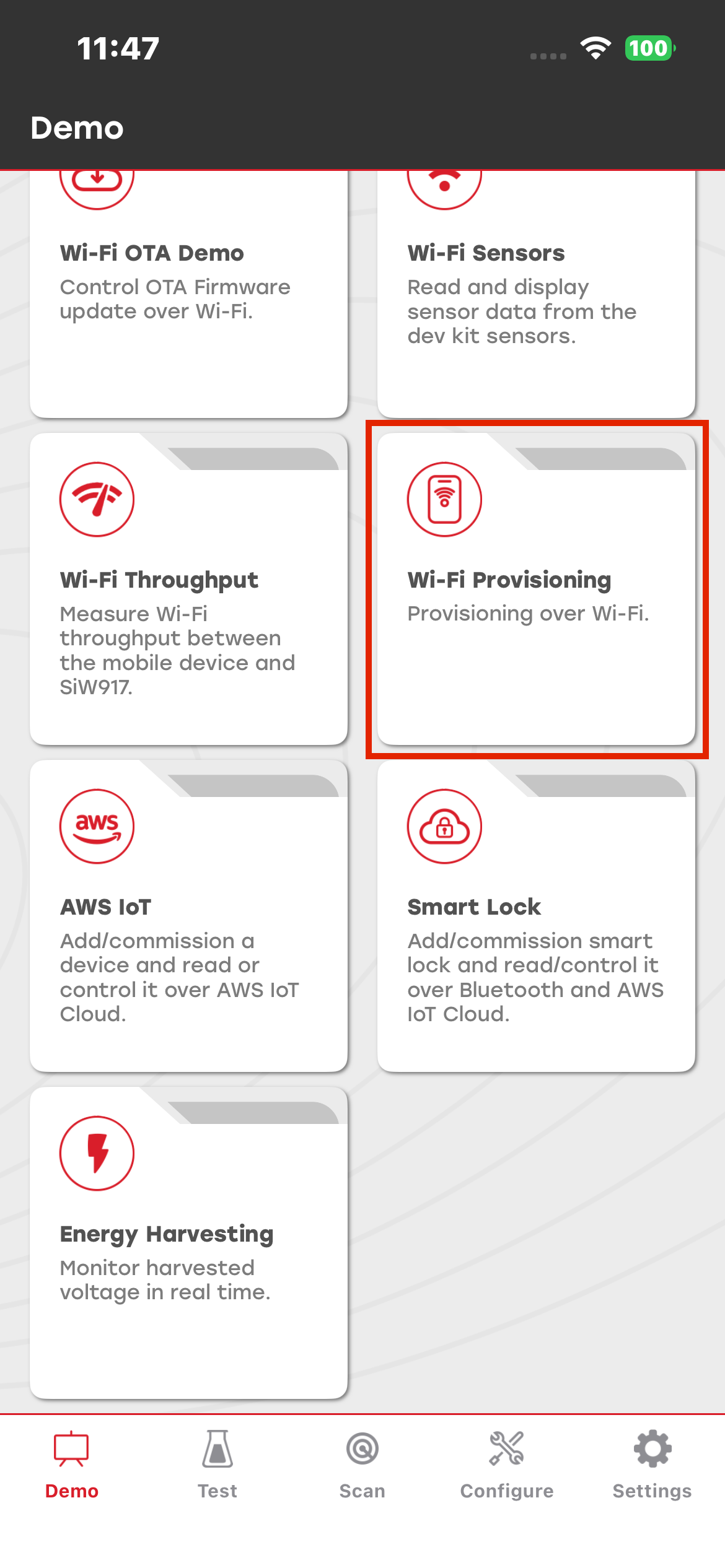
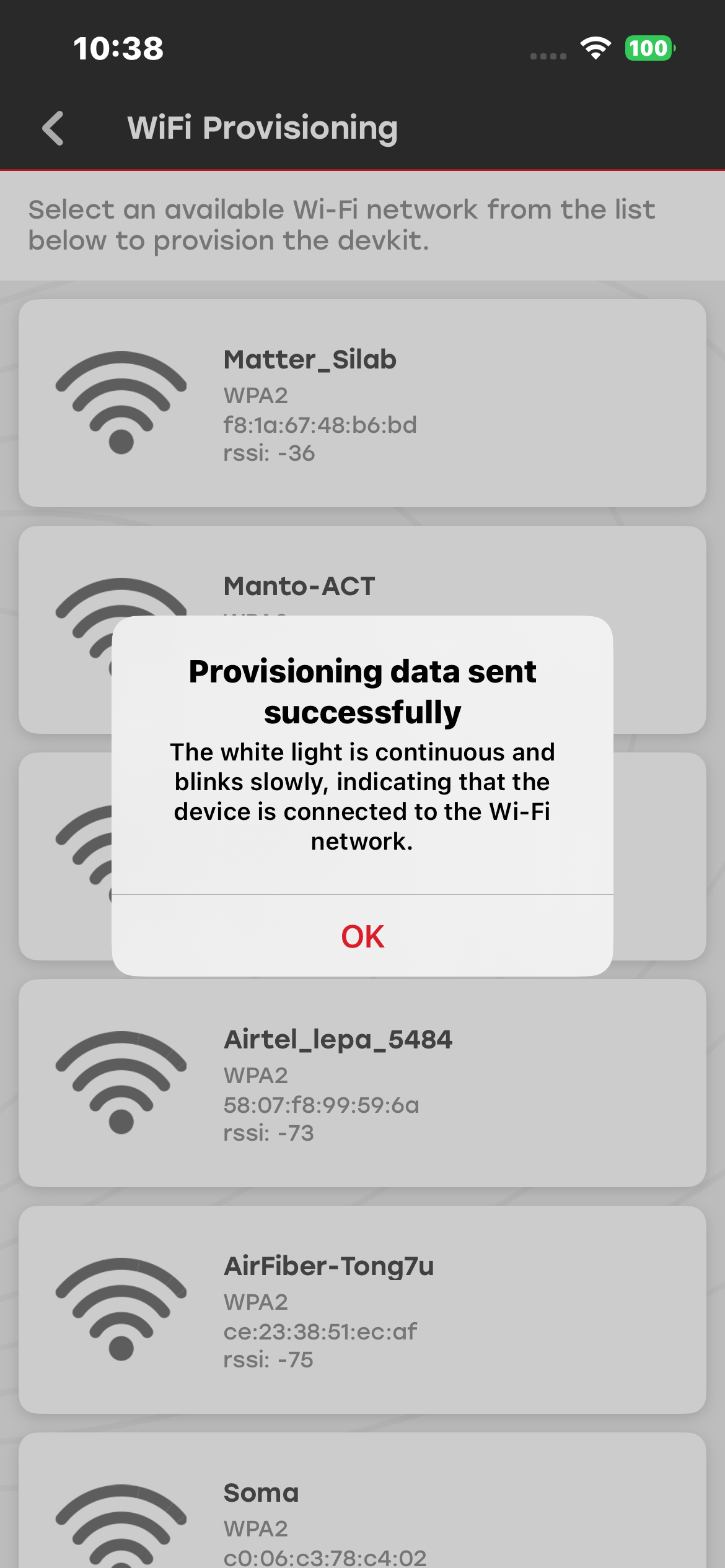
Open the Si Connect mobile app, and then start the Wi-Fi Provisioning demo. Select the access point that you want the Dev Kit to connect to.
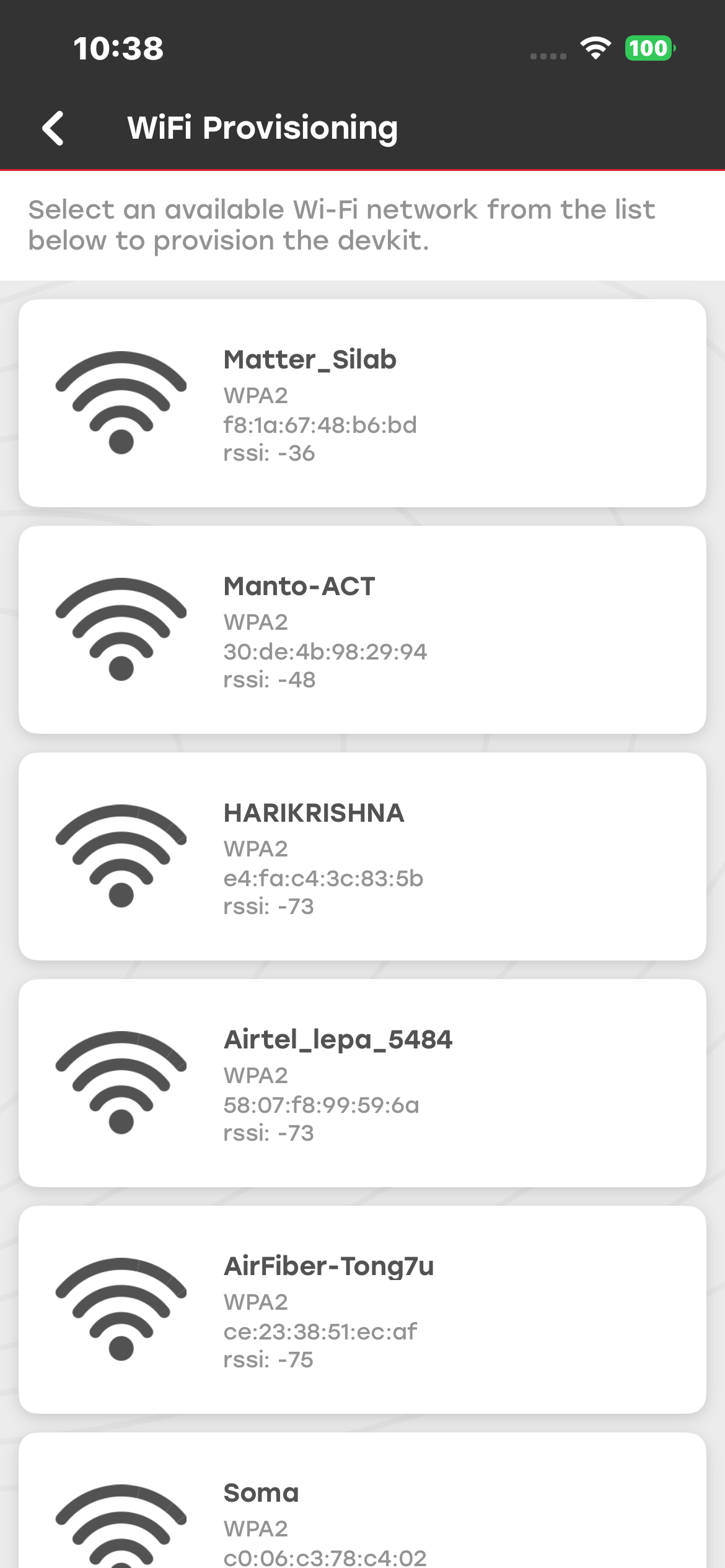
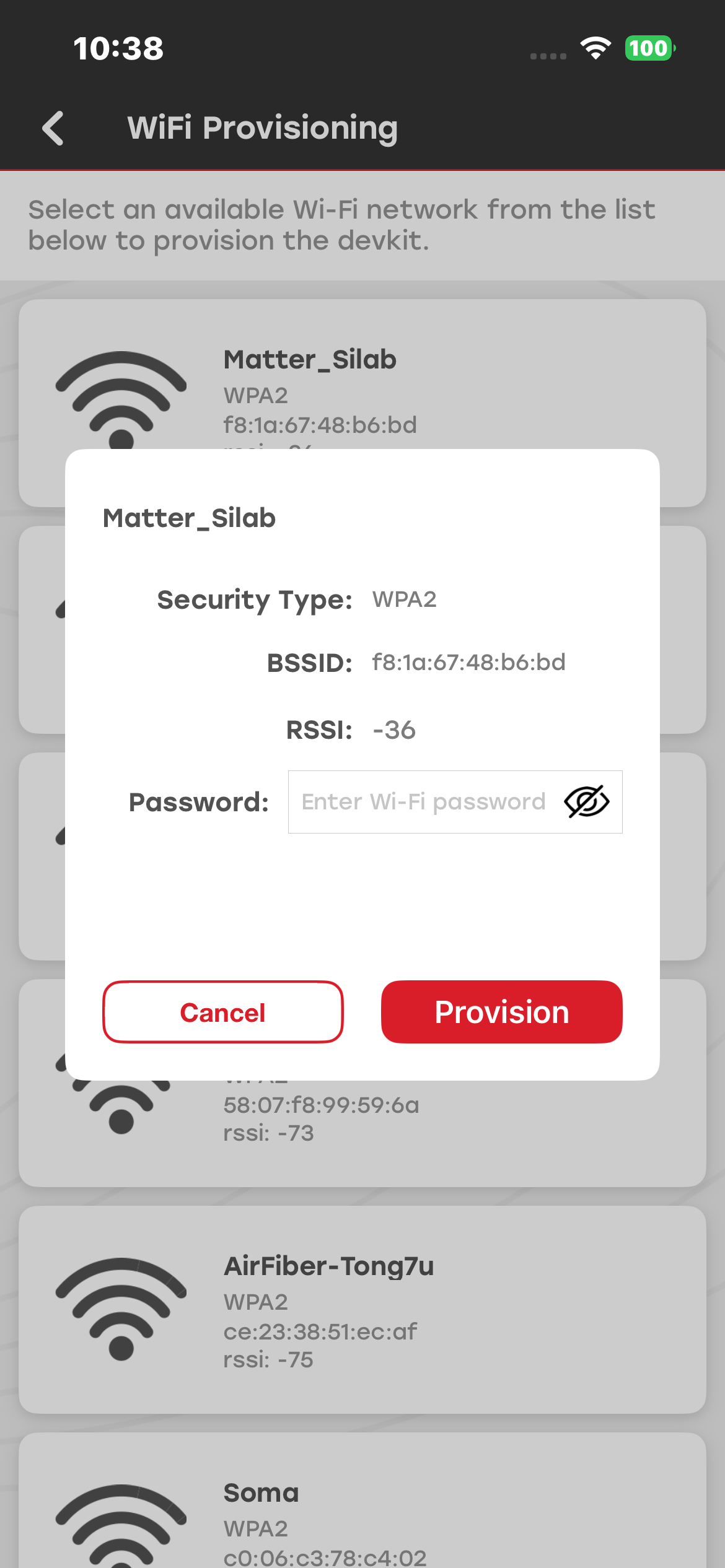
When you select a network, a dialog box prompts you for the Wi-Fi password. Enter the password, and then tap Provision. The Dev Kit connects to the selected network.
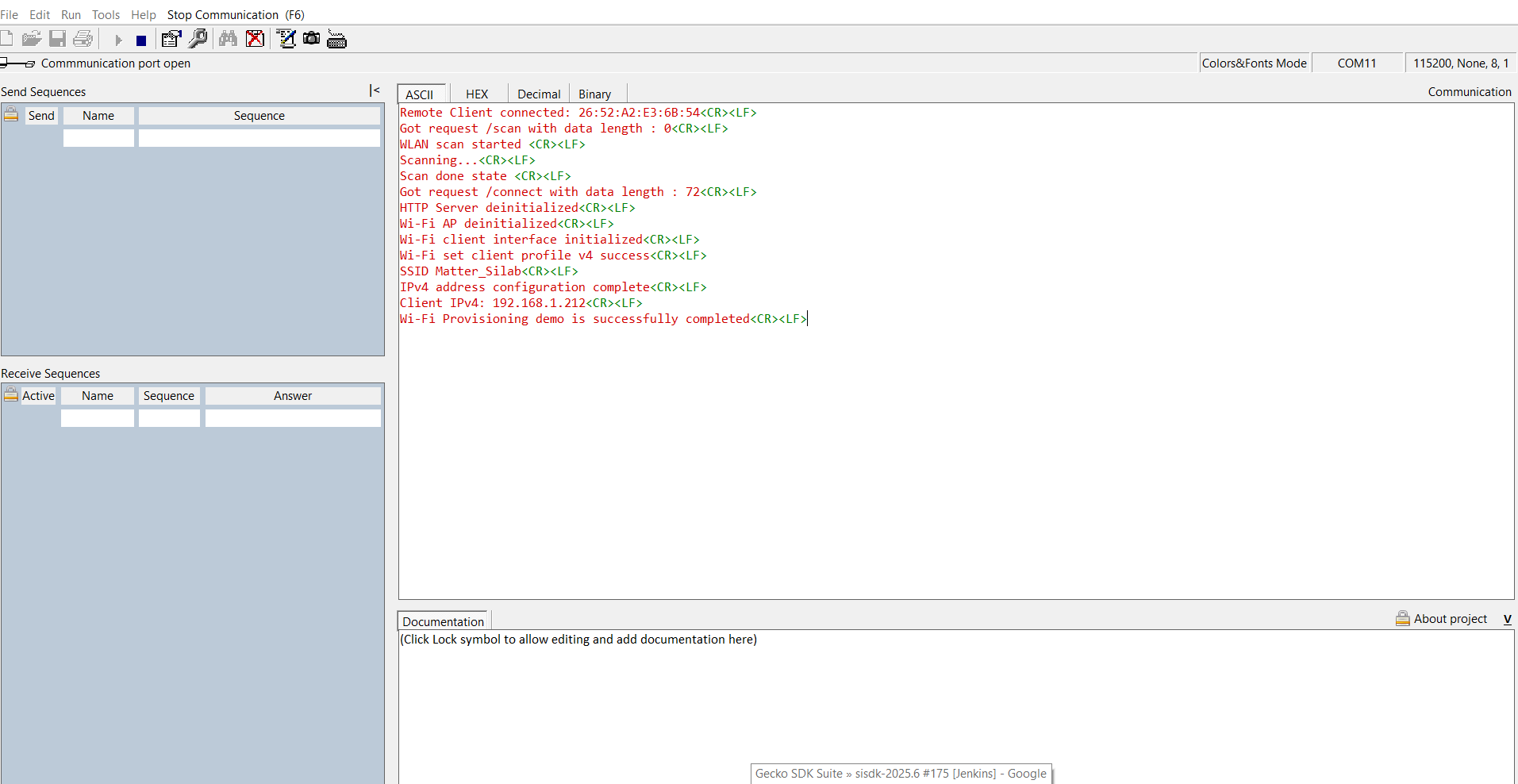
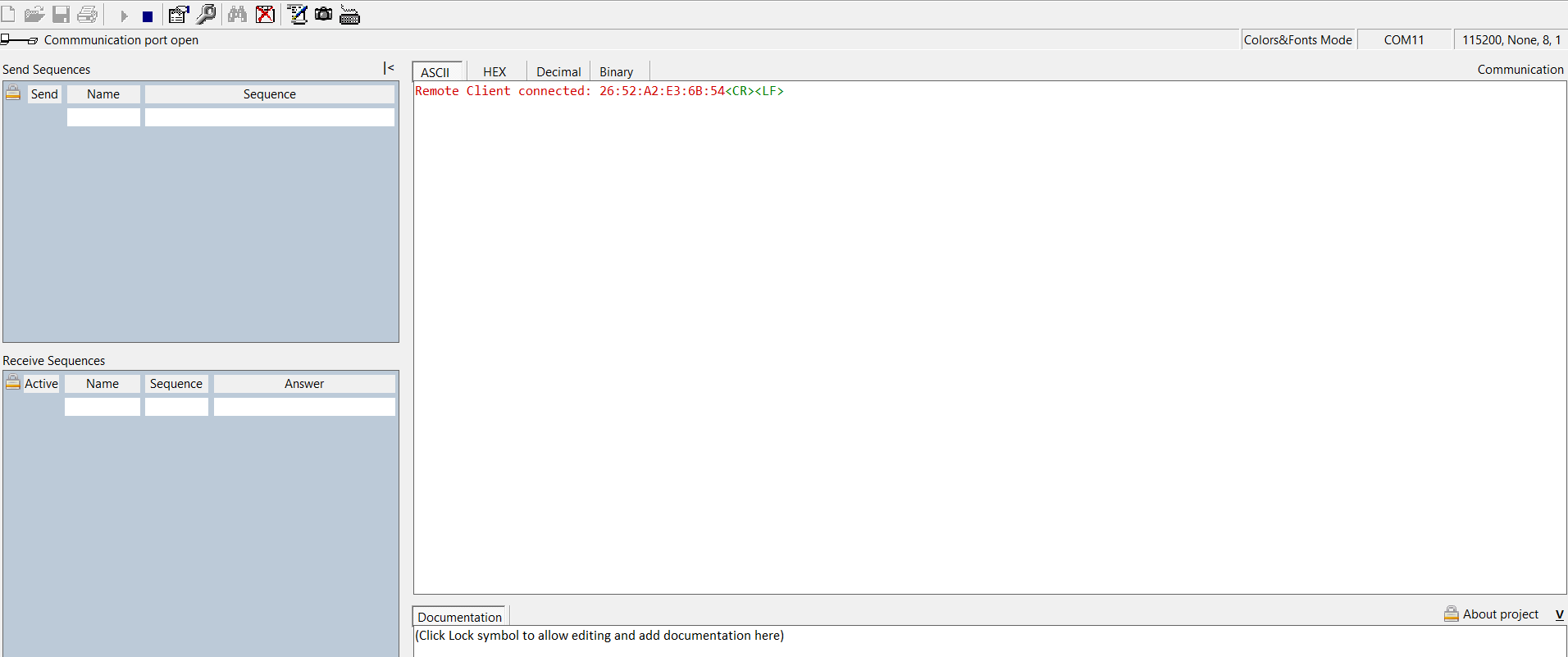
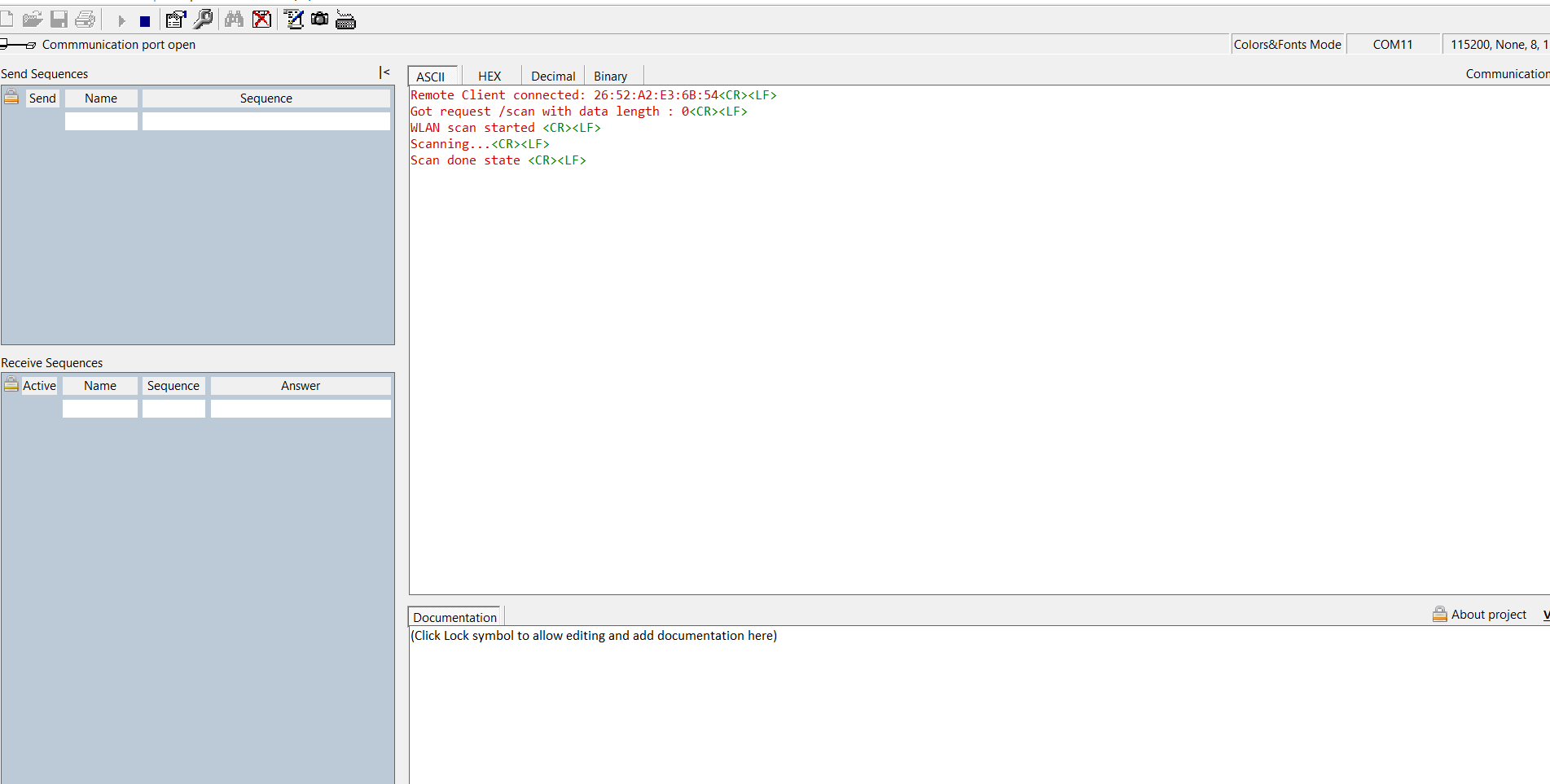
The following UART logs indicate the connection status of the device.