


Wi-Fi Throughput Demo#
Wi-Fi throughput refers to the actual data transfer speed between the mobile app and firmware over a wireless network, typically measured in megabits per second (Mbps). It indicates how much data can be transmitted over a Wi-Fi connection within a given time, taking into account factors such as signal strength, interference, network congestion, and the capabilities of the router and connected devices. Higher throughput results in faster data transfer and better network performance.
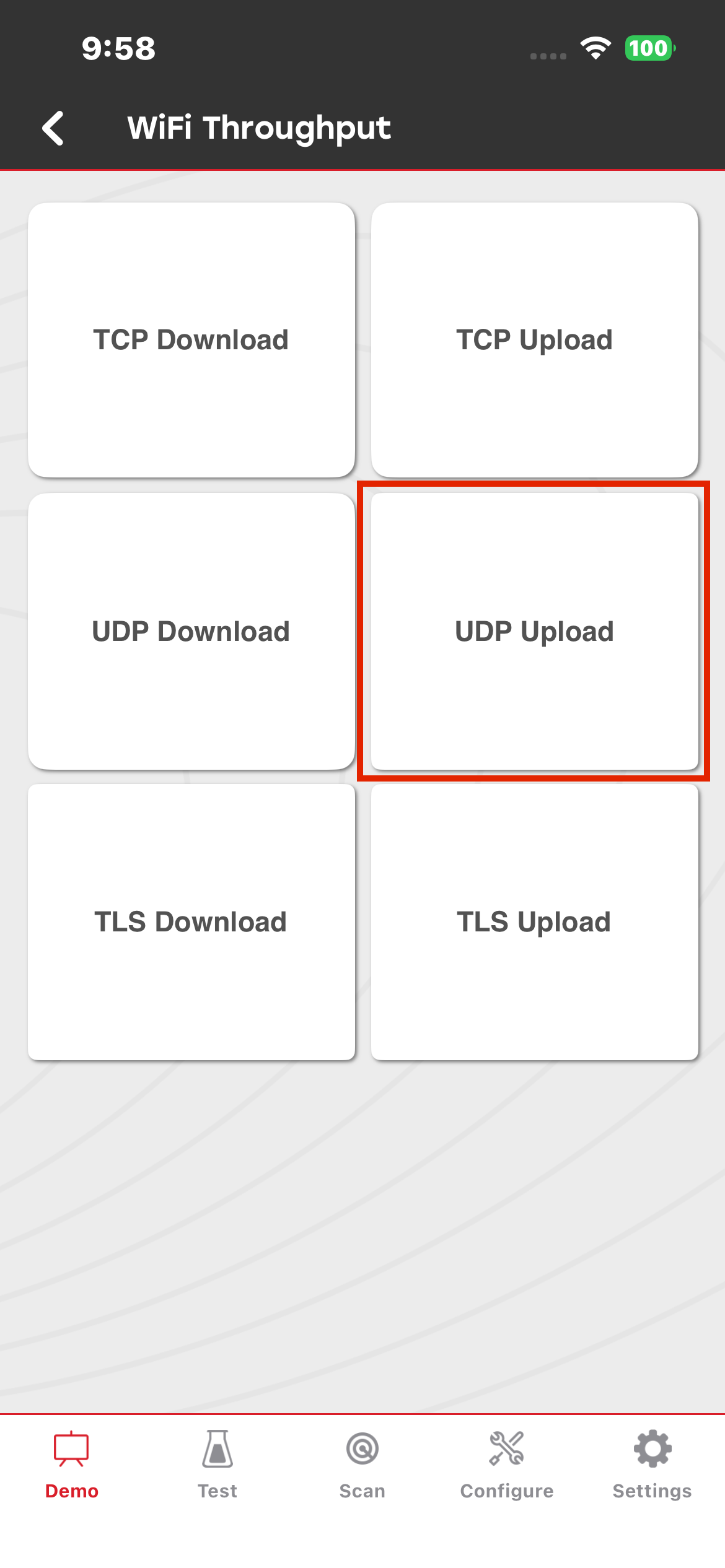
This demo supports both upload and download operations for TCP, UDP, and TLS.
The following list describes each type of data transfer:
TCP Upload: Sends data from the mobile app to the firmware using TCP, which provides reliable, ordered, and error-checked data transfer.
TCP Download: Sends data from the firmware to the mobile app using TCP, which provides reliable, ordered, and error-checked data transfer.
UDP Upload: Sends data from the mobile app to the firmware using UDP, which prioritizes speed but does not guarantee delivery or error correction.
UDP Download: Sends data from the firmware to the mobile app using UDP, which prioritizes speed but does not guarantee delivery or error correction.
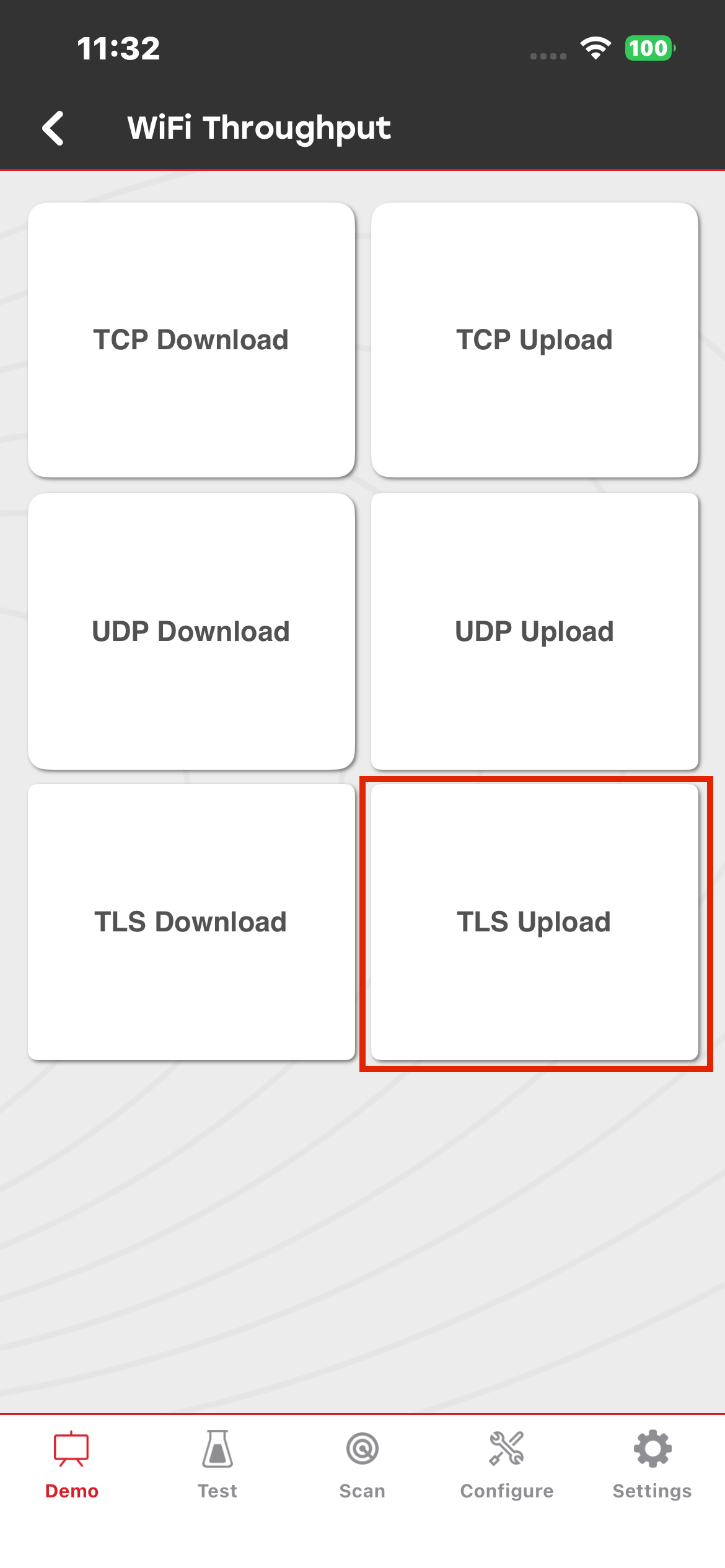
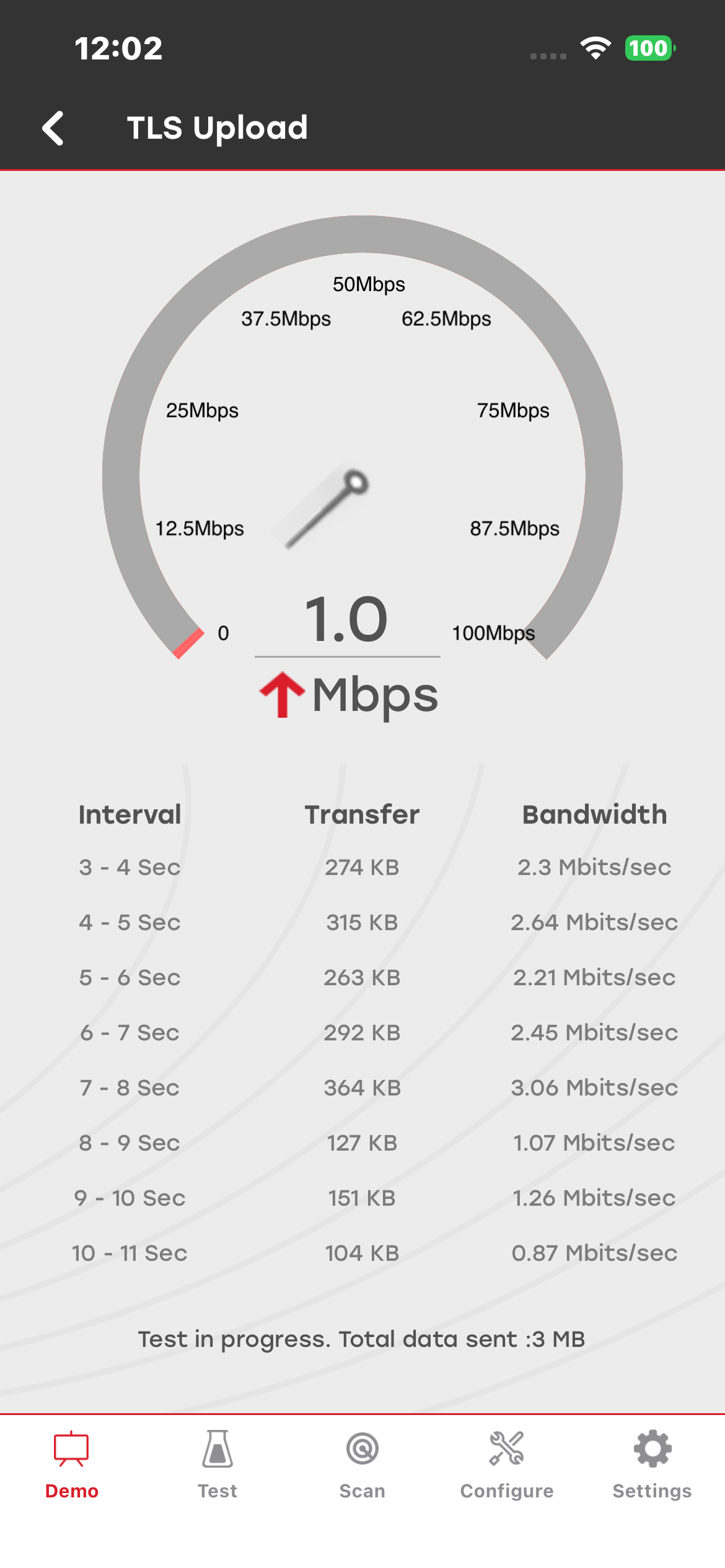
TLS Upload: Securely sends data from the mobile app to the firmware over TCP, with TLS providing encryption for secure data transfer.
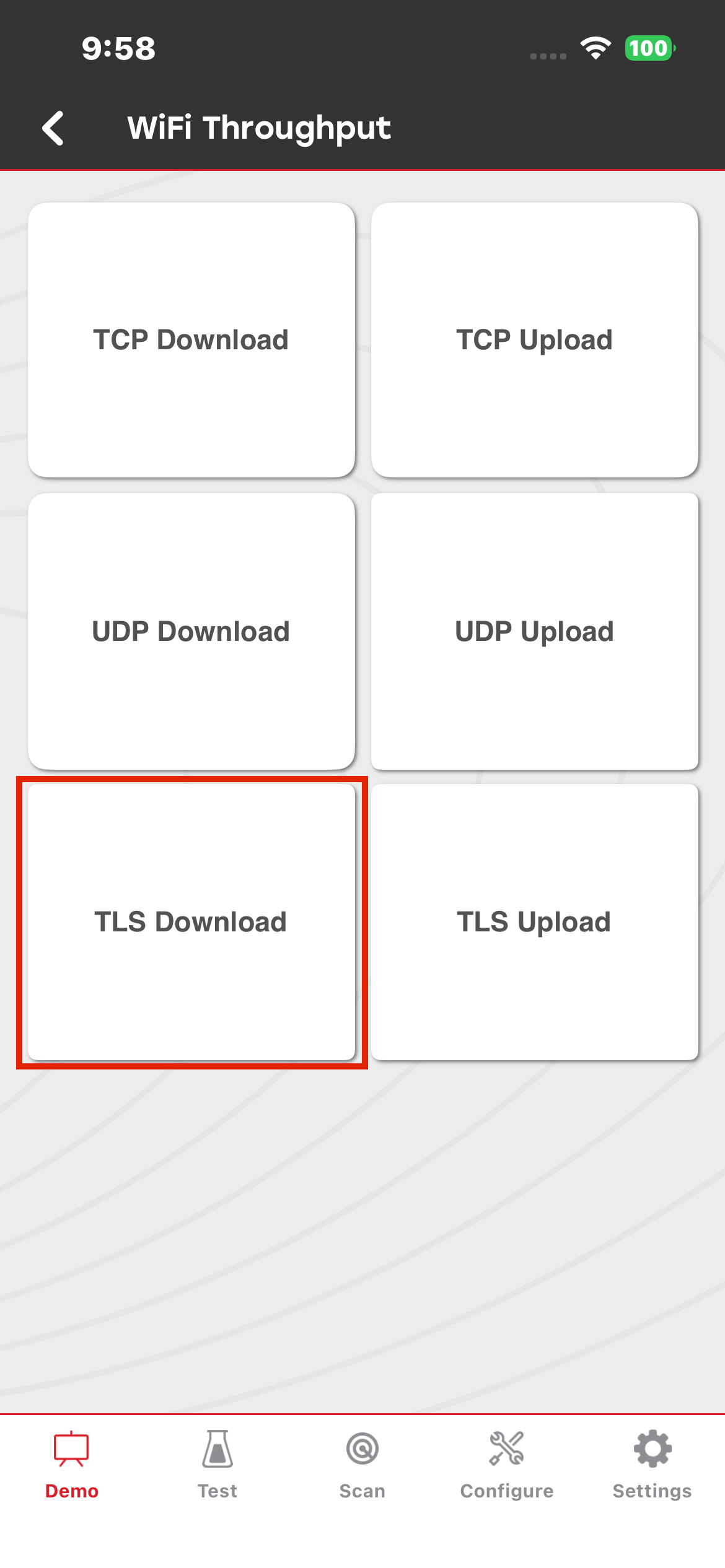
TLS Download: Securely sends data from the firmware to the mobile app over TCP, with TLS providing encryption for secure data transfer.
Wi-Fi Throughput Setup#
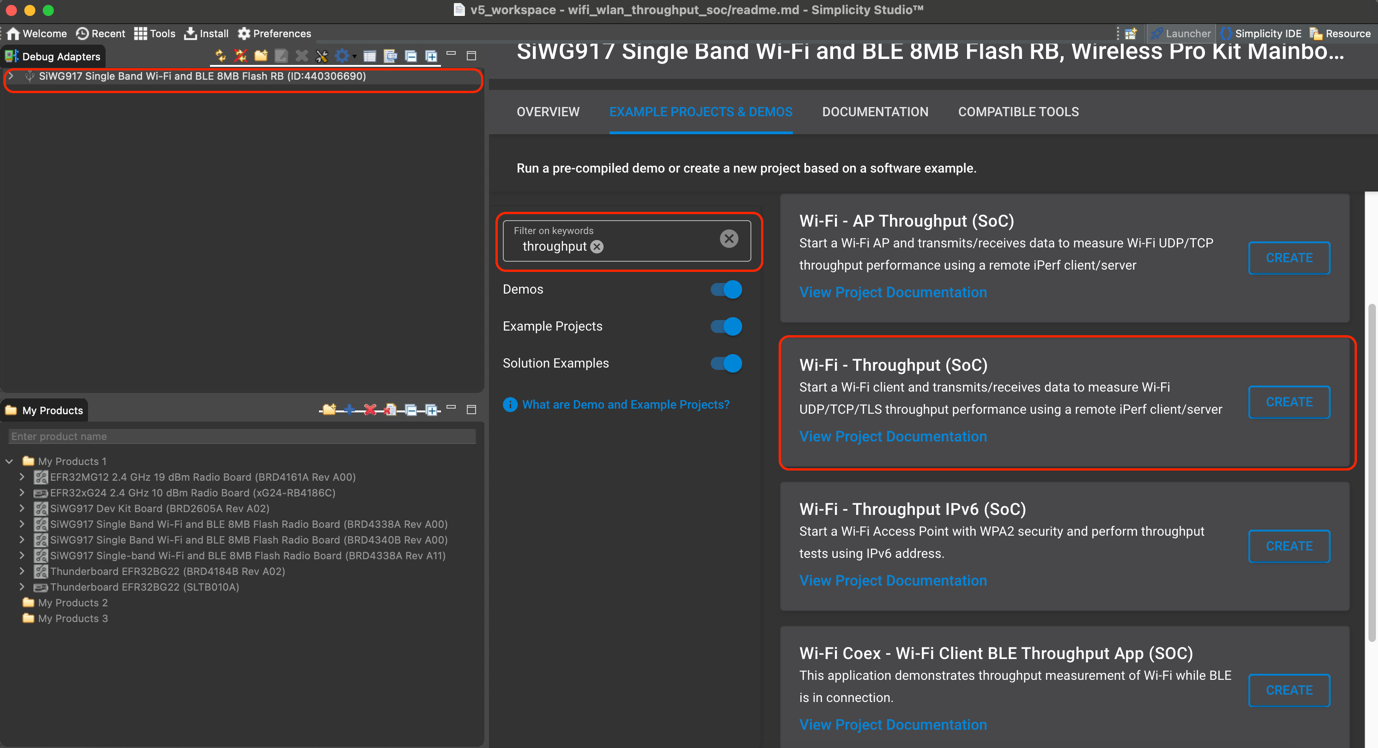
Download Simplicity Studio, and search for the Wi-Fi - Throughput (SoC) demo. Create or edit the project as shown in the following image.
TCP Setup: Application Build Environment#
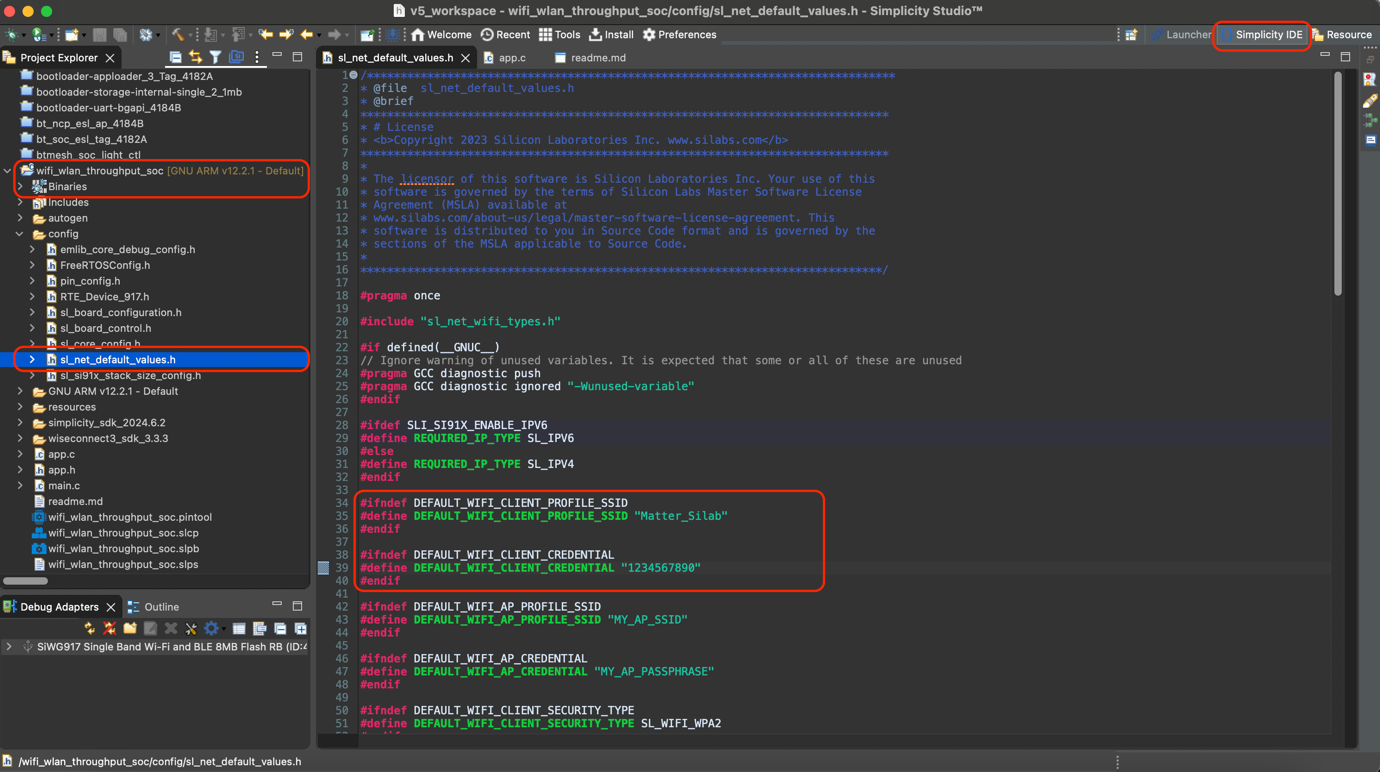
After you create the project, the demo workspace opens. You can find it under Simplicity IDE, as shown in the following image.
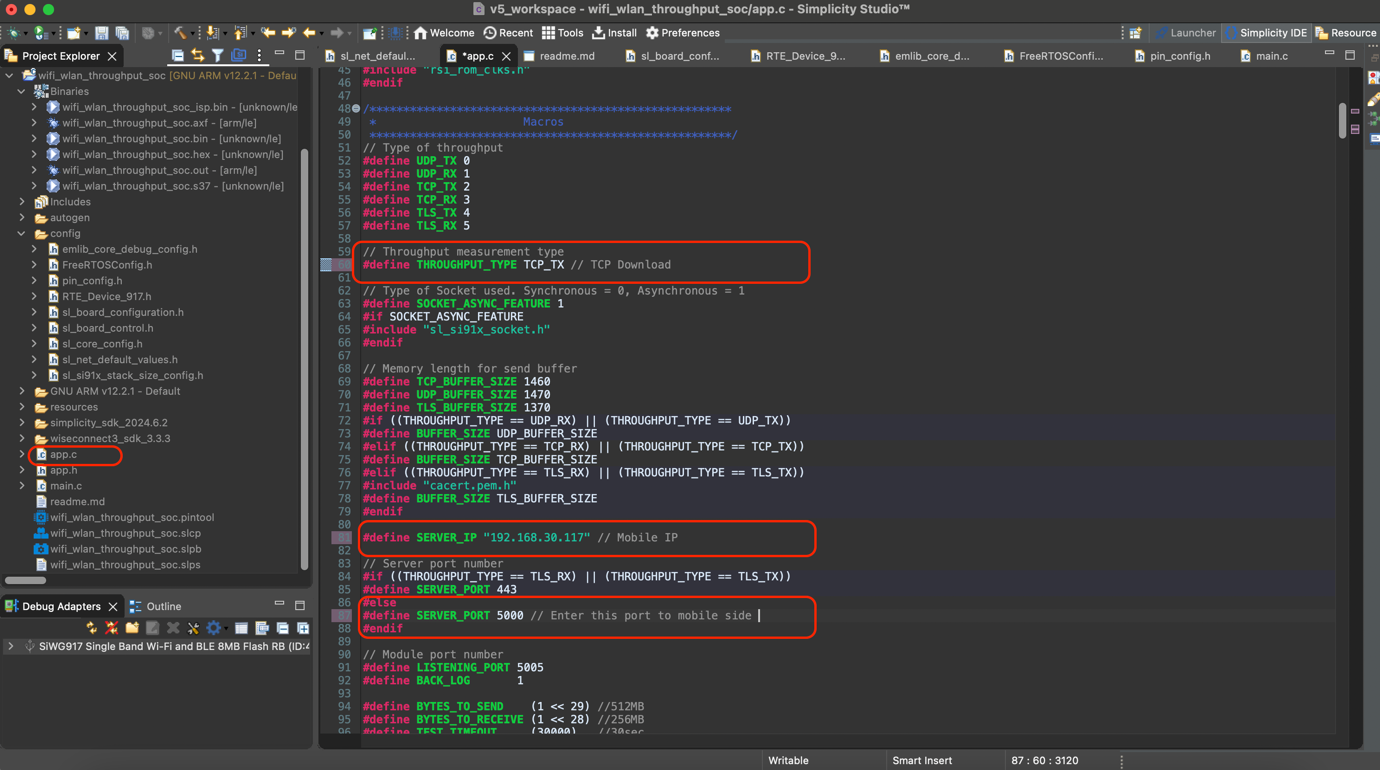
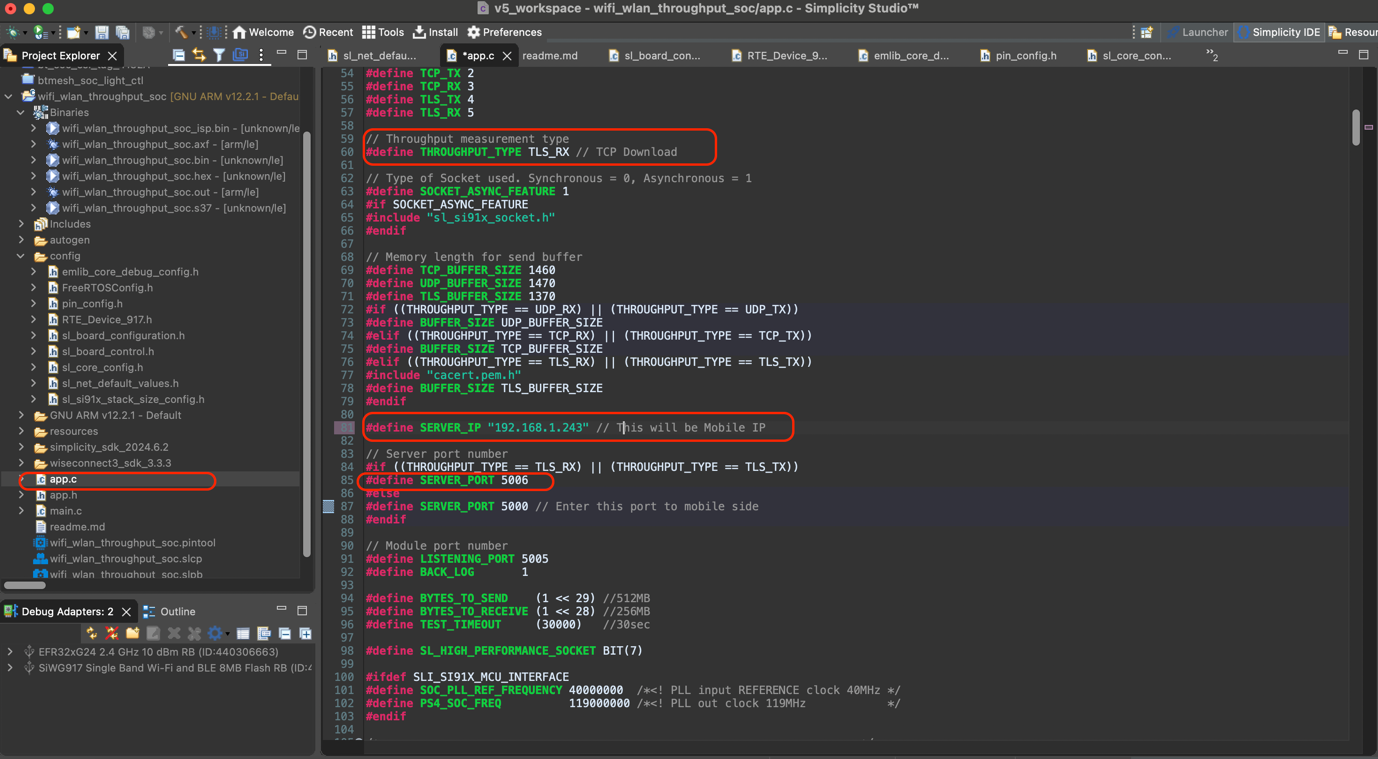
Configure the following parameters in app.c to test throughput as per requirements:
Throughput Measurement Types#
The application can be configured to measure throughput using UDP, TCP, or TLS packets. Select the desired measurement type using the THROUGHPUT_TYPE macro.
You can configure the application to measure throughput using UDP, TCP, or TLS packets. Select the measurement type by configuring the THROUGHPUT_TYPE macro.
For additional information, refer to the application Readme file.
App Setup and Use#
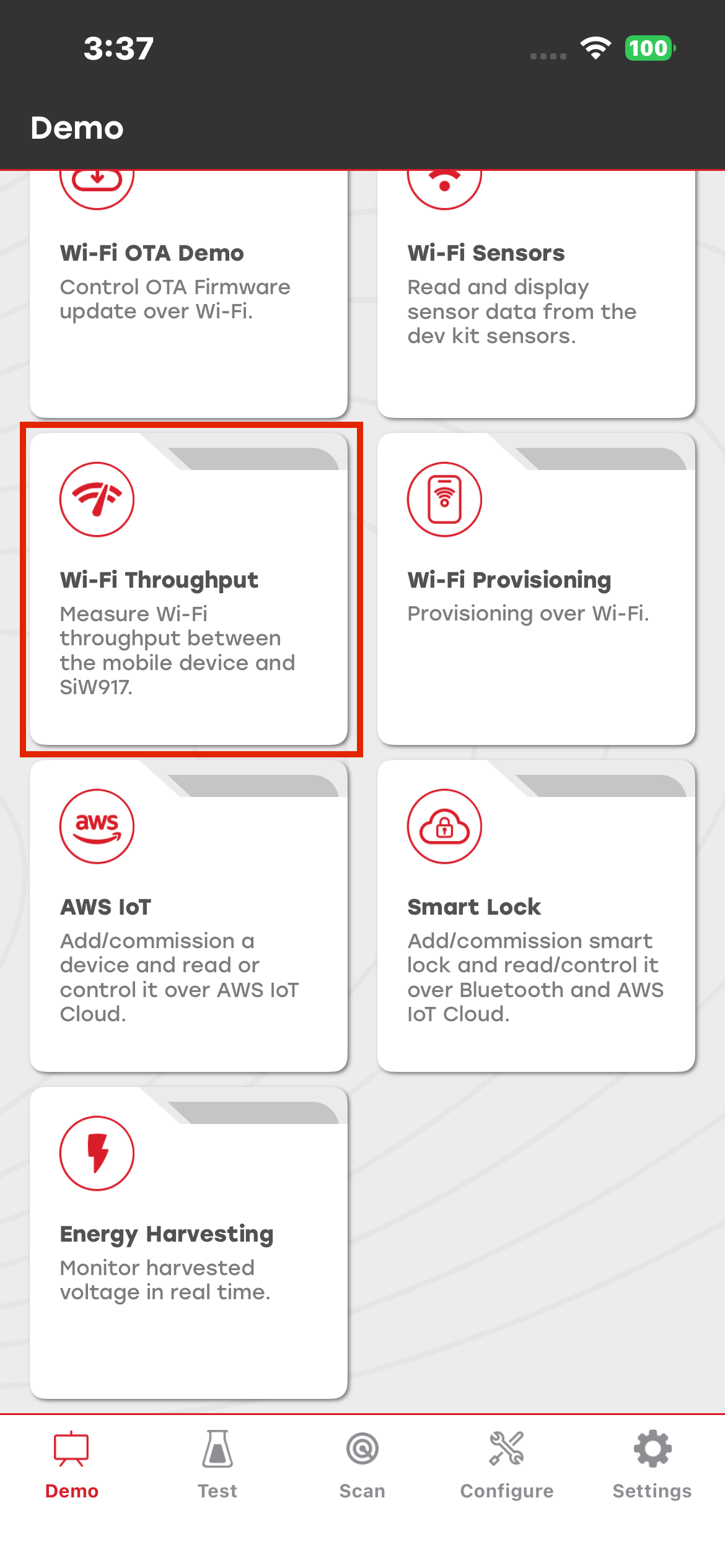
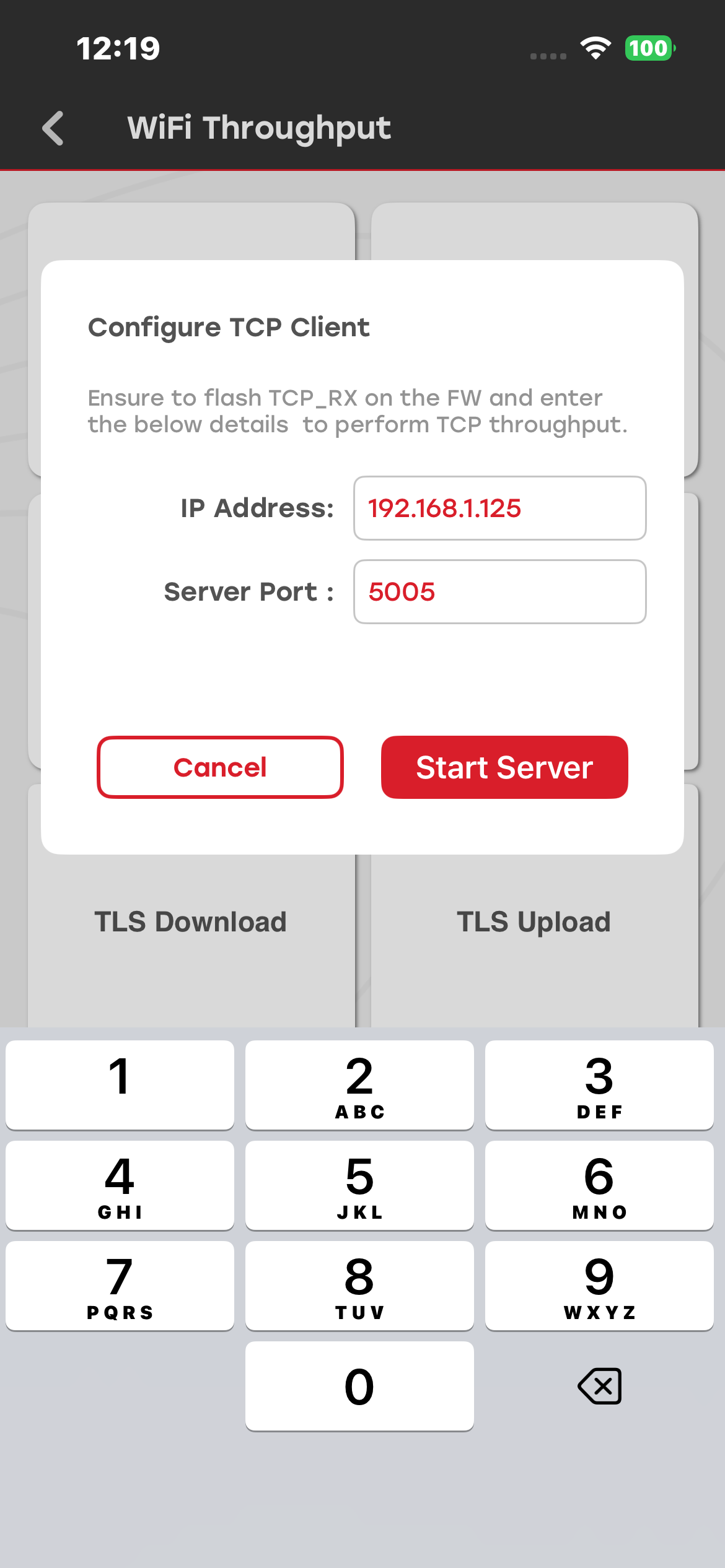
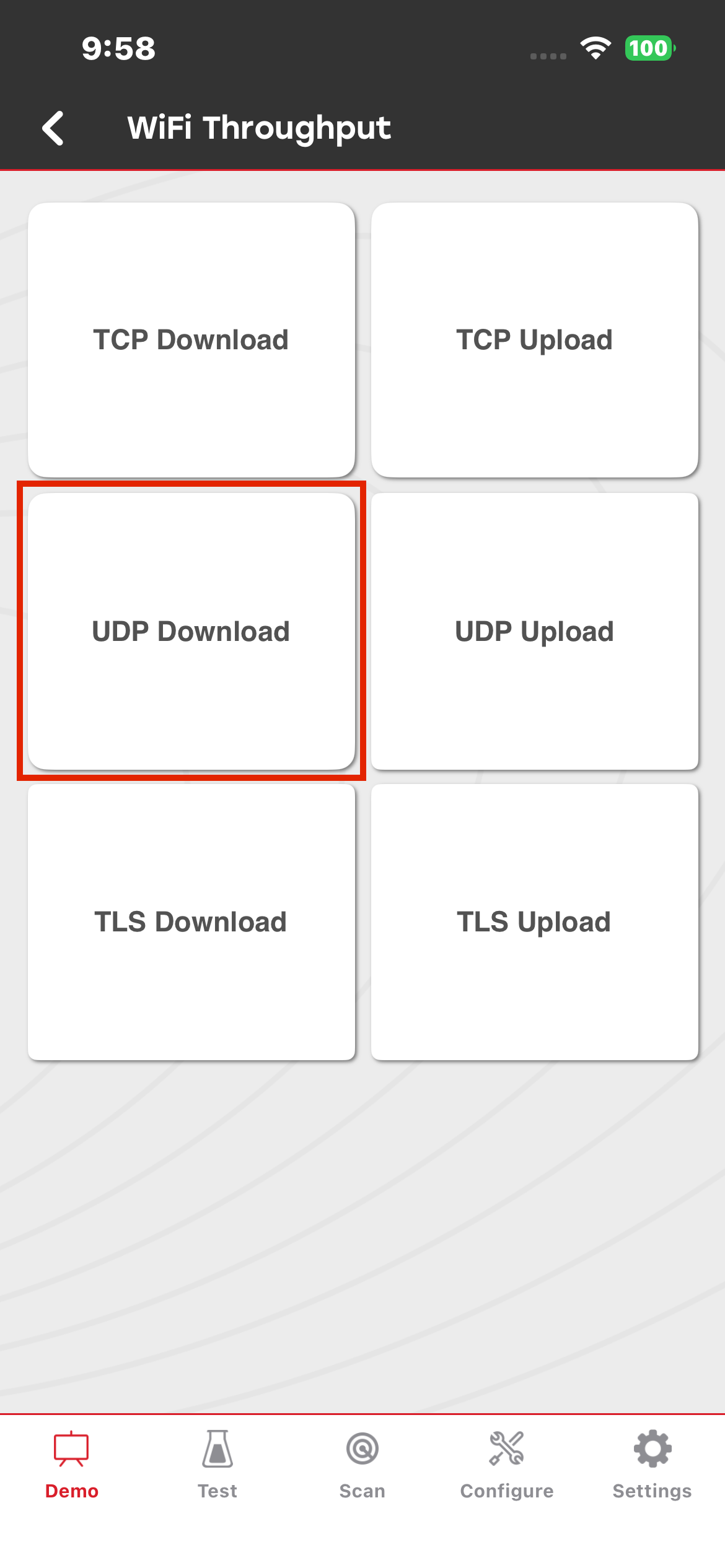
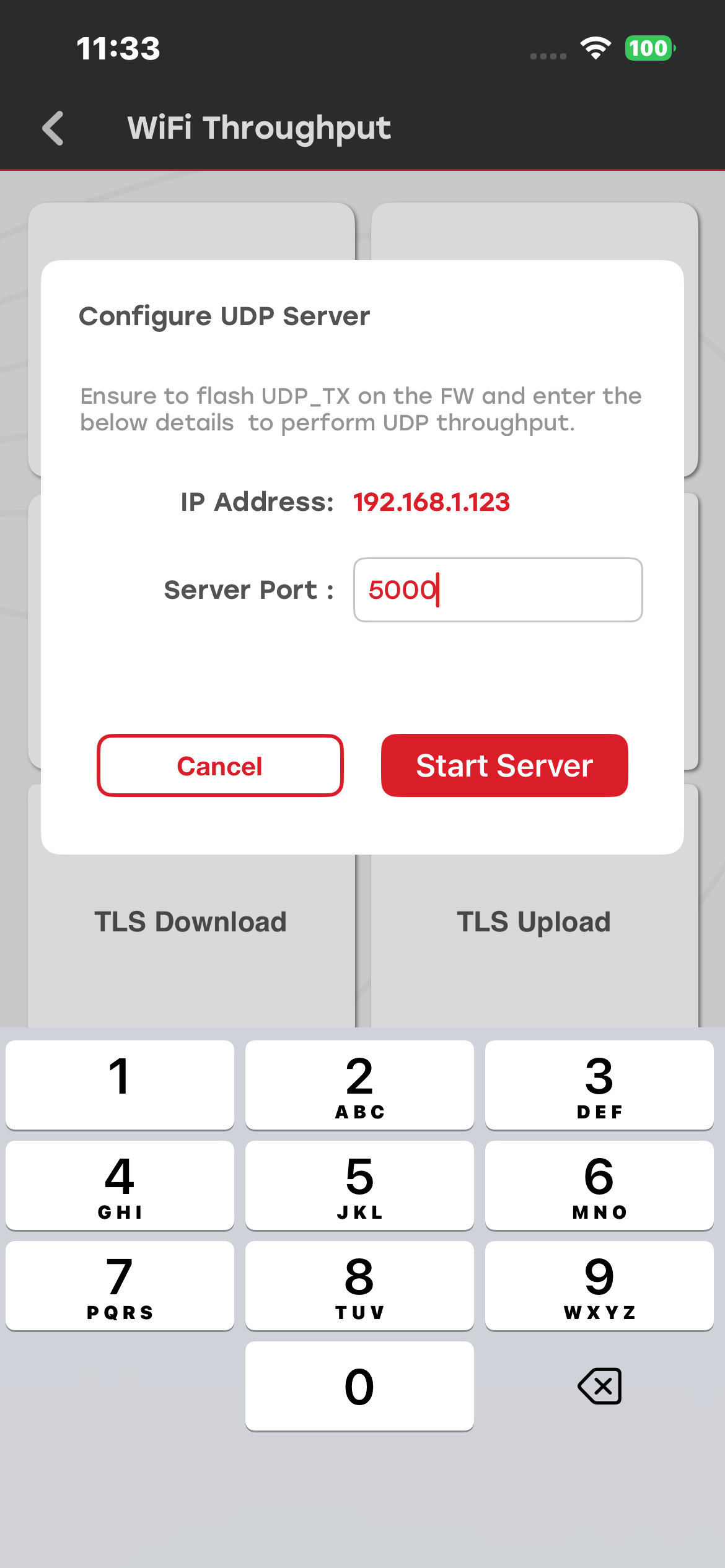
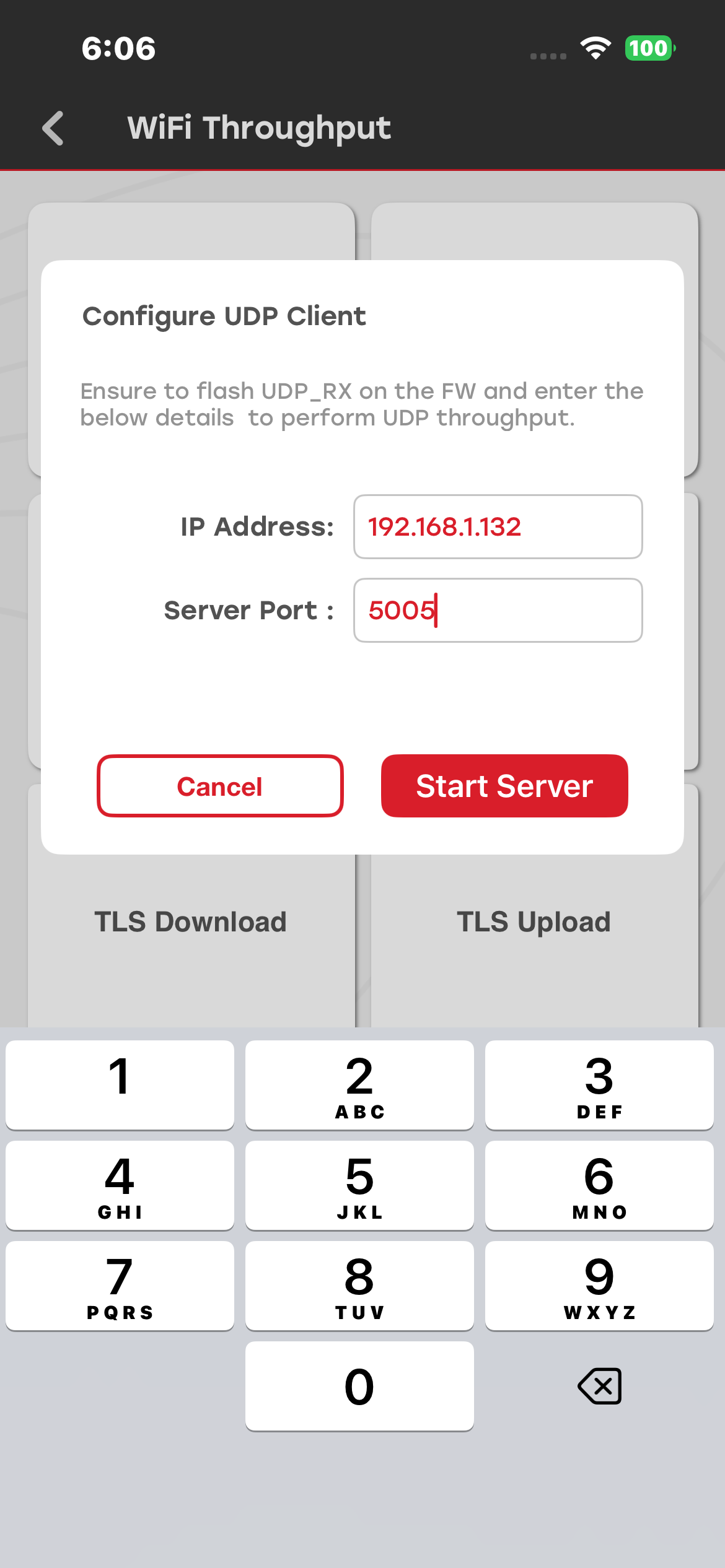
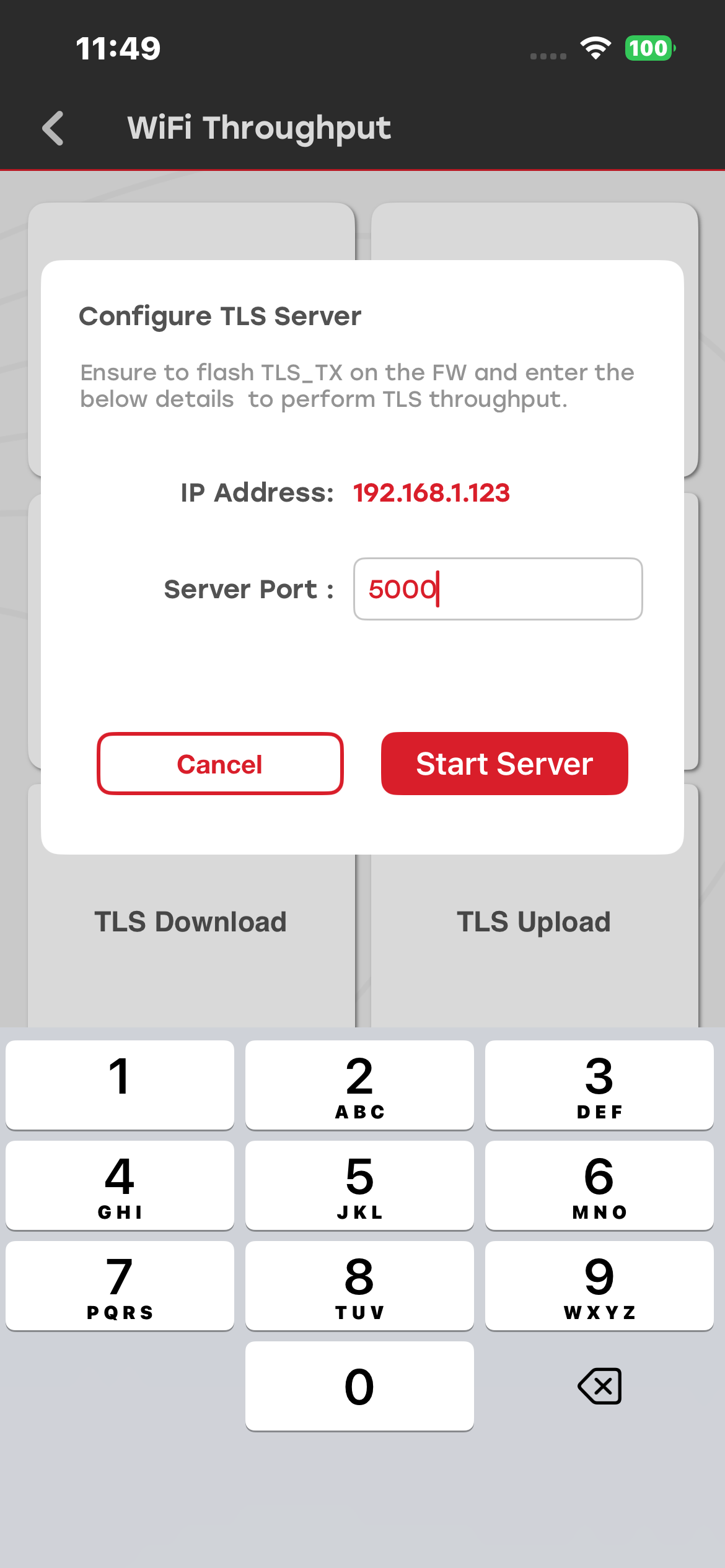
To measure Wi-Fi throughput, select Wi-Fi Throughput from the Demo section. Ensure that Wi-Fi is enabled to view all supported throughput demos. Enter the IP address and port number, and then select Start Server. To cancel the process, select Cancel.
The application validates the IP address to ensure that it does not exceed 15 characters and that the port number contains exactly four digits.
TCP Download#
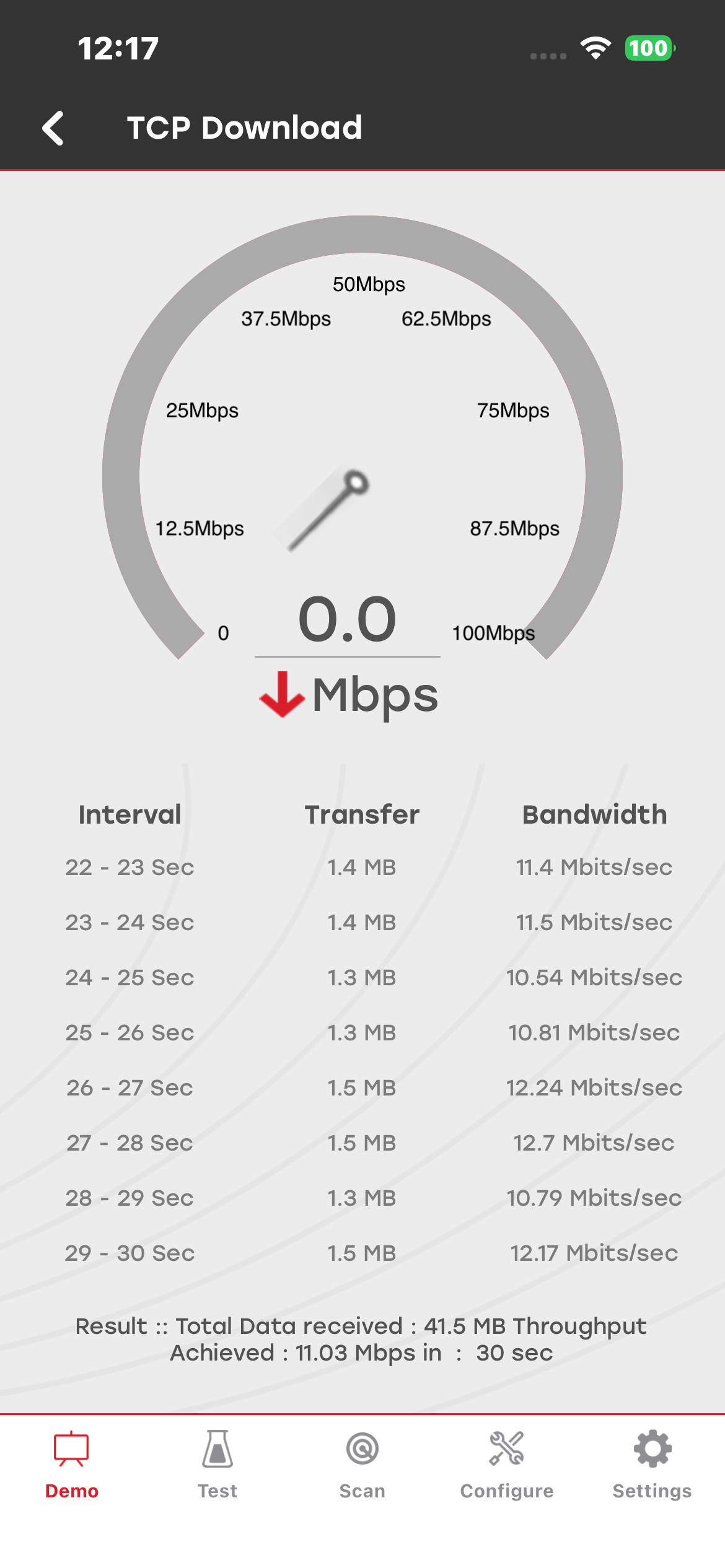
Select TCP Download, and enter the port number shown in the UART log.
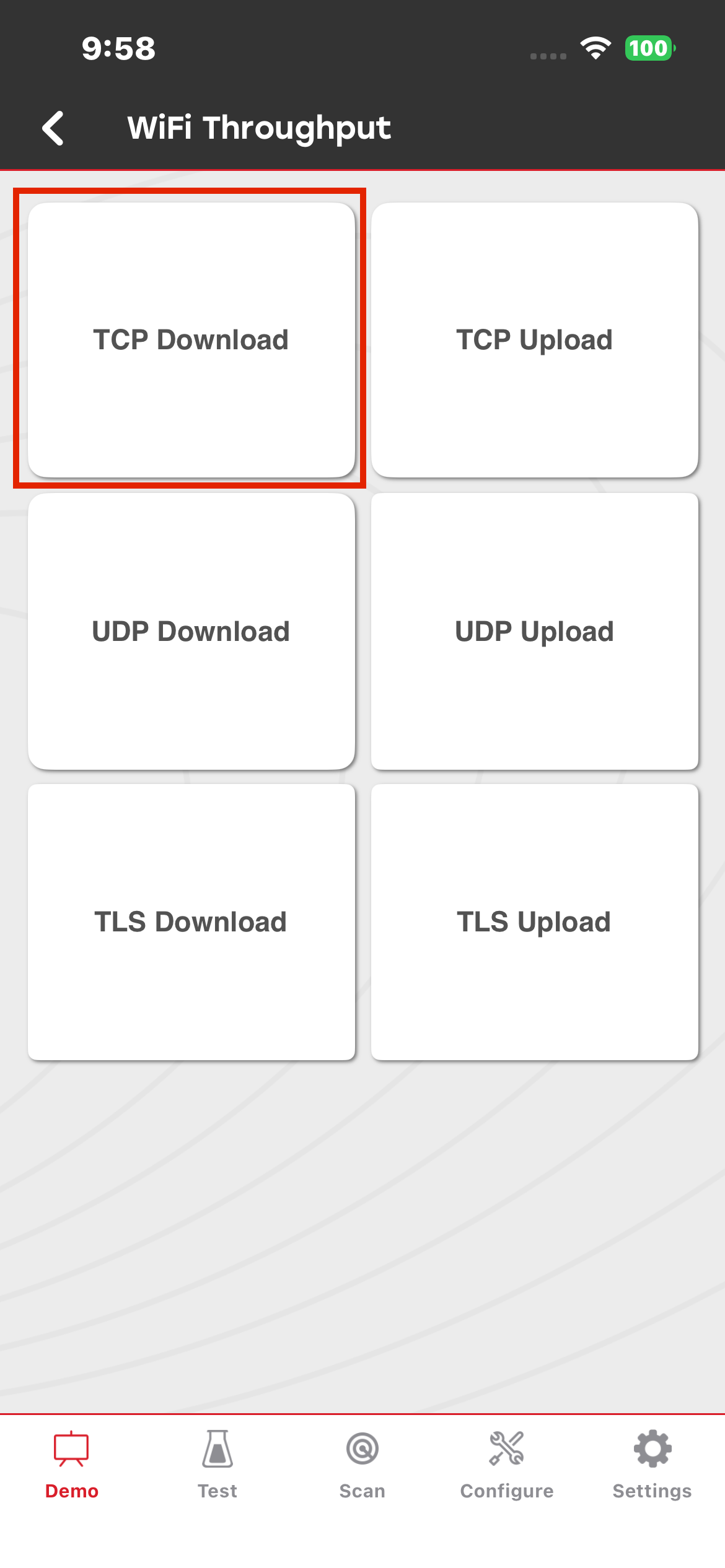
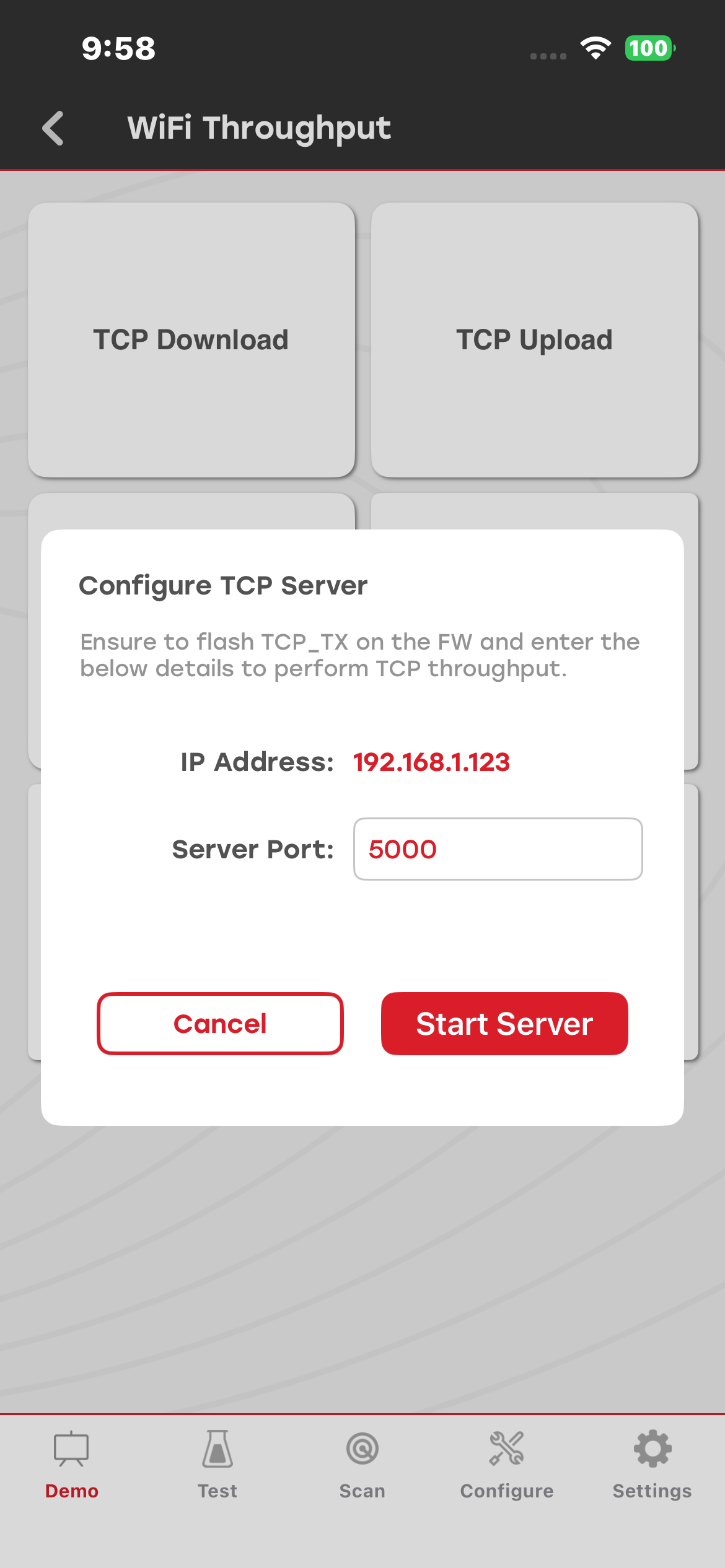
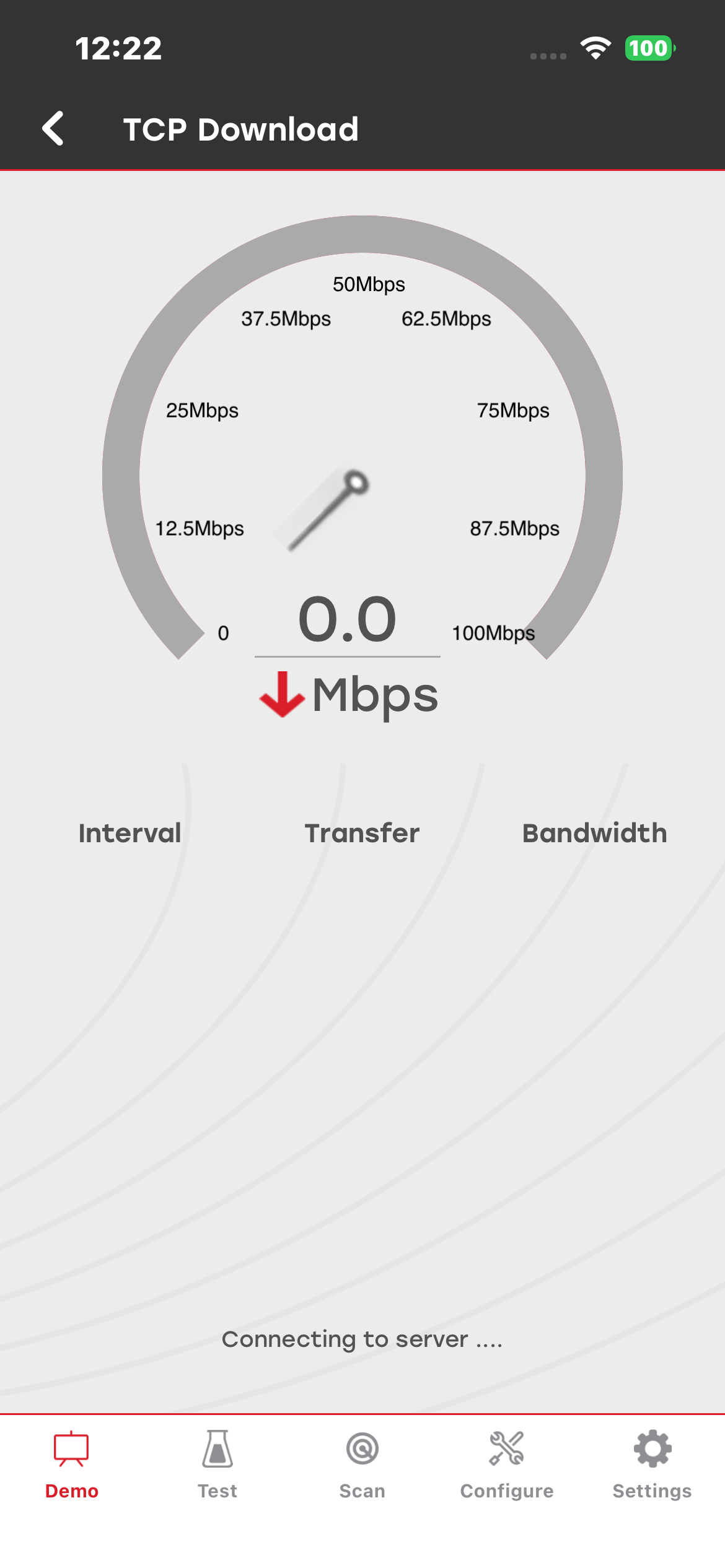
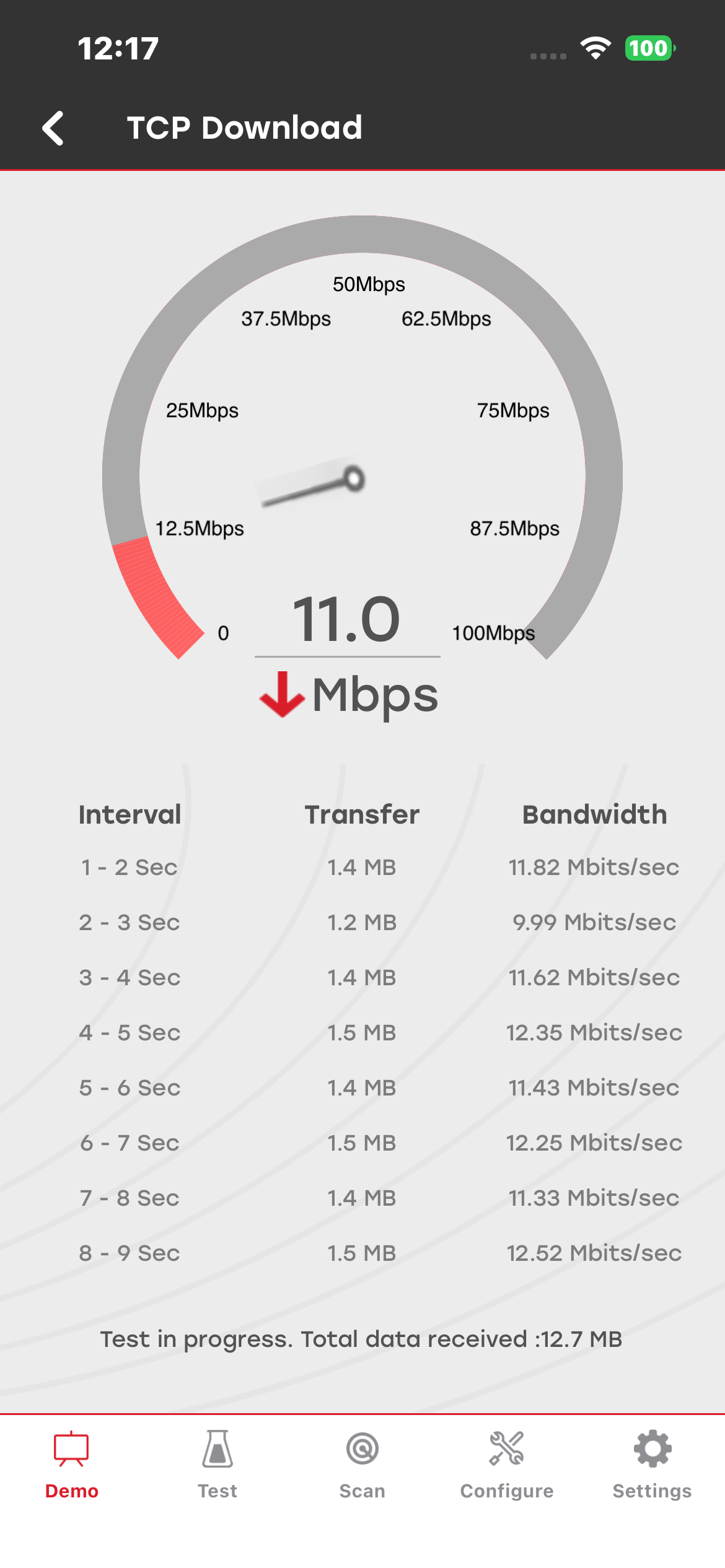
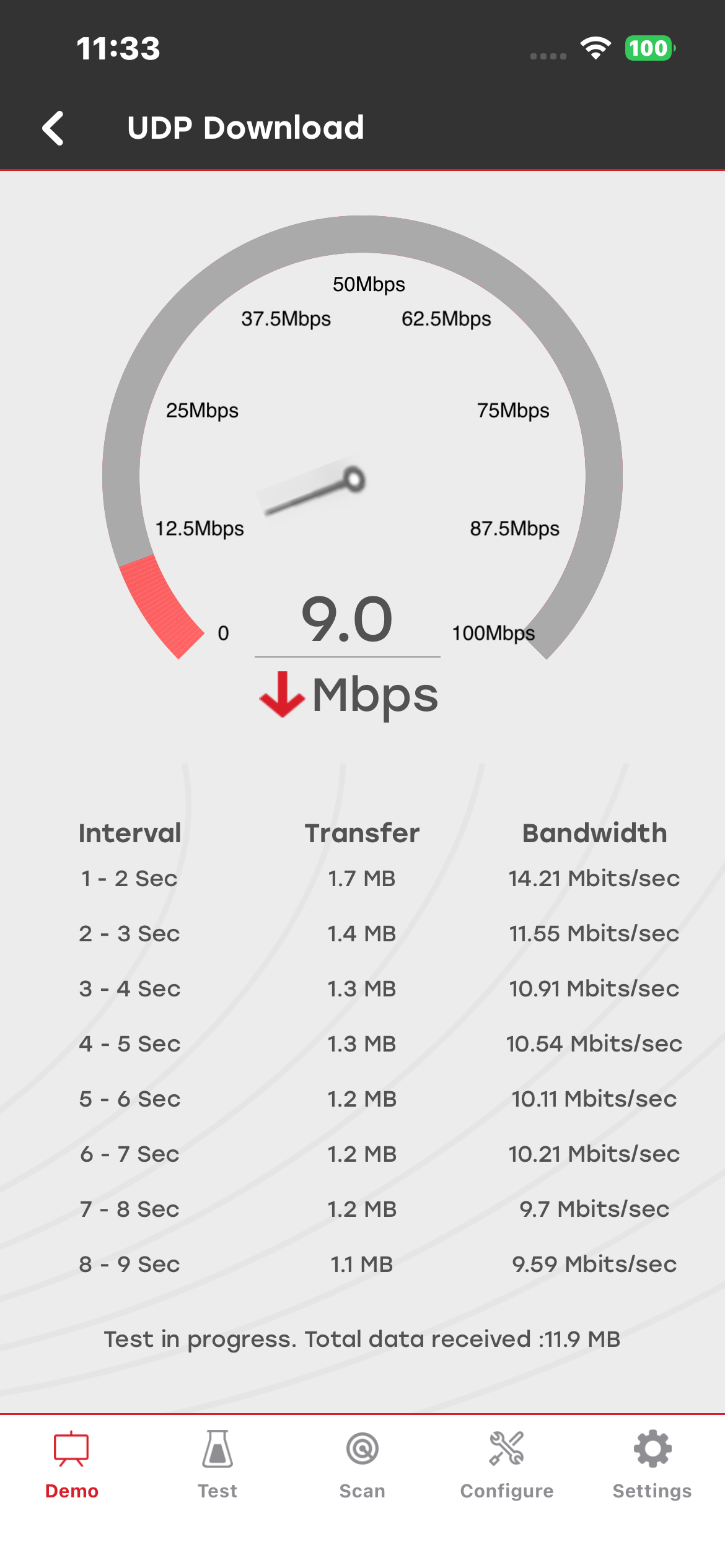
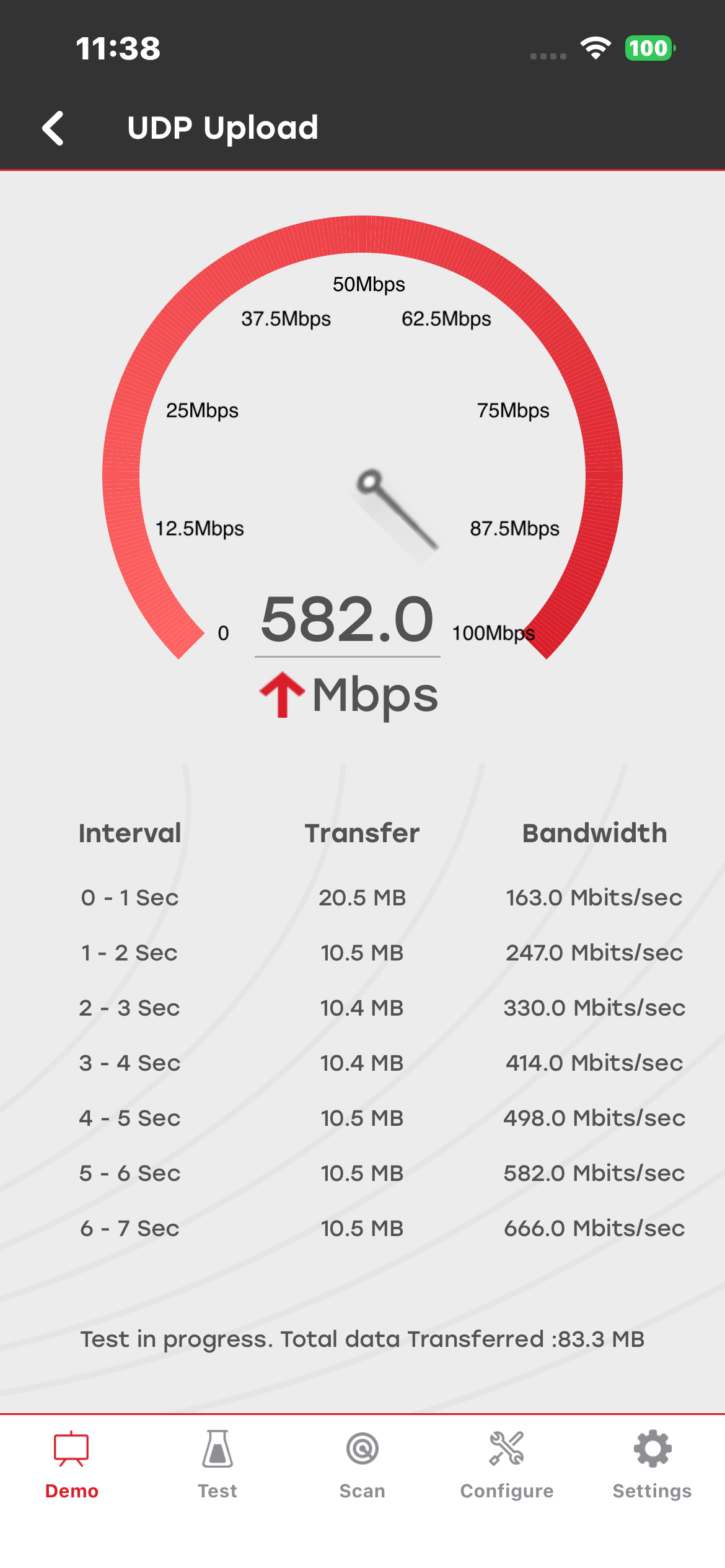
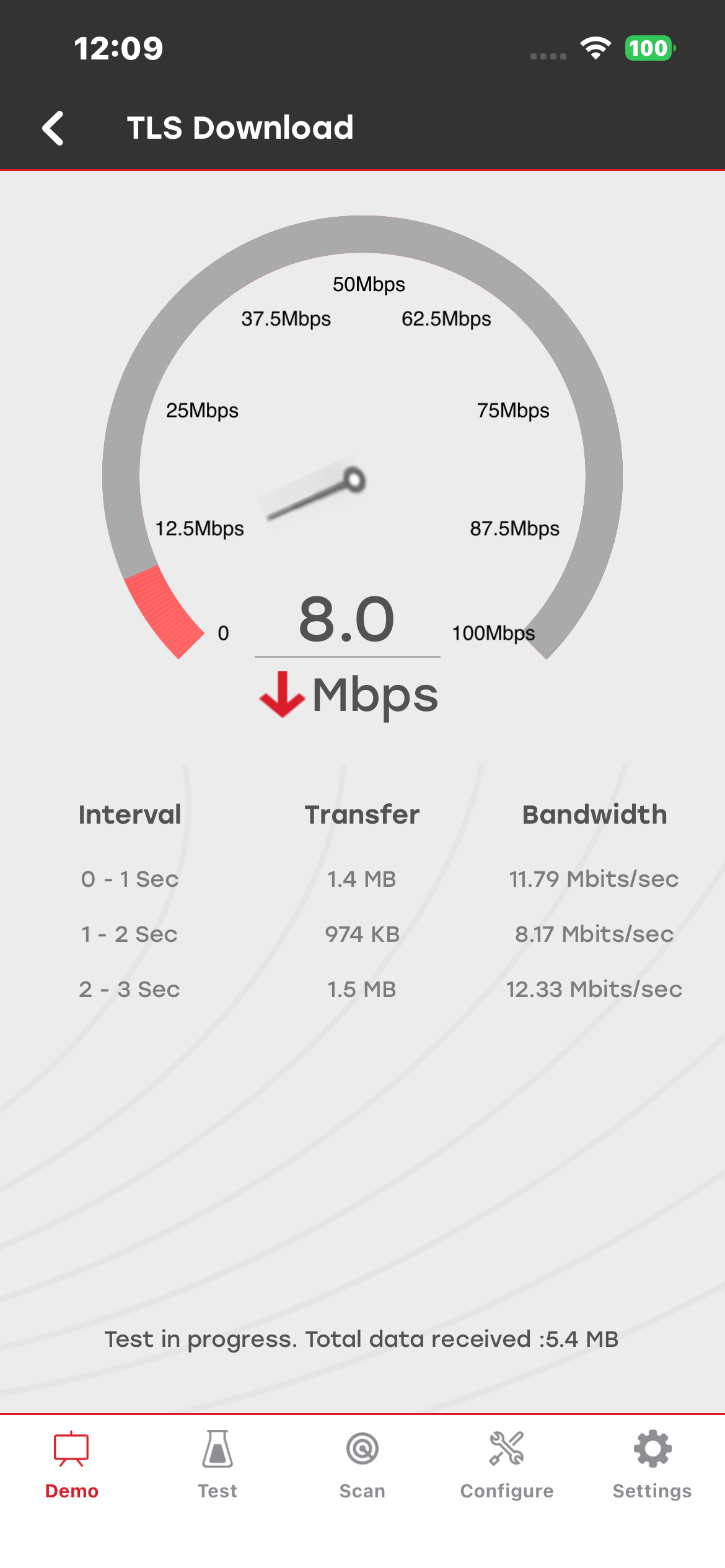
Press the reset button on the board to initiate the connection. After the connection is established, you can view the time interval, amount of data transferred in MB, and bandwidth in Mbps.
TCP Upload#
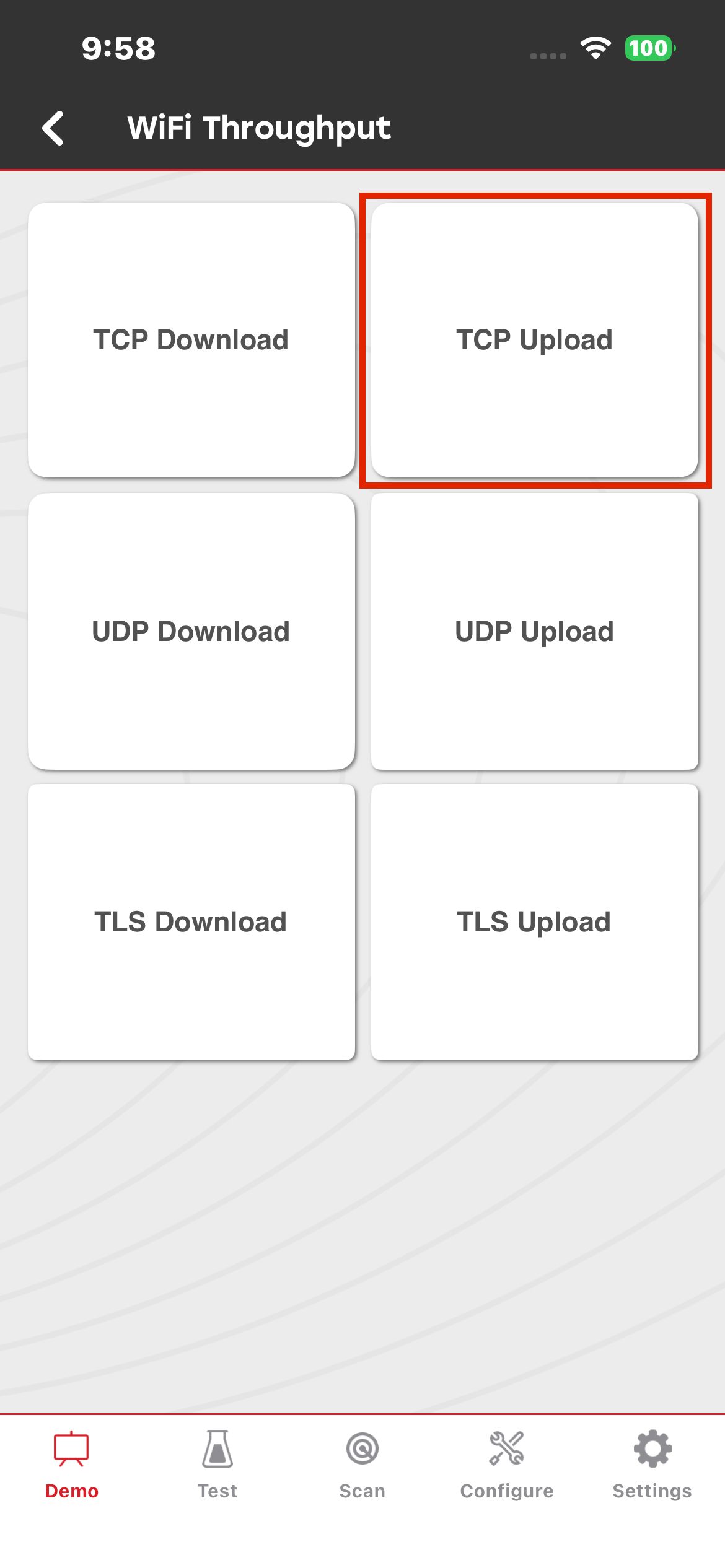
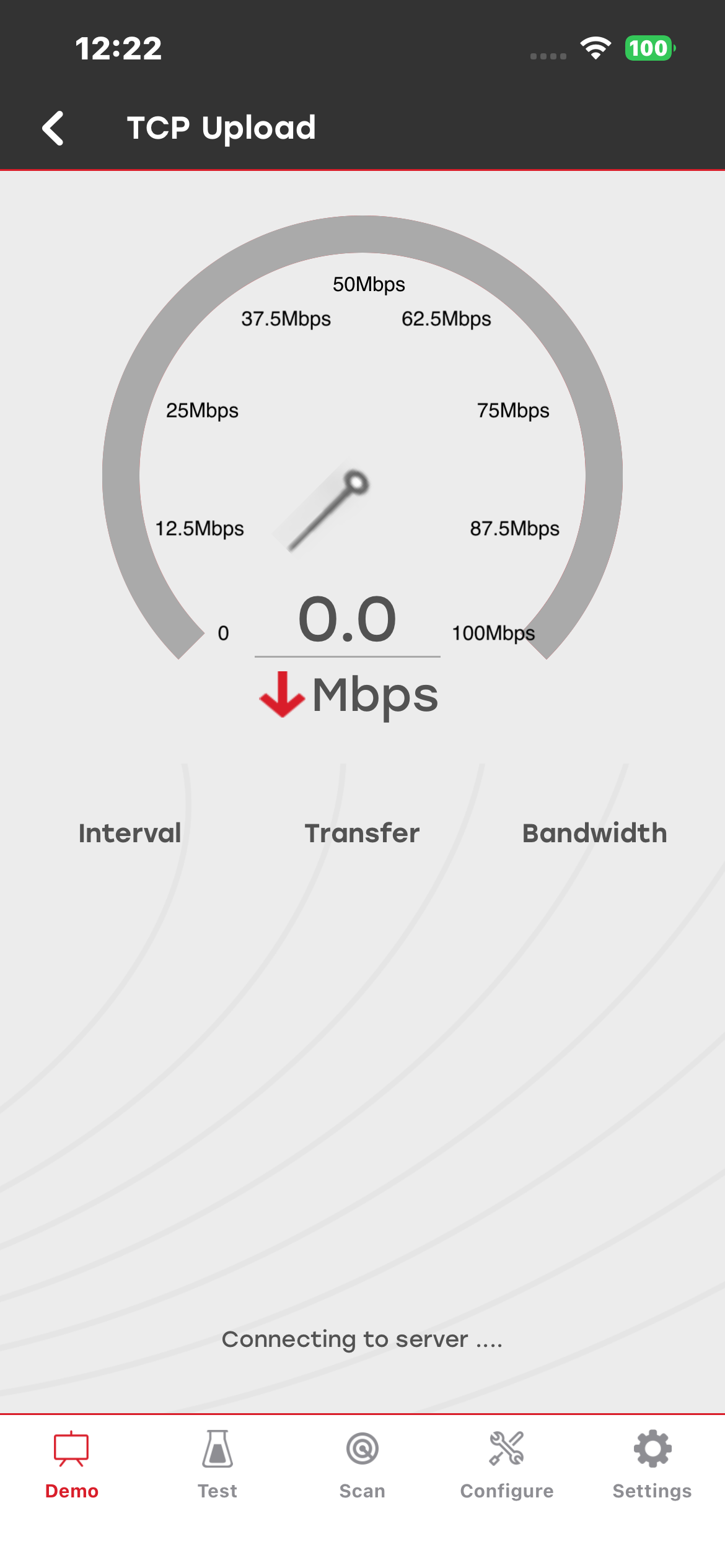
Select TCP Upload to view the desired results on the Wi-Fi Throughput Details screen.
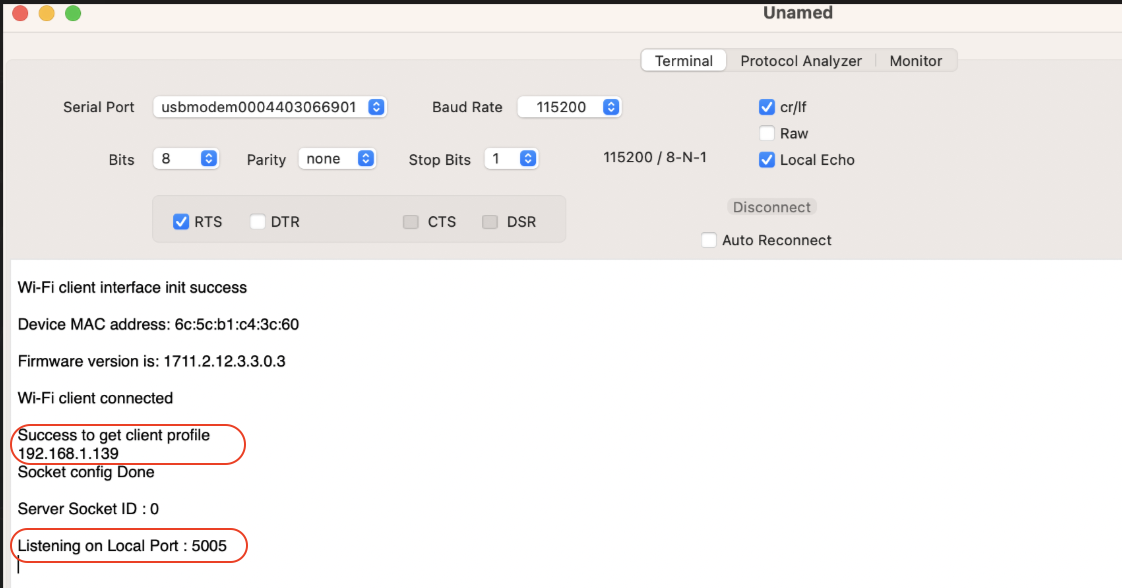
Enter the IP address and port number from the UART log in the mobile app.
UDP Download#
Select UDP Download, and enter the port number. You can use any valid port number, such as 5002 or 5003. Enter the port number in app.c, and then build the project and flash it to the board.
UDP Upload#
Select UDP Upload to view the desired results on the Wi-Fi Throughput Details screen.
Enter the IP address and port number from the UART log in the mobile app.
TLS Download#
For TLS upload and download, the mobile device acts as the server. Provide the IP address of the server and the port number associated with TLS. Update these values in app.c, and then build the project and flash it to the board.
TLS Upload#
Note:
Ensure that the correct firmware is flashed before starting the demo.
The final throughput is calculated as the average bandwidth achieved per second.